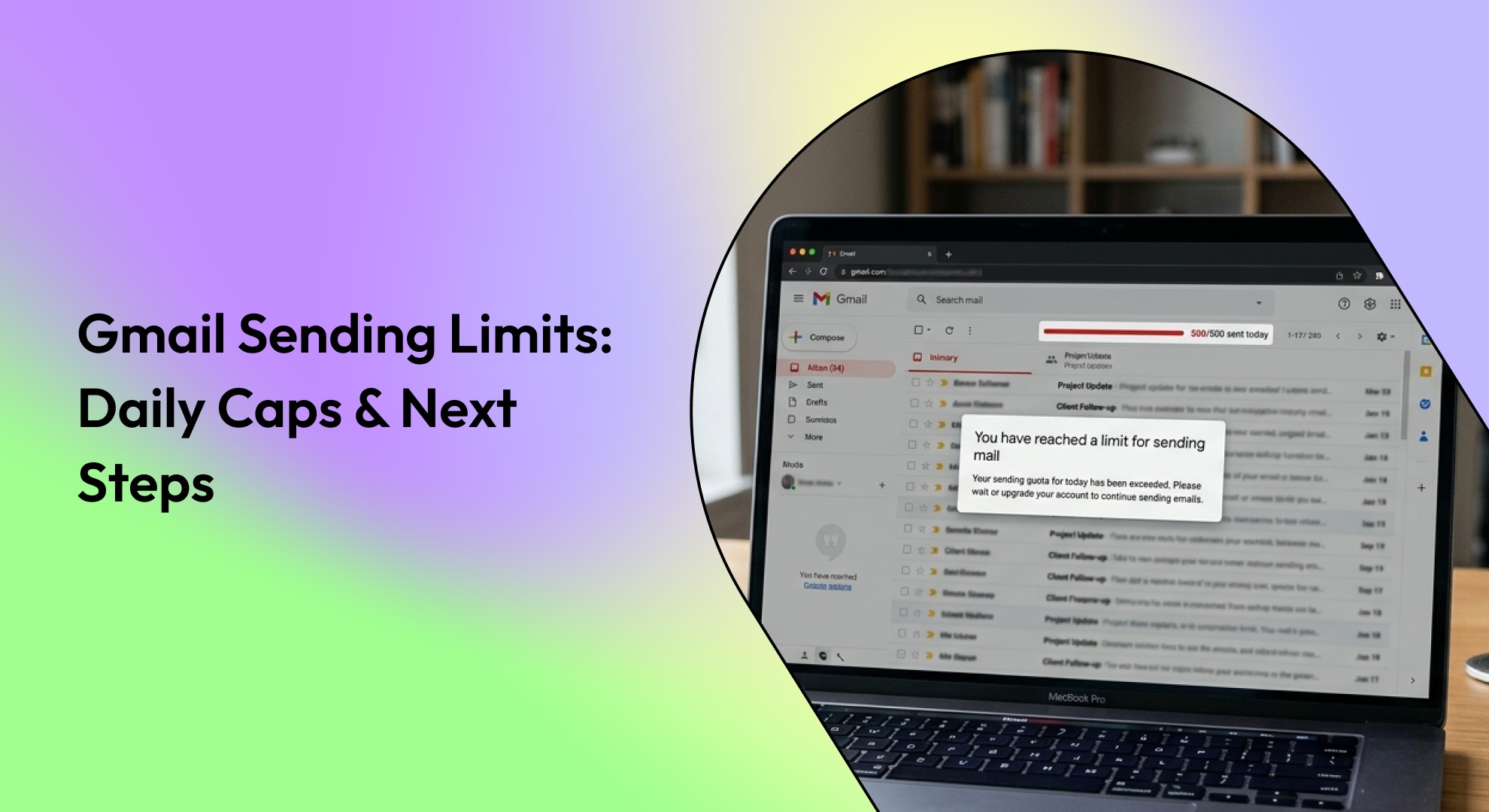
Find out the current Gmail email send limit, how recipient caps work, and what steps to take if you hit Gmail’s daily sending restriction.
If Gmail suddenly stops sending your messages, it usually is not a bug. It is a sending limit. Google places caps on the number of emails and recipients you can send within a set period to reduce spam and protect accounts. For most people, this only becomes visible when they send to a large group, use the same account for repeated outreach, or try to send too many messages too quickly.
This guide explains the current Gmail email send limit, how the limit works for personal Gmail versus Workspace, what happens when you hit it, and what to do next.
Key takeaways
Personal Gmail accounts are capped at 500 outgoing messages per day. You may see a sending-limit error after sending to more than 500 recipients in a single email or sending more than 500 emails in a day.
Work, school, and Workspace Individual accounts have a higher daily send limit for mail merge, up to 2,000 outgoing messages per day. Mail merge itself is capped at 1,500 recipients per day.
If you hit the limit, the restriction is temporary. You should usually be able to send again within 24 hours.
Cc and Bcc recipients count toward your sending limits. In mail merge, copied recipients also count toward the daily total.
If you regularly send large volumes, the real fix is not to keep pushing Gmail harder. It is to improve how you manage recipients, sending patterns, and inbox workflows.
What is the Gmail email send limit?
The Gmail email send limit is the maximum number of emails or recipients that Google allows an account to send within a given period. Google enforces these limits to reduce spam, prevent abuse, and protect account health. Personal Gmail users may see a sending-limit error after sending to more than 500 recipients in one email or after sending more than 500 emails in a day.
For mail merge, Google states that standard Gmail accounts have a daily send limit of 500 outgoing messages, while work, school, and Workspace Individual accounts have a daily send limit of 2,000 outgoing messages. Mail merge itself is limited to 1,500 recipients per day.
Also read: What Does Queued Mean in Emails?
Gmail send limits for personal Gmail vs. Google Workspace
The most important distinction is the type of account you are using.
Account type | Daily send limit | Notes |
Personal Gmail | Up to 500 emails per day | This includes all outgoing emails. Sending to a large number of recipients at once can quickly trigger limits. |
Google Workspace (work, school, or individual plans) | Up to 2,000 emails per day | Higher limits apply to paid or organizational accounts, but they still include all messages sent across the day. |
Mail merge (Workspace accounts) | Up to 1,500 recipients per day | This limit applies specifically to mail merge campaigns and counts toward the overall daily sending cap. |
This is why many users get confused. They may read a 500-email limit in one place and a 2,000-email limit in another, but those numbers apply to different account types and sending methods.
How does Gmail count sends and recipients?
A sending limit is not just about the number of emails you click “send” on. Google counts recipients, too.
For personal Gmail, you can hit the sending limit error if you send to more than 500 recipients in a single email. For mail merge, Cc and Bcc recipients count toward the daily total, and one copied address on a message sent to many recipients can consume a large part of your quota.
That means you can reach the limit faster than expected if you:
send one email to a large list,
include copied recipients on bulk sends,
or combine regular emails with mail merge sends on the same day.
Why do users hit the limit faster than expected?
Most people do not hit Gmail’s send cap by accident during normal one-to-one communication. The limit usually shows up when email behavior starts to look more like bulk sending. Common reasons include:
sending one message to a large distribution list,
using Gmail for newsletter-style outreach,
sending repeated follow-ups to many contacts,
using mail merge without watching the quota,
or adding copied recipients that quietly increase the total.
Google’s sender guidelines also make it clear that high-volume senders must meet stricter requirements for authentication and spam rates, especially if they send more than 5,000 messages per day to Gmail accounts. That is well beyond normal Gmail use and points to a bigger issue: Gmail is not meant to be your bulk email engine.
Also read: Manage Multiple Gmail Accounts in One Inbox Effortlessly
What happens when you hit the Gmail send limit?
When you exceed the allowed threshold, Gmail can temporarily block outgoing messages. You may see the message “You have reached a limit for sending mail.” When that happens, you should generally be able to send again within 1 to 24 hours.
You may also see delivery failures or queued messages if Gmail starts restricting sends. In practice, that means:
new emails may not go out,
automated workflows can fail,
and time-sensitive messages may be delayed until the limit resets.
How to avoid hitting the Gmail email send limit?
Avoiding Gmail’s send limit starts with understanding what counts toward it and how quickly recipient volume can add up. A few simple habits can help prevent unnecessary blocks and delays. These include:
Keep list sizes under control
If you often send to large groups, split the list and avoid putting too many recipients in one message. For personal Gmail, Google explicitly warns against sending more than 500 recipients in a single email.
Watch mail merge usage carefully
Mail merge is useful, but it still consumes your sending quota. Google says standard Gmail accounts stay capped at 500 outgoing messages per day, while eligible Workspace accounts can go higher, with mail merge itself capped at 1,500 recipients per day.
Be careful with Cc and Bcc
Copied recipients count. In mail merge, Google notes that adding one Bcc address to a large send can quickly multiply your usage.
Do not use Gmail like a newsletter platform
If you need regular high-volume campaigns, use a proper bulk-sending setup that meets authentication and sender requirements. Google’s sender guidelines for high-volume mailers call for SPF, DKIM, DMARC, low spam rates, and one-click unsubscribe support in many cases.
What to do if you have already hit the limit?
If Gmail has already blocked your sends, the first step is simple: stop trying to resend the same message repeatedly. The restriction is temporary, and you should usually be able to send again within 1 to 24 hours.
Then take these steps:
Wait for the reset window. Do not keep forcing more sends.
Review how many recipients were on your last few messages. Large recipient counts are a common trigger.
Check whether Cc or Bcc inflated your total. These count too.
Reduce volume the next time. Split lists, stagger sends, and avoid bulk-style behavior from a normal Gmail account.
Also read: How to Manage Spam Emails in Gmail
Common mistakes to avoid
Many Gmail send-limit issues stem from a few avoidable mistakes. Knowing where users usually go wrong can help you stay within the limit and avoid unnecessary sending blocks.
Assuming the limit only counts emails, not recipients - Recipient counts matter too, especially in large-group sends and mail merge.
Confusing personal Gmail with Workspace limits - The published limits differ by account type, so using the wrong number leads to bad assumptions.
Using Cc or Bcc carelessly on large sends - These count toward the quota and can consume your daily limit much faster than expected.
Treating Gmail like a bulk email platform - Google’s sender rules show that larger-scale sending has stricter requirements and is not what a standard Gmail workflow is built for.
Trying again immediately after hitting the cap - Google says the restriction is temporary, and repeated retries usually do not help before the reset window passes.
When Gmail's send limits start to expose bigger inbox problems
Hitting Gmail’s send limit is often a symptom of a bigger issue, not just a sending cap. It usually happens when too much email work is still handled manually, whether that means sending repeated follow-ups, replying to the same message types repeatedly, or spending too much time coordinating meetings and next steps through long email threads.
For busy professionals, the real pain is not only that Gmail stops sending for a while. The inbox has already become harder to manage than it should be. Important emails get mixed in with lower-value ones, routine replies keep eating up time, and simple coordination creates more back-and-forth than necessary.
That is where NewMail fits naturally. NewMail is an AI inbox assistant for Gmail and Outlook that helps busy professionals manage email faster while keeping trust central by handling email privacy-first, offering no email storage, and giving users tight control over context. Instead of pushing users to send more emails, it helps reduce unnecessary email work in the first place.
For high-volume inboxes, that means:
prioritization helps surface the messages that actually need attention first
smart drafts reduce the time spent writing the same kinds of replies repeatedly
scheduling support cuts down on avoidable back-and-forth emails
daily briefings make it easier to review what matters without constant inbox scanning
If Gmail sending limits are becoming a recurring issue, the answer is not just to watch the quota more closely. It is to create a cleaner, more efficient inbox workflow. NewMail helps do exactly that by reducing repetitive email work, improving reply efficiency, and making high-volume inboxes easier to manage.

Conclusion
The Gmail email send limit is easy to miss until it suddenly interrupts your workflow. For personal Gmail, Google limits messages to 500 per day and warns about sending to more than 500 recipients in one email. Eligible Workspace accounts can go higher in some cases, but those limits still do not make Gmail a true bulk-sending platform.
The practical fix is twofold: understand the limit itself and reduce the inbox chaos that makes unnecessary sending more likely. NewMail helps with the second part by making Gmail and Outlook workflows more structured through prioritization, smarter drafting, scheduling support, and daily briefings.
If your inbox is creating too much repeated sending, too many manual follow-ups, or too much coordination overhead, NewMail is worth exploring. It helps you spend less time pushing email around and more time moving work forward.
FAQs
1. Can I increase Gmail’s send limit manually?
No. Gmail’s sending limits are set by Google and cannot be increased manually from your account settings. If you regularly need to send more than your account allows, the better solution is to change the way those emails are handled rather than trying to override the cap.
2. Does replying in the same thread count toward Gmail’s sending limit?
Yes. Gmail’s limit applies to outgoing messages, not just brand-new emails. That means replies, follow-ups, and messages sent within existing threads can all contribute to your daily total.
3. Can shared inbox activity make it easier to hit the limit?
Yes. If multiple people rely on a single Gmail account for frequent replies, follow-ups, or coordination, the account can hit its send cap sooner than expected. This is especially common when one inbox is being used for team communication without a clear workflow for managing volume.
4. Is it better to spread sending across the day?
Yes, in many cases. Sending too many messages in a short period can make your activity look like bulk sending, even if the total volume remains within normal use. Spreading replies more naturally across the day can help reduce that risk.
5. What is the safest way to handle repeated replies without creating more send-limit issues?
The safest approach is to reduce unnecessary manual email volume. That means using smarter drafting, cleaner prioritization, and better follow-up handling so you are not resending the same kinds of messages or creating extra email traffic that could have been avoided.
6. What should I do if my work depends on frequent Gmail replies every day?
If frequent replies are part of your daily workflow, focus on making the inbox more efficient rather than simply sending more messages. A better system for prioritizing, drafting, and managing conversations can reduce unnecessary reply volume and help you stay within Gmail’s limits more consistently.
