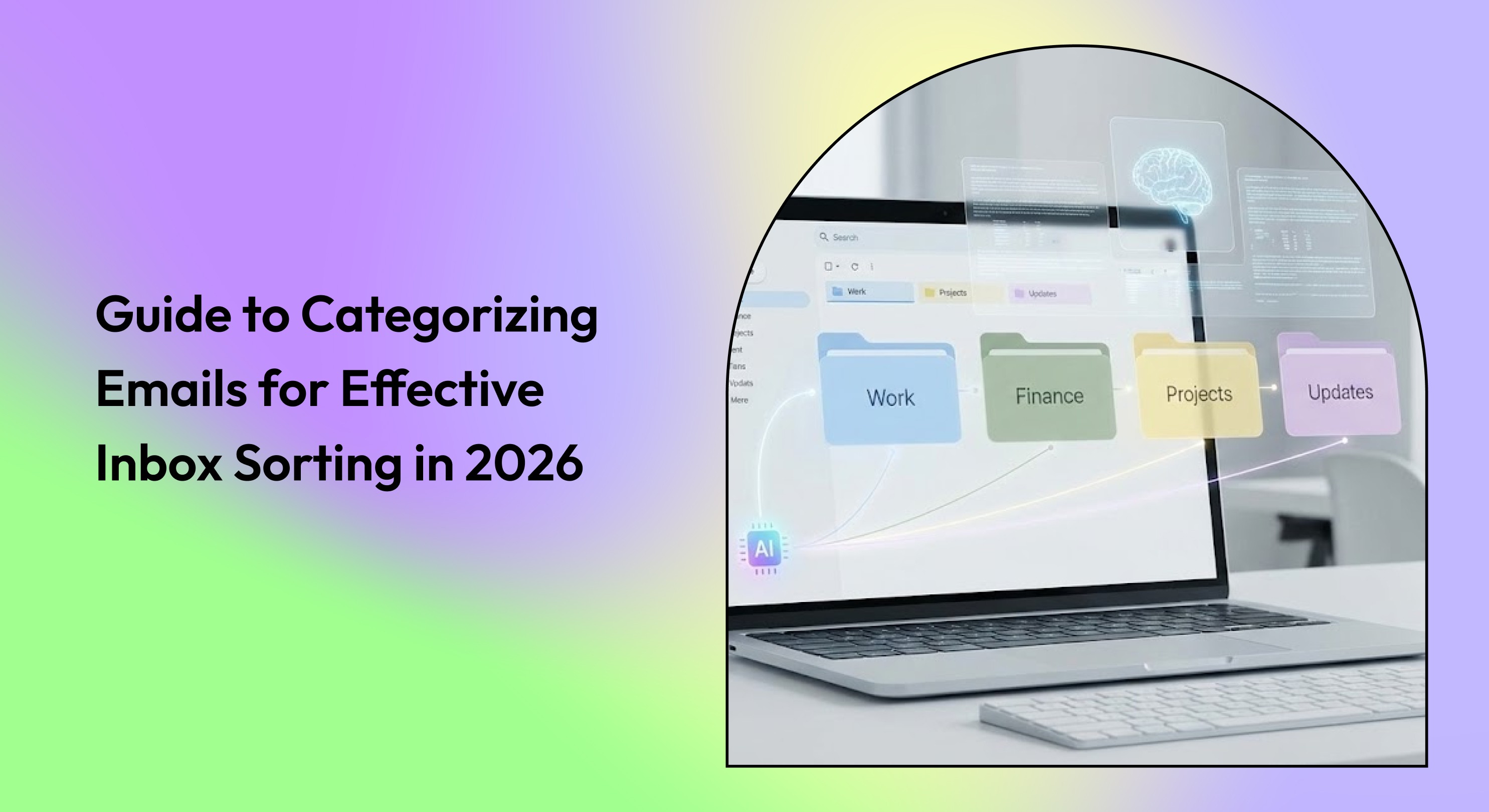
Learn useful strategies for categorizing emails, boosting productivity, and maintaining a clutter-free inbox with proven techniques for professionals in 2026.
Email overload has quietly become a productivity tax for modern professionals. For founders, managers, and fast-growing teams, this constant inbox monitoring leads to missed priorities, fragmented attention, and hours lost to email triage rather than meaningful execution. Many premium tools promise speed but come with steep pricing or limited flexibility, forcing teams to choose between efficiency and affordability.
This blog is for business users actively seeking a smarter way to manage email. We’ll walk through practical, expert-backed strategies to help you categorize your emails effectively and explore how to create custom folders, utilize labels, and automate your inbox to keep the clutter at bay.
Quick Recap
Use Labels & Filters for Organization: Create label hierarchies and automate sorting with filters for better email categorization.
Prioritize Emails for Focus: Enable Priority Inbox to highlight important emails and minimize distractions.
Categorize by Tasks & Projects: Sort emails by deadlines or projects and integrate with task managers for better workflow.
Use Smart Automation: Use tools like NewMail AI to automate sorting, track tasks, and draft responses efficiently.
Review & Adjust Regularly: Update your email system regularly to stay aligned with shifting priorities and maintain inbox clarity.
What Is Email Categorization?
Email categorization is the practice of automatically grouping emails by purpose, urgency, or sender, keeping your inbox organized without constant manual effort. Here’s how it works in practice:
Purpose-based grouping separates client emails, internal updates, newsletters, and promotions into clearly defined categories.
Priority-based sorting highlights time-sensitive messages so important emails don’t get buried.
Sender and behavior signals help identify frequent contacts and conversations that need faster responses.
When done right, email categorization turns your inbox into a structured workspace instead of a constant distraction.
Also Read: Best Email Automation Tools in 2025
Now that we’ve defined email categorization, let’s explore why it’s more than just a nice-to-have feature for your inbox.
Why You Should Care About Email Categorization
Have you ever stopped to think about how many emails you receive daily? With over 376.4 billion emails sent and received each day globally, that averages out to 44 emails per individual. For professionals, it’s not uncommon to receive over 100 emails a day.
When your inbox fills up this quickly, it becomes clear that not all emails are created equal. Yet, most people still treat every email the same, tackling them chronologically, from the latest to the oldest.
This often leads to unnecessary stress, missed opportunities, and wasted time. The typical approach just doesn’t cut it anymore.
Why Email Categorization is Essential:
Saves Time: Automatically sorting emails reduces the time spent sifting through irrelevant messages.
Increases Focus: Prioritize emails based on importance, ensuring that urgent tasks aren’t buried under a pile of less critical ones.
Improves Organization: With clear categories, you can easily locate emails when needed, without getting overwhelmed.
Reduces Stress: An organized inbox gives you a clearer sense of control over your day and tasks.
Better Workflow Alignment: This allows emails to support tasks, deadlines, and follow-ups without interrupting them.
Instead of letting your inbox control you, taking charge with email categorization helps boost productivity and keep stress at bay.
With the right categorization system in place, email sorter tools like NewMail AI take it further. It sorts emails and prioritizes them based on your preferences and behavior, ensuring critical messages stand out. With intelligent tagging and task tracking, you’ll stay organized and never miss a follow-up.
Also Read: Top AI Email Management Tools for Inbox Cleanups in 2025
Next, let’s look at some practical tips to get your inbox in order.
10 Essential Tips to Categorize and Sort Your Inbox in 2026
Effective email categorization is key to maintaining a clutter-free inbox, especially when you're juggling multiple projects, clients, and tasks. Here are the top 10 best practices for organizing your emails, using both basic features and advanced sorting tools.
1. Use Labels for a Structured Inbox
Labels are an essential organizing tool. Create a hierarchy of labels to categorize emails by priority, projects, clients, or deadlines. For example, nest labels like “Work > Clients > Active Projects” to simplify your workflow.
2. Set Up Filters for Automated Sorting
Filters allow you to automatically sort emails based on sender, subject, or keywords. You can create a filter that labels all emails from your boss as “Important” or applies an urgent label for time-sensitive messages. Filters can also archive or mark emails as read to reduce clutter and save time.
Also Read: Using Gmail Filters to Organize and Declutter Your Inbox: Pro Tips and Tricks
3. Enable Priority Inbox for Important Emails
Many email platforms offer Priority Inbox features, which help you focus on the most urgent messages by automatically categorizing incoming emails into Important and Everything Else sections. You can further customize these sections to fit your needs, ensuring that key emails remain visible and accessible.
4. Customize Your Inbox Sections for Focused Sorting
Personalize your inbox by enabling and disabling specific sections. For example, prioritize sections like “Important” or “Starred” for emails you need to act on immediately, while less critical emails (e.g., promotions, social updates) can be moved to other sections.
This approach reduces distractions and lets you focus on high-priority tasks.
5. Create Multiple Inboxes for Project/Client Categorization
If you manage multiple projects or clients, consider creating separate inboxes or sections for each. This allows you to group emails based on specific projects or clients, making it easier to stay organized and focused on individual tasks.
6. Nest Labels for Hierarchical Organization
Email clients like Gmail let you nest labels, creating a structured way to organize emails. For example, you can have a parent label called “Work” and nest labels like “Projects”, “Clients”, and “Meetings” under it. This helps you quickly tackle related emails and keep your inbox organized.
7. Set Up Filters Based on Sender or Keywords
Create filters based on specific senders or keywords in the subject or body. For instance, filter all emails from your team to automatically land in a “Team” folder or label emails containing specific words like “urgent” as “Action Required.” This ensures timely attention to critical communications.
8. Color-Coding for Quick Visual Identification
Color-coding labels improves visual sorting, enabling you to scan your inbox for important emails quickly. Choose colors that make sense to you and represent priority levels. For example, red for urgent items, green for completed tasks, and blue for long-term projects.
9. Regularly Review and Edit Filters
As your needs change, it’s important to review and update your filters to ensure they remain effective. This can include updating filter criteria, changing actions (like applying different labels or archiving), or deleting filters that no longer serve your needs.
10. Use An Email Sorter Software
Simplify your inbox with specialized email sorting tools that automate sorting, reduce clutter, and boost productivity. Here are some of the best tools for the job:
NewMail AI: Integrates with Gmail and Outlook, smartly prioritizes emails, and keeps you on top of tasks with reminders and summaries.
Best for: Professionals who need AI-powered sorting, task management, and automated drafting.Clean Email: Organizes your inbox using Smart Folders, automates unsubscribing, and applies bulk actions for faster sorting.
Best for: Users looking to declutter and manage email subscriptions easily.SaneBox: Automatically sorts emails into folders based on importance and learns your preferences over time for smarter filtering.
Best for: Individuals seeking AI-driven inbox filtering.Unroll.Me: Consolidates your subscriptions into a daily digest and helps you unsubscribe from unwanted emails in seconds.
Best for: Those overwhelmed by newsletters and subscriptions.FollowUpThen: Set automated reminders to follow up on specific emails, ensuring nothing slips through the cracks.
Best for: Professionals who need help with follow-up reminders.Boomerang for Gmail: Schedule messages, track responses, and take control of your inbox with focused work time.
Best for: Users looking to schedule emails and pause inbox for focus.Superhuman: Known for speed, keyboard shortcuts, and split inboxes, though it lacks automatic sorting for existing emails.
Best for: Fast-paced professionals needing ultra-efficient email triage.
These tools offer a variety of features to optimize inbox management, with NewMail AI standing out as the most comprehensive solution for smart email sorting, task integration, and seamless organization.
Implementing these email categorization techniques keeps your inbox organized and optimizes your time and productivity.
Also Read: How to Professionally Address Multiple People in an Email
Ready to take control of your inbox? Here's how NewMail AI can help you implement smarter, faster, and more efficient email management.
Bring Order to Your Inbox with NewMail AI
If email is slowing you down, NewMail AI helps you regain control without changing how you already work. Built for busy professionals and growing teams, it turns everyday email into a focused, actionable workflow.
Personalized Priority that reflects your work: Emails are ranked by your role, contacts, and priorities, so important messages stand out while CCs and cold emails stay out of the way.
Intelligent tagging for instant organization: Smart folders automatically group conversations, making it easy to find what you need without manual sorting.
Smart drafts in your tone: Automatically drafts high-quality replies using your context, helping you respond faster while keeping communication personal.
Actionable insights and task tracking: Emails are converted into linked to-dos, so follow-ups and next steps never fall through the cracks.
Daily briefings: Start your day with a clear summary of important emails, calendar updates, and pending actions.
Simplified scheduling: Get your calendar delivered to your inbox and manage meetings in a single click.
Get started in minutes with zero email storage, encrypted preferences, and Google security certification.
Conclusion
Sorting through a cluttered inbox can waste valuable time, but it doesn’t have to be this way. As email volumes grow, finding the right system to keep your inbox organized becomes essential for staying on top of tasks and avoiding important emails from slipping through the cracks.
Whether it's using labels, filters, or smart folders, the right approach can save you hours each week and improve productivity across the board. If you're still juggling manual sorting and constantly sifting through irrelevant emails, you're missing out on a simpler, more efficient way to manage your inbox.
That’s where NewMail AI comes in. With its intuitive, automated features like personalized prioritization, smart drafts, and task integration, NewMail AI is designed to bring clarity to your inbox in just minutes. Start for free today and see how NewMail AI can help you work smarter with effortless integration and better productivity.

FAQs
1. What is the 60/40 rule in email?
The 60/40 rule refers to the ideal balance between text and images in an email. Aim for 60% text and 40% images to ensure clear communication without overloading recipients visually.
2. What is the 5 Sentence Email Rule?
The 5 Sentence Email Rule is a productivity technique that encourages concise email communication. Limit your emails to five sentences to improve clarity and ensure your message is direct and impactful.
3. What are the 5 C's of email communication?
The 5 C's stand for Clear, Cohesive, Complete, Concise, and Concrete. Apply these principles to ensure your emails are easy to understand, to the point, and well-structured.
4. How can I categorize emails effectively in Gmail?
You can use labels, filters, and smart folders in Gmail to categorize emails. Organize them based on sender, subject, or importance, and automate the process with filters for better efficiency.
5. What’s the best strategy for email sorting in 2026?
In 2026, using AI-powered email sorters like NewMail AI can optimize inbox management. Features like smart drafts, priority sorting, and intelligent tagging help simplify your email workflow for better productivity.
