What does archive mean in Gmail? Learn how archiving works, when to use it, how to find archived emails, and manage inbox clutter in Gmail in 2026 today fast.
Ever notice that “Archive” button in Gmail and wondered what it actually does? It’s right there next to delete, gets used pretty often, but doesn’t really explain itself. That’s why it can feel a little unclear at first.
When emails start piling up, it’s common to try different ways to clean things up and stay organized. Archive seems like a quick fix, but then questions come up: where did that email go, is it still safe, and how is it different from deleting? It’s simple once it clicks, just not obvious right away.
So if this has been confusing, this will clear it up. We’ll break down what archiving means in Gmail, how it works, and how it actually helps keep things under control.
Quick Overview
Archived emails don’t move to a folder; open All Mail or search using
-in:inboxto locate them instantlyWhen someone replies to an archived thread, Gmail automatically moves that email back into your inbox without any action
To archive multiple emails quickly, select checkboxes → click the archive icon, or use swipe gestures configured in mobile settings
Deleted emails move to Trash, stay for 30 days, and are permanently removed afterwards with no recovery option available
To unarchive an email, open it and click “Move to Inbox”, which restores it to your active inbox view immediately
What Does Archive Mean in Gmail?
Archiving in Gmail simply means removing an email from the inbox without deleting it, so it stays saved but out of the way. Instead of cluttering the main view, the email moves to Gmail’s broader system, where it can still be accessed through search or the “All Mail” section. In simple terms, it helps keep the inbox clean while keeping every important conversation easy to find later.
What Happens When You Archive an Email?
Archiving changes how an email behaves in your workflow, not what it is. It quietly removes the need to deal with it now, without removing your ability to come back to it later.
Here’s what actually changes after you archive an email:
Inbox → Out of sight (but not gone)
The email disappears from your main inbox view, reducing clutter instantly.Still part of your account history
It remains in your email timeline and shows up when browsing or searching.Comes back when the conversation resumes
Any new reply pushes it right back into your inbox automatically.Keeps its context intact
Threads, attachments, and labels stay exactly as they were.Stops competing for attention
It no longer sits in your inbox asking for action, helping you focus on what’s current.
Also read: How to Bulk Archive All Emails in Gmail at Once
That shift in behavior is where people usually pause, not because it’s complex, but because it’s not obvious where the email went.
Where Do Archived Emails Go?
Archived emails don’t move into a visible folder as most people expect, which is exactly why they feel “lost” at first. Gmail handles this differently; it keeps everything in one place and changes how emails are surfaced instead of where they are stored.
Here’s exactly where they go and how to access them:
Gmail’s default path
Inbox → All Mail
Once archived, the email is removed from the Inbox
It continues to exist under All Mail, which acts as Gmail’s full email library
How Gmail organizes it internally
Not a folder system
Gmail doesn’t create a separate “Archive” folder
Emails exist in one system and are shown or hidden using labels
Inbox is just a label
Archiving removes the Inbox label from the email
The email itself stays unchanged in the account
What makes this confusing at first
No visible “Archive” folder like Outlook
Emails don’t disappear completely, just from the inbox
Everything stays in one place, but visibility changes
Archiving helps once you’ve decided an email is no longer relevant to your inbox. NewMail reduces that decision-making by ranking important emails, drafting replies in your voice, and keeping your inbox focused without manual sorting.
Archive, Delete, Mute, or Snooze? Here's How to Decide Every Time
Most Gmail guides explain what each option does. None of them tells you which one to actually choose when you're staring at an email. That's the part that slows people down.
Here's a decision framework that removes the guesswork entirely. Run any email through these questions, and you'll know exactly what to do.
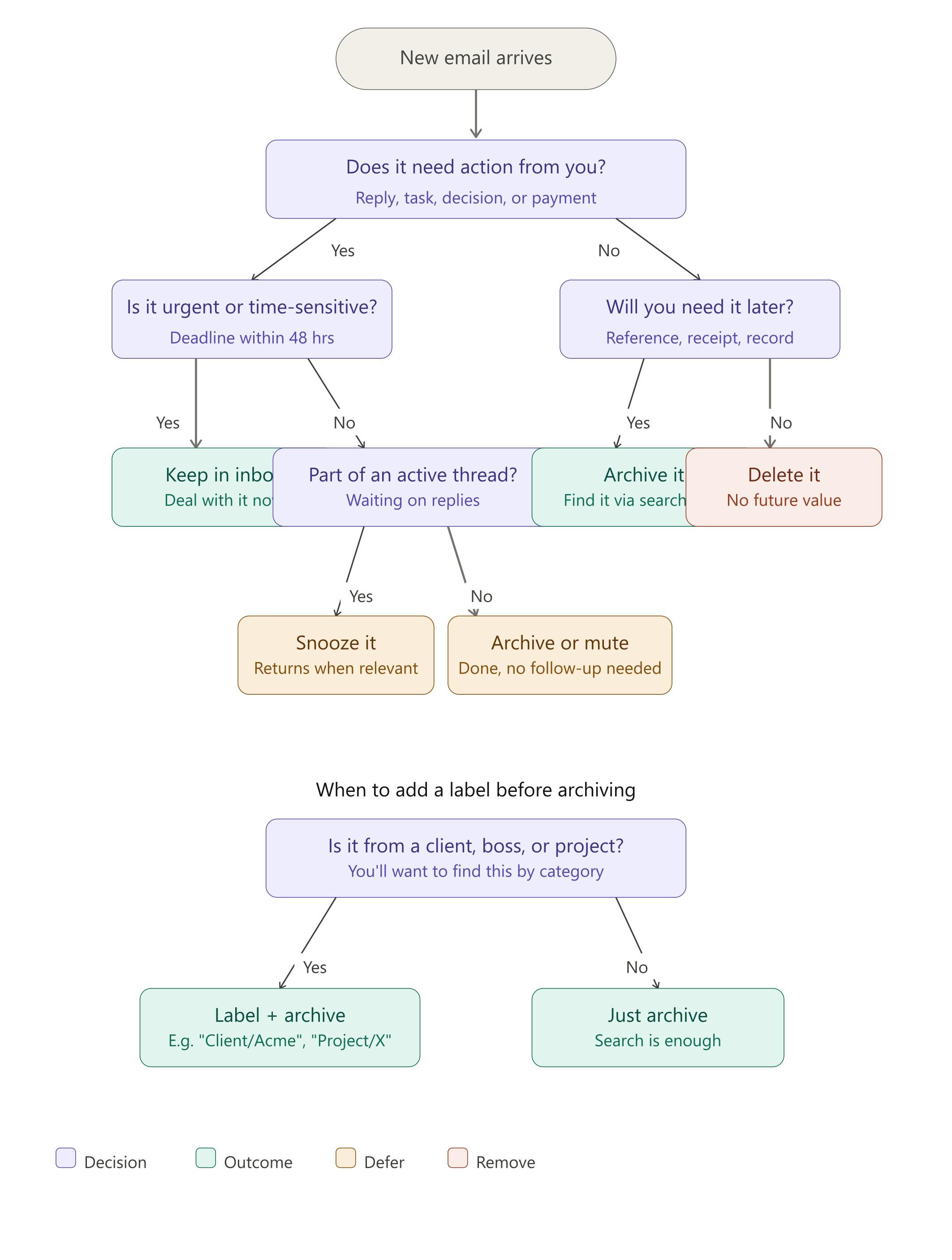
The decision tree (see diagram above)
Start with one question: Does this email require action from you, a reply, a task, a payment, or a decision?
If yes:
Is it urgent or time-sensitive (within 48 hours)? → Keep it in your inbox and deal with it now.
Is it part of an active thread where you're waiting on someone? → Snooze it. Gmail will surface it when the time is right.
Is it something you need to do but not immediately? → Archive or mute it and let the thread come back to you when there's a reply.
If no:
Will you need it for reference later — a receipt, a confirmation, a record? → Archive it. You can find it through search or All Mail whenever you need it.
Will you never need it again? → Delete it. No reason to hold onto it.
One extra question before you archive: is this from a client, project, or someone important?
If yes, add a label before you archive. Something like "Client/Acme" or "Project/Launch" takes two seconds and means you can pull up the full thread by category later without relying on remembering the exact keywords.
If no, just archive. Gmail's search is powerful enough to find it when you need it.
Quick reference:
Situation | What to do |
|---|---|
Needs a reply today | Keep in inbox |
Needs action, but not urgent | Snooze |
Waiting on someone else's reply | Snooze or mute |
Useful for reference later | Archive |
Important sender or project | Label + archive |
No future value | Delete |
Ongoing thread you don't care about | Mute |
The whole process takes under three seconds per email once it becomes a habit. Most emails fall into "archive" or "delete"; the decision tree just makes it automatic.
Decisions get faster with a system, but each action still carries a different outcome once it’s applied
What Happens When You Delete an Email in Gmail?
Deleting an email is not just about removing it from the inbox; it also changes how long it remains in your account. Unlike archiving, this action sets a clear path toward permanent removal, even if it doesn’t happen instantly.
Here’s how that process actually plays out:
1.Immediate Removal from Your Inbox
The email disappears from your inbox the moment it’s deleted
It no longer shows up while scanning or managing incoming messages
Any labels attached to it stop being visible in your main workflow
2.Moved to Trash
The email is sent to the Trash folder instead of being erased right away
It stays there as a backup window in case deletion was unintentional
Access is still possible, but only by going into Trash manually
3.Automatic Permanent Deletion after 30 Days
Gmail removes the email permanently after 30 days in Trash
Once this happens, the email cannot be recovered through normal means
This applies to all content inside the email, including attachments
4.Reduced Visibility and Access
The email won’t appear in search results unless Trash is included
It is excluded from All Mail and regular browsing views
Finding it requires a deliberate step, not passive discovery
5.Impact on E-mail Threads and Continuity
Deleting one email in a thread can break the flow of that conversation
Important context (attachments, earlier replies) may become harder to track
Future replies won’t restore that deleted part of the conversation
Also read: How to Write a Brief Email Effectively?
At this point, the difference isn’t theoretical anymore; it comes down to how these actions are used in everyday inbox flow.
How to Archive Emails in Gmail?
Archiving is one of the quickest ways to clear your inbox without interrupting your workflow. Once you know where to click, it becomes a natural part of managing daily emails.
Here’s how to do it across different devices:
1.On Desktop (Gmail web)
Open your Gmail inbox
Select the email(s) using the checkbox
Multiple emails:
Tick multiple checkboxes
Or use the top checkbox → select all visible emails
Click the Archive icon (box with a downward arrow) in the top toolbar
2.On Mobile (Gmail app)
Open the Gmail app
Open an email or stay on the inbox list
Single email:
Tap the Archive icon at the top
Multiple emails:
Long-press to select emails
Tap additional emails if needed
Tap the Archive icon
3.Using Swipe Gestures
Go to Settings → General settings → Swipe actions
Set left or right swipe to Archive
Then:
Swipe left/right on any email in the inbox
The email gets archived instantly
4.Quick Habits That Make it Easier
Archive emails right after reading if no action is needed
Use multi-select to clear bulk emails in seconds
Combine with search to archive specific types (e.g., newsletters, updates)
Once this becomes a habit, inbox cleanup stops feeling like a task and starts happening naturally in the background.
Power User Shortcuts: Archive at Full Speed
Once archiving becomes a reflex, the clicks start to slow you down. These keyboard shortcuts and workflow tricks are how people who process hundreds of emails a day do it without burning time.
The keyboard shortcuts you actually need
First, make sure keyboard shortcuts are enabled. Go to Settings → See all settings → General → Keyboard shortcuts → On.
Shortcut | What it does |
|---|---|
| Archive the currently open email instantly |
| Archive the current email and move to the next newer one |
| Archive the current email and move to the next older one |
| Select an email from the inbox list (without opening it) |
| Select all emails on the current page |
| Mark as read and keep moving |
The e shortcut is the one that changes everything. Open an email, read it, press e It's archived, and you're back in the inbox in under a second. Pair e with ] or [ And you can move through an entire inbox without touching the mouse.
Set up filters to auto-archive before emails even reach you
Some emails don't need your eyes at all: newsletters, automated notifications, order confirmations, CC'd threads where you're not the decision-maker. Set a filter to archive these automatically:
Open Gmail and click the search bar filter icon
Fill in the criteria (e.g., From: noreply@, or subject contains "unsubscribe")
Click "Create filter"
Check "Skip the inbox (Archive it)"
Click "Create filter"
These emails go directly to All Mail. They're still searchable and accessible — they just never interrupt your day.
A morning inbox routine built around archive
This routine works for most people who get 50–200 emails a day:
Scan subject lines only: don't open anything yet. Use
xto select emails that clearly need no action.Bulk archive the selected ones: press
eor click the archive icon. Done in one move.Open remaining emails top to bottom: for each one, reply immediately if it takes under 2 minutes, then press
e. Or snooze it if it needs time. Then presse.End state: inbox zero: everything in your inbox either needs action today or is snoozed for the right moment.
The whole routine takes 10–15 minutes. The shortcut that makes it work is treating e as the default ending to every single email, not the reply button, not the back button. Read, decide, archive.
Once the clicks become familiar, the real friction shifts from learning how to archive emails to how quickly you can process them.
How to Find Archived Emails in Gmail?
Finding an archived email isn’t difficult once you know how Gmail surfaces emails outside the inbox. The key is understanding where to look depending on how much you remember about the email.
Here are the most effective ways to locate archived emails:
1.Using the Search Bar
Go to the search bar at the top of Gmail
Enter anything you remember:
Sender name
Subject line
Keywords from the email
To narrow results specifically to archived emails:
Use:
-in:inboxExample:
meeting notes -in:inbox
If the email had attachments:
Use:
has:attachment -in:inbox
2.Browsing Through “All Mail”
Open the left sidebar
Click on More → All Mail
Inside All Mail:
Emails without the “Inbox” label are archived
Emails with the “Inbox” label are still active
Useful when:
You don’t remember the exact keywords
You want to scan older conversations
3.Finding via Labels
Open any label from the sidebar
Inside the label:
Emails may still appear even if they’re archived
Labels work independently from the inbox view
Best for:
Organized inbox setups
Projects, clients, or categories
4.Using Advanced Search Filters
Click the filter icon in the search bar
Apply filters like:
From / To
Date range
Has attachment
Results will include archived emails by default
5.Example
An invoice email from “Alex” was archived last week
Instead of scrolling endlessly:
Type:
Alex invoice -in:inboxin the search bar
The email appears instantly, even though it’s no longer in the inbox
Also read: How to Write an Effective Auto Email Response
Knowing where to look solves most situations, but the one that catches people off guard isn't a search problem. It's realizing an email was archived before they even meant to.
Accidentally Archived? Here's What to Do
This is one of the most common Gmail frustrations, especially on mobile, where a stray swipe can archive an email before you've even read it. The good news: nothing is lost. Here's how to get it back in under a minute.
Locate: Find the email using search, All Mail, or labels
Add
-in:inboxto the search to filter out your current inbox and only show archived results:Example: if you accidentally archived an email from your landlord about rent, search:
landlord -in:inboxIf you don't remember enough to search, go to the left sidebar → More → All Mail. The most recently archived email will be near the top if you sort by date.
Open: Click or tap to open the email
Restore: Click “Move to Inbox” at the top
How to stop it from happening again on mobile
Accidental archiving on mobile almost always comes from the swipe gesture. To turn it off or change it:
Open the Gmail app
Tap the three-line menu → Settings
Select your account → Swipe actions
Change the swipe action to "None" or reassign it to something less disruptive, like "Mark as read"
This is especially worth doing if you read emails quickly on your phone and swipe to scroll between them.
What if I deleted it instead of archiving it?
If the email ended up in Trash (not All Mail), you still have 30 days to recover it. Go to the left sidebar → More → Trash, find the email, tap the three-dot menu, and select "Move to Inbox." After 30 days, deleted emails are permanently removed and cannot be recovered through any standard Gmail method.
When Archiving Backfires: The Archive Overload Problem Nobody Talks About
If you've been using Gmail for several years and archiving everything, your All Mail folder might now hold 30,000, 50,000, or even 100,000 emails. At that point, three things start going wrong.
1. Search gets noisy
Gmail's search is powerful, but searching "invoice" across a decade of archived mail returns hundreds of results. Finding the specific invoice from last Tuesday means more scrolling, more filtering, and more time than it should take. The archive that was supposed to save time starts costing it.
2. Storage fills up silently
Archiving doesn't reduce storage; every archived email still counts against your 15GB Google account limit. Heavy attachments from years ago quietly eat up space you'd never notice until you hit the cap.
3. Old threads resurface unexpectedly
When someone replies to an email you archived two years ago, Gmail pulls the whole thread back into your inbox — complete with outdated context that can create confusion. This is by design, but it catches people off guard when it's a thread with dozens of old messages attached.
How to audit and clean your archived mail
Run this search periodically to find large emails worth deleting:
This surfaces emails outside your inbox that contain attachments larger than 5MB, the biggest storage offenders. Adjust the size threshold as needed.
To find old archived emails you'll realistically never need again:
This returns all emails outside your inbox from before 2022. Review them in bulk, select all, and delete anything clearly outdated.
The smarter approach: combine the archive with labels
Power users don't just archive everything. They use a two-step system:
Auto-label with filters: Set up Gmail filters to automatically label emails from specific senders or with specific keywords before they even hit your inbox. Go to Settings → See all settings → Filters and Blocked Addresses → Create a new filter.
Archive the label, not just the email: Once a project or client is done, you can search by label, select all emails in that label, and archive or delete them in one move.
Review once a quarter: Set a recurring reminder to spend 10 minutes searching
-in:inbox before:[3 months ago]and clearing out what's no longer useful.
The goal isn't to archive everything forever. It's to keep your inbox focused today while holding onto what actually matters, and periodically clearing out what doesn't.
The Honest Limit of Manual Inbox Management
Everything covered so far: archiving, labelling, shortcuts, filters, and quarterly cleanups work. But it still requires you to make decisions constantly: what to archive, what to label, what to follow up on, what to delete.
Most people spend 20–30 minutes a day on these micro-decisions alone. Over a year, that's nearly 150 hours spent not on the emails themselves, but on sorting them.
NewMail is built specifically for this problem.
It runs inside your existing Gmail or Outlook account: no migration, no new interface to learn. It reads your inbox, understands your priorities, and surfaces what actually needs your attention. Replies are drafted in your tone before you open the email. Follow-ups that haven't been answered come back to you automatically.
The archiving, the labelling, the deciding, it handles the logic so you don't have to.
If your inbox still feels like something you manage rather than something that works for you, it's worth 2 minutes to see what changes.
Try NewMail free: works inside Gmail and Outlook
Also read: How to Find Unread Emails in Gmail: Easy Tips and Tricks
Final Thoughts
Learning what archiving means in Gmail helps remove a common point of confusion when managing emails. From knowing where archived emails go to how they differ from deleted ones, each part of the process becomes easier once the structure is clear. With the right approach, archiving turns into a simple way to keep the inbox organized without losing access to important information.
For those handling a high volume of emails, managing these decisions repeatedly can still take time. NewMail supports this by identifying priority emails, drafting context-aware replies, tracking actions, and providing daily briefings, helping maintain an organized inbox without constant manual effort.
Try NewMail to experience a more efficient and structured way to handle your emails.

FAQs
1.How long do archived emails stay in Gmail?
Archived emails stay in Gmail indefinitely unless they are manually deleted or removed by the user. Since archiving only changes visibility and not storage, these emails remain part of your account permanently and can be accessed anytime through search, All Mail, or labels without any time-based expiration.
2.Where to find archived emails in Gmail on a phone?
Archived emails on the Gmail mobile app can be found by using the search bar or by navigating to the “All Mail” section in the menu. Since Gmail doesn’t have a separate archive folder, emails removed from the inbox continue to appear alongside other emails, making searching the fastest way to locate them.
3.Does archiving emails in Gmail save space?
Archiving emails in Gmail does not free up storage space because the email remains stored in your account, just like any other message. Storage is only reduced when emails are permanently deleted from Trash, meaning archiving is useful for organization and visibility, but not for managing storage limits.
4.Can someone still reply to an archived email in Gmail?
Yes, archived emails remain part of the original conversation thread, so any reply from the sender will automatically bring the email back into your inbox. This ensures that ongoing discussions are not missed, even if the email was previously removed from your active inbox view.
5.Is there an archive folder in Gmail?
Gmail does not have a dedicated archive folder the way Outlook does. When you archive an email, Gmail simply removes the Inbox label from it; the email doesn't move anywhere new. It stays in the same system and becomes visible under All Mail, which acts as Gmail's complete email library. There is no separate "Archive" section to look for; All Mail is where everything lives, archived or not.
6.How do you find archived emails in Outlook?
Outlook stores archived emails in a dedicated Archive folder instead of managing visibility like Gmail. To find them, open the Archive folder from the sidebar or use the search bar with the scope set to the Archive folder or all mailboxes to locate specific emails quickly.
7.What is the difference between archiving and muting in Gmail?
Archiving removes an email from the inbox but allows it to return if there is a new reply, keeping the conversation active. Muting, on the other hand, keeps the email out of the inbox even when new replies arrive, making it useful for threads that no longer require attention.
