
Boost email management by learning how to prioritize Gmail email. Mark emails as high priority with stars, labels, and filters. Take control now!
The average US worker spends nearly 6 hours a week managing emails. Focusing only on high-priority messages can save time and reduce inbox stress.
For business owners and leaders, mastering how to prioritize Gmail is essential to staying on top of critical tasks. Let’s look at why it matters, how to use Gmail’s built-in tools effectively, and how AI assistants can simplify the process even further.
Benefits of Prioritizing Emails in Gmail
In business, prioritization is everything. Here's why prioritizing emails in Gmail is a smart move:
Stay Organized Amidst the Chaos
As a professional, you likely receive hundreds of emails daily. Marking high-priority emails helps you reduce the noise and focus on important matters.Enhance Team Collaboration
Flagging essential emails ensures timely responses, streamlining communication within your team and keeping projects on track.Boost Productivity
You can allocate more energy to decision-making and strategic tasks by reducing the time spent searching for high priority messages.Avoid Costly Oversights
Missing a crucial email from a client or vendor can lead to delays or financial losses. Prioritization minimizes the chances of such errors.
How to Send High-Priority Emails in Gmail
When learning how to prioritize Gmail email, most professionals focus on organizing incoming messages. But what about emails you send?
If you're transitioning from Microsoft Outlook to Gmail, you may notice something surprising: Gmail does not offer a built-in “High Priority” flag for outgoing emails.
There’s no red exclamation mark. No urgency badge. No official “high importance” option.
And that’s intentional.
Unlike Outlook, Gmail prioritizes inbox organization rather than allowing senders to label messages as urgent. This prevents misuse and keeps control in the recipient’s hands.
However, you can still signal urgency effectively using smart alternatives.
Let’s look at how.
Method 1: Indicate Urgency in the Subject Line
Your subject line is your strongest prioritization tool. It is the first thing recipients notice — especially on mobile devices.
To increase response rates for time-sensitive emails, use clear and direct phrases at the beginning of your subject line:
URGENT: Contract Approval Needed by 5 PM
ACTION REQUIRED: Budget Confirmation Today
TIME SENSITIVE: Client Proposal Review
IMPORTANT: Vendor Payment Clarification
Best Practices:
State the deadline clearly.
Specify what action is required.
Avoid vague language.
Do not overuse urgency terms (it reduces credibility).
When done correctly, your subject line becomes your “high priority flag.”
Method 2: Structure the Email for Fast Scanning
If you truly want a faster response, make your email easy to process within seconds.
Busy professionals don’t ignore urgent emails; they ignore unclear ones.
Here’s how to improve clarity:
1. State Urgency at the Top
Start your email with:
“This requires your confirmation before 3 PM today.”
This eliminates confusion.
2. Highlight Key Actions
Use:
Bold text for deadlines
Bullet points for tasks
Short paragraphs
Checklists for multi-step requests
3. Keep It Concise
The shorter and more structured your email, the faster it gets processed.
Avoid:
Multiple exclamation marks
All caps throughout
Excessive formatting
Spam-like triggers
Your goal is clarity, not aggression.
Method 3: Follow Up Strategically
Sometimes learning how to prioritize Gmail email means understanding that urgency isn’t just formatting, it’s a communication discipline.
If no response is received:
Send a polite follow-up after 24 hours (or sooner if necessary).
Reference your original email.
Restate the deadline clearly.
Example:
“Following up on my previous message regarding the vendor approval needed before 5 PM today.”
Professional persistence works better than artificial urgency flags.
How to Prioritize Emails in Gmail?
To effectively manage your inbox and ensure critical messages receive timely attention, marking emails as high priority in Gmail is essential. Here are the simple steps to do so on both desktop and mobile platforms
On Desktop
Open Gmail
Log in to your Gmail account on your desktop browser.Select the Email
Identify the email you want to mark as high priority and open it.Use the Labeling System
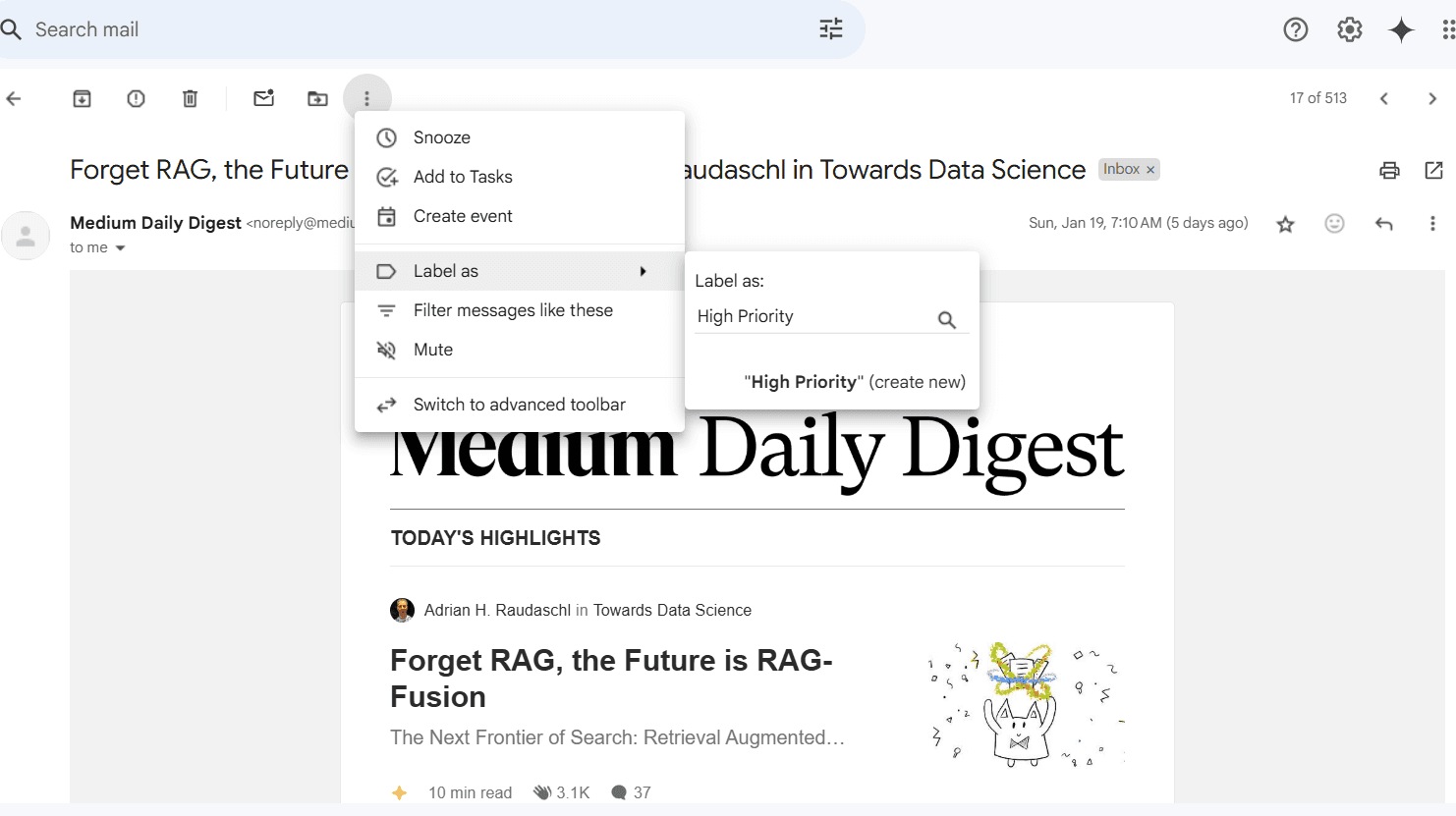
Click on the “Labels” icon (a small tag icon at the top of the email).
Create a new label such as “High Priority” or select an existing one.
Apply the label to the email.
Star the Email
Click the star icon next to the sender’s name.
Gmail offers different star styles (e.g., red stars, exclamation marks). You can customize these in Gmail’s settings under the “Stars” section.
Move the Email to a Priority Folder (Optional)
Create a folder labeled “High Priority.”
Drag and drop the email into this folder or use filters to automate this process.
On the Mobile App
Launch the Gmail App
Open the Gmail app on your smartphone or tablet.Select the Email
Tap on the email you want to prioritize.Star the Email
Tap the star icon next to the email title.
You can set up custom stars through the desktop version, and they will sync to your app.
Add Labels
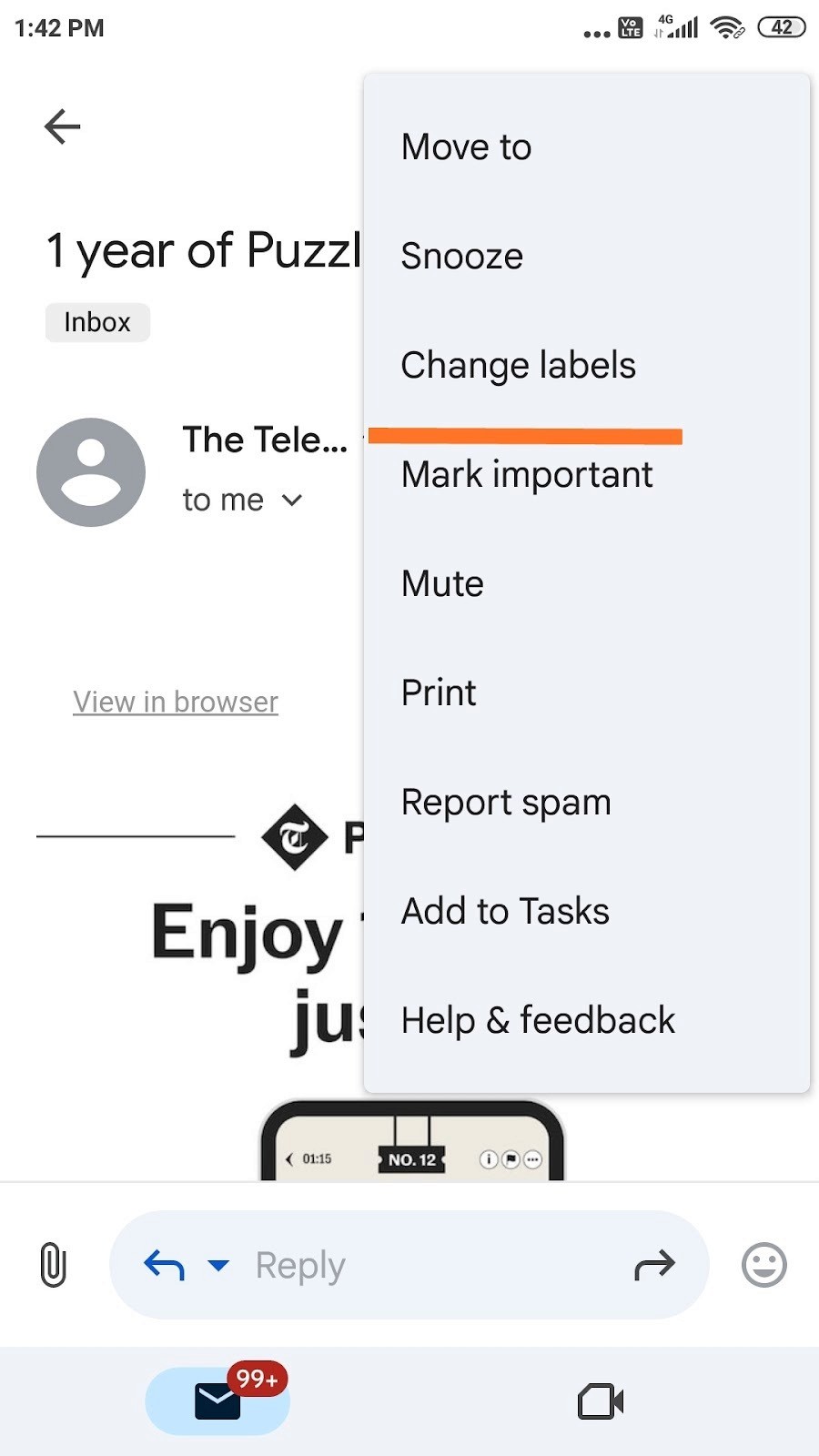
Tap the three-dot menu in the top-right corner.
Select “Change labels” and assign the “High Priority” label to the email.
Set Notifications (Optional)
Open Gmail settings, navigate to your account, and select “Notifications.”
Customize notifications to alert you immediately when emails with specific labels or stars arrive.
Tips on How to Prioritize Emails in Gmail
To effectively manage your inbox and ensure that critical messages stand out, utilizing tips to flag high-priority emails in Gmail can significantly enhance your email organization. Here’s how you can do that effectively.
Leverage Gmail Filters
Automate your prioritization by creating filters:
Go to Gmail Settings > Filters and Blocked Addresses > Create a New Filter.
Set criteria such as sender, keywords, or subject line (e.g., “urgent” or “deadline”).
Assign a high-priority label or star automatically.
Use Multiple Stars
Customize your star options in Gmail Settings under the General tab. Assign different stars to indicate varying levels of urgency. For example:Red star: Immediate action is needed.
Yellow star: Important but not urgent.
Purple star: Follow up later.
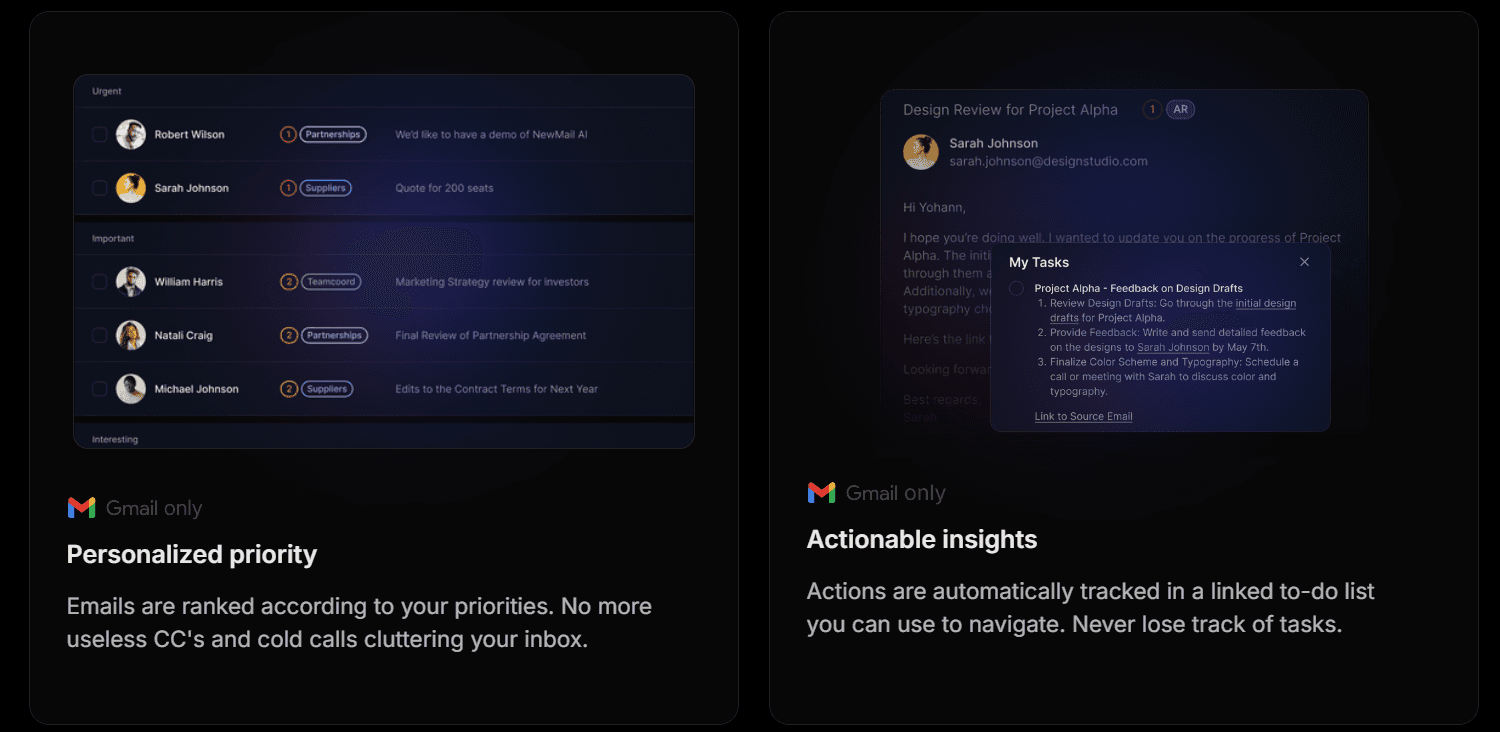
With an advanced AI email assistant like NewMail, you can categorize emails into three color-coded, dynamic priority folders. Urgent, Important, and Interesting while allowing full customization based on your preferences.
Enable Priority Inbox
Activate Gmail’s Priority Inbox feature to automatically sort your emails into “Important and Unread,” “Starred,” and other customizable categories.Mark Contacts as Important
Gmail can learn which emails matter most by marking contacts as important. Just click the importance marker (a small yellow arrow) beside the sender’s name.Review Regularly
Dedicate time to review and update your priorities daily. Archiving outdated high-priority emails keeps your system streamlined.
How Can a Proactive AI Email Assistant Help to Prioritize Emails in Gmail?
NewMail transcends the typical role of an AI email assistant; it acts as a proactive executive AI agent. Seamlessly integrated with platforms like Gmail, Apple Mail, Google Calendar, and Google Tasks, NewMail redefines inbox management by transforming it into a personalized and automated experience. This innovative tool is the ideal solution for professionals aiming to enhance their efficiency and achieve peace of mind in their daily communications.
Features of NewMail
1. Email Categorization and Prioritization
NewMail intelligently categorizes incoming emails based on urgency and relevance. It automatically applies color-coded labels to incoming mails. Alternately, it may apply user-defined criteria to classify emails into categories such as 'High Priority', 'Important', 'Relevant', and 'Irrelevant'. For example, a project manager might receive an urgent email from a key stakeholder that NewMail automatically flags as 'Urgent’ with the color red.
2. Daily Briefings
NewMail provides daily briefings that summarize key emails, calendar events, and tasks. This feature ensures that users start their day with a clear understanding of their priorities, allowing them to manage their time effectively.
3. Integration with Google Tasks
For actionable emails, NewMail integrates seamlessly with Google Tasks. This means that an email containing a deadline or task can be automatically added to the user's task list with reminders set, ensuring nothing is missed.
4. Personalized Auto-Drafts and Response Generation
Save valuable time with NewMail’s intelligent, context-aware email drafts that are customized to reflect your unique tone and style. Whether you're replying to clients, colleagues, or stakeholders, NewMail guarantees that your emails will always be polished and professional, enhancing your communication effectiveness.
5. Workflow Customization
Enables users to personalize how the AI assistant handles their inbox by establishing rules to mark emails as read, archive, or star them based on priority. This feature is crucial as it offers flexibility in automating email management, allowing users to streamline their workflow and minimize manual tasks.
Steps to Mark High-Priority Emails Using NewMail
Marking high-priority emails with NewMail is a straightforward process that enhances efficiency:
Step 1: Setting Up NewMail
To get started with NewMail, simply initiate your free trial by visiting the NewMail website and signing up for a 30-day free trial using the code BLOG30. During the setup process, you can input your preferences by specifying key contacts and the types of emails you consider a priority.
Step 2: Email Categorization
As emails arrive in your inbox, NewMail automatically categorizes them according to your defined preferences, ensuring efficient organization. To stay on top of your priorities, make it a habit to regularly review the categorized emails in your inbox, allowing you to quickly identify which messages have been marked as 'Urgent'.
Step 3: Manual Adjustments (if necessary)
Suppose you notice an important email that has not been flagged correctly. In that case, you can manually adjust its priority by selecting it and choosing the appropriate category from the options provided by NewMail.
Step 4: Utilize Daily Briefings
Each morning, review your daily briefing provided by NewMail. This summary will highlight your high-priority emails alongside other important tasks and calendar events.
Conclusion
In an era of email overload, learning how to mark high-priority emails in Gmail can help you take charge of your inbox, stay organized, and ensure that crucial messages get the attention they deserve.
Remember, the key is consistency whether you’re flagging emails on your desktop or mobile app. Use labels, stars, and filters to create a prioritization system that aligns with your workflow.
NewMail, as your executive AI assistant, can streamline, prioritize, and enhance your email management for optimal efficiency. From organizing messages by importance to crafting intelligent, time-saving replies, NewMail is designed to alleviate the confusion associated with how to prioritize gmail email. With a well-organized inbox, you can focus your energy on making an impact and reaching your objectives.

