Why am I not getting emails? Learn the 13 most common causes and quick fixes, from storage limits to sync errors and spam filters.
If your inbox has gone quiet and you're wondering, “Why am I not getting emails?”, the fix is often simple. It could be that your storage is full, Gmail filters are misfiring, or your device has stopped syncing in the background.
In this guide, we’ll walk through 13 focused checks that can help you pinpoint and fix the problem.
Each one targets a different stage in the email delivery chain, from basic connectivity to advanced Gmail configurations. Most issues can be solved in under 10 minutes.
TL;DR
Check your internet, storage, and inbox tabs first to rule out basic delivery issues.
Run a quick self-test by sending yourself an email from another address.
Review spam, Promotions, Social, filters, forwarding, and blocked senders.
If an expected email still has not arrived, confirm the sender used the correct email address and did not attach a blocked file type.
Why Am I Not Getting Emails?
There are several moving parts to email delivery. Issues can stem from your internet connection, the device you're using, or the configuration of your Gmail account.
Some problems are local, like sync settings or browser extensions. Others are account-wide, such as storage limits or filters that silently delete messages.
In the next section, we’ll walk through each potential cause step by step, starting with the most common and easily fixable.
Quick test first: confirm whether you’re actually not receiving emails
Before changing settings, make sure there is a real delivery problem.
Send yourself a test email from a different email account, not the same inbox. For example, send a message from Outlook to Gmail, or from a work email to your personal account. Then wait a few minutes and check your inbox, spam folder, Promotions tab, and All Mail.
If the test email arrives, your account is working, and the problem is likely tied to one sender, one message type, or one app. If the test email does not arrive, continue with the fixes below to troubleshoot your inbox, device, or account settings.
13 Fixes for Not Receiving Emails
Here are the most common reasons you may not be getting emails and what to check first:
Your device is offline, or the connection is unstable.
Your email storage is full.
The sender may have used the wrong email address.
Gmail tabs such as Promotions or Social are hiding the message.
A filter, rule, forwarding setting, or blocked sender is interfering with delivery.
Emails are going to spam or junk folders instead of your inbox.
The Gmail app has stopped syncing on your phone.
Your browser is blocking Gmail from updating because of extensions or cache issues.
A security issue changed Gmail settings without alerting you.
The message may have been blocked because of a dangerous attachment.
Gmail's servers are experiencing a temporary outage.
You need to sign out and sign back in to refresh sync.
All fixes failed, and it’s time to contact Google support.
Also read: Why Am I Not Receiving Emails: Simple Fixes and Solutions
1. Check Your Internet Connection
No email service can function without a stable connection. If your device is offline or the network is unstable, your inbox won’t update, even if everything else looks normal.
What to check:
Open a browser or app that requires the internet (e.g., YouTube, Maps)
Switch between Wi-Fi and mobile data to isolate the issue.
Restart your router or toggle airplane mode.
On desktop: check if other tabs are loading.
On mobile: ensure background data and sync are allowed in settings.
If you're using a mail client (such as Outlook or Apple Mail), connection issues may cause syncing delays without displaying a clear error.
2. Your Account Storage Might Be Full
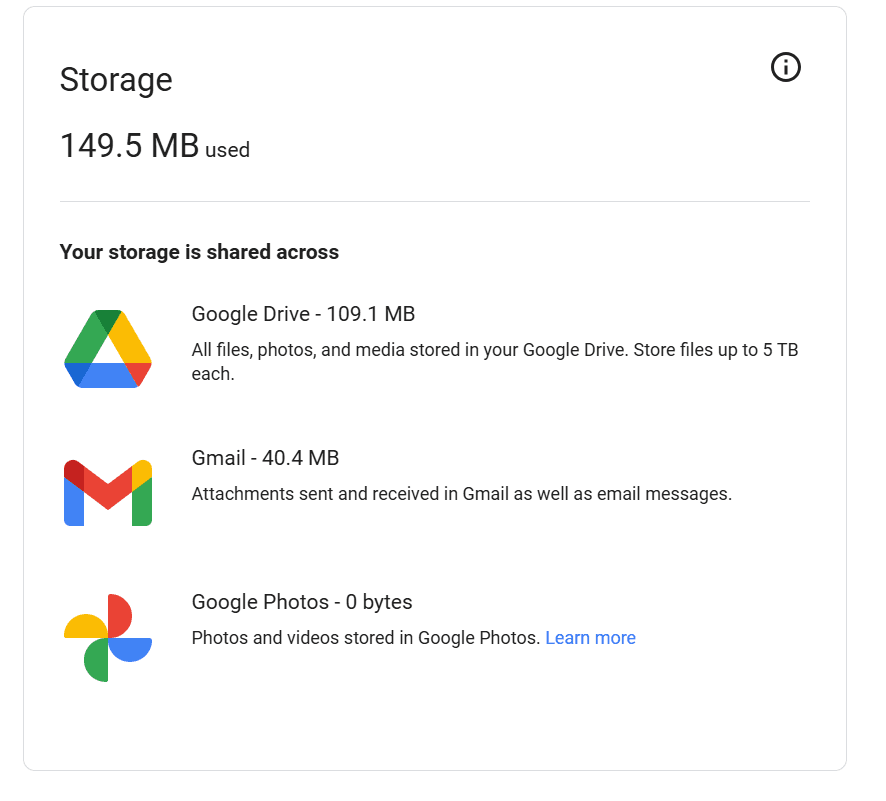
Most email services, including Gmail, enforce storage limits. On a free Google account, the 15 GB quota (Outlook also offers 15 GB storage) is shared across Gmail, Google Drive, and Google Photos.
Once that limit is reached, new messages won’t be delivered. No error appears in the inbox, and senders won’t always get a bounce notification.
How to check your storage:
Go to one.google.com/storage to view your usage breakdown.
Look specifically at the Gmail bar, and also note if Drive or Photos are using up space.
If you’re out of space:
In Gmail, search for ‘larger:10M’ or ‘has: attachment’ to find emails with large files quickly.
Empty Trash and Spam, as they count toward your storage.
Delete unused Drive files and large videos in Photos.
Or upgrade your plan via Google One.
Once you clear enough space, incoming messages resume automatically.
3. The Sender May Have Used the Wrong Email Address
Sometimes the problem is not your inbox at all. If you are waiting for a job offer, OTP, invoice, booking confirmation, or password reset email, the sender may have entered your address incorrectly.
What to check:
Ask the sender to confirm the exact spelling of your email address.
Check whether they missed a dot, added an extra character, or used the wrong domain.
Confirm they sent the email to the correct account if you use multiple addresses.
Ask them to resend the email after verifying the address.
This is one of the most common reasons for a missing expected email, especially when you are waiting on a single important message rather than all incoming mail.
4. Gmail Tabs, like Promotions or Social, May Be Hiding The Email
In Gmail, a message can arrive successfully but land outside the Primary inbox. That often makes it seem as if the email never arrived.
Check these tabs:
Promotions
Social
Updates
Forums
If you find the missing email there, open it and move it to the Primary folder. Gmail may ask whether you want future emails from that sender to go there too. Choose yes if it is an important email.
You can also search for the sender’s name or subject line in Gmail search to find messages that landed outside Primary. If you prefer a simpler inbox, go to Gmail Settings, open the Inbox tab, and adjust or disable category tabs.
5. Filters, Forwarding, or Blocked Addresses Are Redirecting Your Mail
If you have internet access and enough storage, the next place to check is your account configuration. Filters and rules can silently archive, delete, forward, or move messages.
Step 1: Check Filters
Open Gmail in a browser.
Click the gear icon → See all settings.
Go to the Filters and Blocked Addresses tab.
Review each filter listed: If it says “Delete it”, “Skip Inbox”, or “Forward it”, click Delete to remove the filter.
Tip: If you’ve used bulk unsubscribe apps, they may have added filters that archive promotional or newsletter emails.
Step 2: Check Forwarding Settings
In the same Gmail settings, switch to the Forwarding and POP/IMAP tab.
Look under “Forwarding”: If it says mail is being forwarded to another address, and you don’t recognize that address, click Disable forwarding.
Step 3: Check Blocked Senders
Scroll to the bottom of the Filters and Blocked Addresses tab.
You’ll see a list of all blocked email addresses.
If someone you expect to hear from is on this list, click Unblock next to their name.
Filters and blocks take effect silently and apply to all devices simultaneously. Fixing them here should restore the expected delivery immediately.
6. Emails Delivered to Spam Instead of the Inbox
Sometimes, expected emails end up in your junk or spam folder. This can happen if you've accidentally marked a sender as spam or if your email provider automatically flags certain domains or formats.
If you find the missing email in Spam, mark it as Not spam to move it back to your inbox. This also helps prevent similar messages from being flagged in the future.
If you use Outlook, also check the Junk Email folder and the Focused/Other inbox split. In some cases, messages are delivered but sorted into a different view instead of the main inbox.
7. Gmail App Not Syncing on Mobile Devices
If Gmail looks up-to-date on your browser but not on your phone, the app may have stopped syncing in the background. This is common after system updates, low battery mode, or if background activity is restricted.
What to check on Android:
Go to Phone Settings → Accounts → Google → [Your Account] → Turn on Gmail sync
Open the Gmail app → Tap menu → Settings → Your account → Make sure “Sync Gmail” is checked.
What to check on iPhone:
Go to Settings → Mail → Accounts → Gmail → Confirm the Mail toggle is on.
In Settings → Battery, disable Low Power Mode if it’s active.
Make sure your device has enough storage space available.
If Gmail works in the browser but not in the app, the issue is usually app sync rather than email delivery.
Also read: Manage Multiple Gmail Accounts in One Inbox Effortlessly
8. Gmail Not Updating in Browser? Check Extensions, Cache, or Version
If you’re using Gmail in a browser and it’s not showing new emails, the issue may be local. A few browser-level issues, such as an outdated extension or corrupted cache, can prevent Gmail from refreshing, even if your internet connection and account are functioning properly.
Here’s how to rule out browser-side disruptions:
Test in Incognito Mode: Open Gmail in an Incognito or Private window. If it loads correctly, something in your main browser, likely an extension or cookie setting, is interfering with the process.
Disable Extensions: Ad blockers, email trackers, and privacy-focused extensions can break Gmail layouts or background sync. Disable all extensions, then reload Gmail. Re-enable them one by one to isolate the culprit.
Clear Cache: Outdated or corrupted cache files may block Gmail’s scripts. Clearing your browser cache forces Gmail to reload clean assets and reset your session.
Update or Switch Browsers: Use the latest version of Chrome, Firefox, or Safari. If Gmail still doesn’t work, try another browser. This quickly confirms whether the issue is tied to one browser.
9. A Security Issue May Have Changed Your Gmail Settings
Google occasionally flags suspicious activity, such as sign-ins from unknown locations or unauthorized app access, and may quietly adjust specific settings to protect your account. When this happens, email delivery can be affected without any visible alert.
If you’ve suddenly stopped receiving emails, it’s worth checking whether Gmail made background changes to filters, forwarding rules, or access permissions after detecting a security risk.
Start with your Google Account Security Page:
Go to myaccount.google.com/security and review the following:
Recent security activity: Look for sign-ins from unusual locations or devices
Third-party app access: Revoke access to apps you don’t recognize
Recovery email and phone: Make sure they’re up to date in case Google needs to verify access
Also Read: Comprehensive Guide to Email Security Solutions
10. The Message May Have Been Blocked Because of a Dangerous Attachment
Some emails never reach your inbox because the provider blocks them before they are delivered. This can happen when the message includes a file type considered unsafe, such as executable files or certain compressed attachments.
This usually affects:
.exe files
Script-based files
Suspicious zipped attachments
Password-protected attachments in some cases
If you were expecting a file and the message never arrived, ask the sender whether they attached anything unusual. If needed, ask them to resend the file via a cloud link rather than as a direct attachment.
11. Gmail’s Servers Might Be Down (Rare, But Possible)
Gmail outages are rare, but when they occur, new emails may not arrive or display correctly across devices. These disruptions typically affect multiple users simultaneously and are often caused by temporary server-side issues.
To confirm, visit the Google Workspace Status Dashboard and check the Gmail row for any red or yellow indicators. If there’s an ongoing outage, Google typically posts live updates on the issue and its resolution timeline.
12. Sign Out and Sign Back In to Refresh Gmail Sync
Sometimes, Gmail stops syncing correctly due to a session timeout or background error, especially if your browser has been open for days or your app has been updated in the background.
In these cases, a full sign-out and sign-in cycle can reset Gmail’s connection to the server and restore incoming email.
On desktop, click your profile icon in the top-right corner of Gmail and select Sign out. Then sign back in using your Google credentials.
On mobile, remove the Gmail account from your device’s mail settings, then re-add it. This forces Gmail to resync your entire inbox and can fix issues where mail appears stuck or delayed.
This step is often overlooked but solves persistent sync issues where all other settings appear correct.
13. Still Not Receiving Emails? Contact Google Support
If you’ve tried all the steps above and still can’t receive new emails, the issue may be account-specific or server-side, and only Google can resolve it.
This is especially true if your account has been flagged for unusual activity, storage glitches, or delivery restrictions that aren’t visible in your settings.
Visit the Google Account Help Center and follow the guided support flow. You may be asked to verify ownership or provide recent account activity to escalate the issue.
Wrapping Up
Email delivery issues are rarely random. They’re caused by filters, settings, device sync limits, or account-level changes, and can often be fixed in under 10 minutes. If your Gmail is still down after running all checks, don’t hesitate to escalate it through Google’s official support flow.
Once your inbox is back on track, it’s worth taking a step further: prevent overwhelm, missed replies, or hidden threads before they pile up.
NewMail AI is an AI-powered Gmail assistant designed to help you stay organized, focused, and in control of your inbox every day. From summarizing threads to helping you triage what needs your attention, it’s built for professionals who deal with high volumes of mail.
Try NewMail AI for free and start turning your inbox into a productivity system, not a source of stress.

FAQs
1. Why am I suddenly not getting emails?
A sudden stop usually points to something that changed recently, such as full storage, a new filter, disabled sync, a browser issue, or a mail app problem. Start by sending yourself a test email from another account. Then check storage, spam, inbox tabs, and account settings.
2. Why am I not getting emails on my iPhone?
If you use the Gmail app, the app may not be syncing in the background. If you use Apple Mail, the account may not be fetching new data correctly. Check that Mail is enabled for the account, Low Power Mode is off, and the account is still connected properly.
3. Why am I not receiving emails from one person?
This usually means the issue is sender-specific rather than account-wide. Ask them to confirm they used the correct email address. Then check spam, blocked senders, filters, forwarding rules, and Promotions or Social tabs if you use Gmail.
4. Why are my emails going to spam instead of my inbox?
Email providers use automated filtering to flag suspicious or promotional messages. A legitimate email may land in Spam, Junk, Promotions, or Other even when it was delivered correctly. Mark the message as Not spam and move it to the correct inbox tab or folder.
5. Can a blocked attachment stop an email from arriving?
Yes. Some emails are rejected before delivery if they contain file types considered unsafe, such as executable files or suspicious compressed attachments. If you were
