Discover how an AI Gmail cleaner helps you reduce inbox overload and focus on priority emails. Explore top tools, and practical selection and setup tips.
Most executives open their inbox and see the same thing: hundreds of unread messages piling up and no clear way to catch up. With the average person holding more than 1,000 unread emails, it is no surprise that 77% say digital clutter affects their life.
You skim subject lines between meetings, flag a few things to handle later, then lose track anyway. Meaningful conversations get lost under promos, follow-ups slip away, and context switching breaks your focus. That constant backlog slows decisions, buries priorities, and creates pressure.
This guide shows how to use AI to clean up email with practical steps and the best AI Gmail cleaners to regain control. You'll learn their importance in keeping your inbox organized without spending hours sorting.
At a Glance
Adaptive AI email inbox cleaners deliver the most significant long-term value by reducing noise, surfacing decision-ready emails, and preventing missed follow-ups. That's far beyond what filters or manual foldering can achieve.
Each AI inbox cleaner serves a different need. NewMail AI supports continuous prioritization and workflow management, while Clean Email and SaneBox are better for rule-based sorting and structured folder organization.
Some tools handle specific cleanup jobs better: Mailstrom is ideal for mass deletion and backlog reduction, while Unroll.Me, Cleanfox, and Trimbox work best for subscription-heavy inboxes and quick newsletter control.
Setting up and early training shape the accuracy of your inbox. It ensures the AI learns your priorities, corrects misclassifications, and reflects how you work across devices.
Privacy, compatibility, and automation depth matter most, especially for leaders, sales teams, and founders who rely on email for fast decisions and sensitive communication.
Decoding an AI Email Inbox Cleaner (and why your Workflow Needs One)
An AI Gmail cleaner uses intelligent sorting and prioritization to manage the inbox you don't have time to monitor manually. Instead of digging through unread threads, AI groups similar messages, filters noise, and highlights the conversations that actually need your attention. Here's why you need to use AI to clean up email clutter.
Stay Organized Without Manual Sorting: AI keeps your Gmail structured and easy to navigate. Client updates, approvals, and team discussions stay neatly grouped so you can move quickly.
Example: A VP of Sales prepping for a morning pipeline call can instantly view every active deal thread, while newsletters and vendor promos are tucked away.
Focus on What Matters: AI filters out low-value messages and flags items that require a decision. Routine replies can be handled automatically, freeing you to focus on work that drives results.
Example: A customer success lead can auto-filter status updates and focus only on renewal risks or escalations, hence reducing email fatigue.
Prioritize Tasks Automatically: AI recognizes deadlines, follow-ups, and tasks buried in conversations, then organizes them into a clear list. This approach ensures nothing critical slips through.
Example: A product manager juggling multiple launches gets a clean view of action items pulled directly from long email chains, without rereading every message.
Keep Work and Personal Messages Separate: AI can distinguish between personal and business messages, even when everything lands in one place. You stay focused during the workday and switch context only when needed.
Example: A founder who uses a single Gmail account for both startup operations and personal errands can have AI separate receipts and travel confirmations. Investor threads and team conversations can stay front and center.
Also Read: How to activate AI in Gmail? Using Gmail AI Assistants
If all this sounds surprisingly helpful, it's because there's a lot of smart tech working quietly in the background to make it happen. Let's get into that briefly without overwhelming you.
How AI Email Cleaners Work Beyond the Scenes
AI email cleaners combine several intelligent technologies to understand your messages, organize them, and keep your inbox safe. Behind the scenes, they analyze patterns in how you read, reply, and prioritize conversations, then adapt to your workflow. You get a cleaner inbox without having to sort it yourself.
Here are the core technologies behind AI inbox cleanup:
Technology | What It Does |
|---|---|
Natural Language Processing (NLP) | Reads email content, identifies urgency and context |
Machine Learning | Learns your habits, patterns, and preferences over time |
Rule-Based Sorting | Applies logic to group emails into categories |
OCR (Optical Character Recognition) | Extracts text from attachments and scanned docs |
Subscription Management | Identifies bulk newsletters and unwanted senders, then helps you unsubscribe |
Security Models | Detect phishing, unsafe links, and suspicious activity |
So, how do you put all this intelligence to work in your own inbox? It starts with picking the right tool.
Top AI-Powered Email Cleaners That Help You Take Control of Your Inbox
A good AI Gmail cleaner should do more than clear clutter. It should fit naturally into your workflow, reduce decision load, and help you move faster without constant inbox checks. The tools below stand out for their ease of use and intelligent automation.
1. NewMail AI
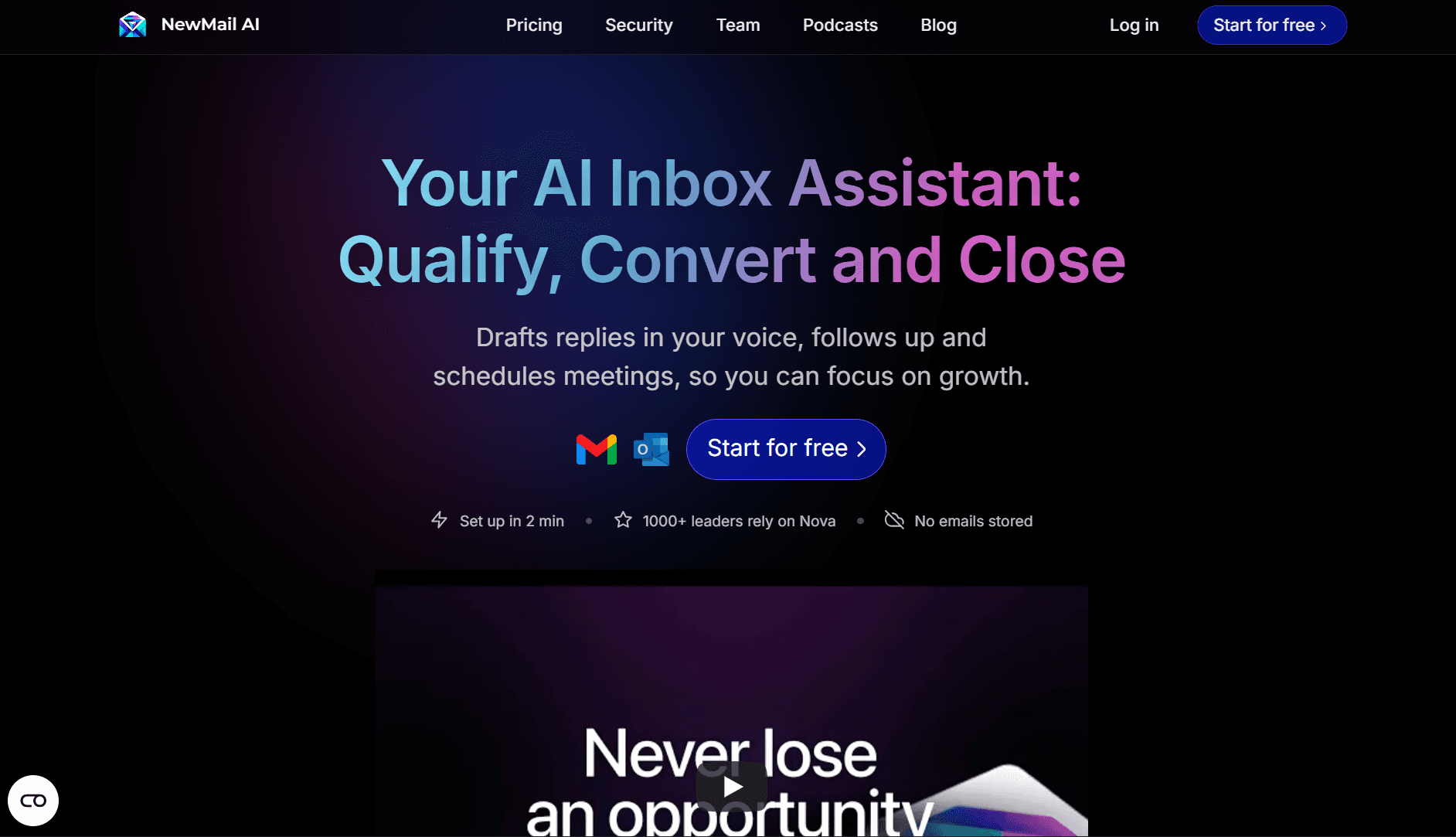
NewMail AI is an intelligent inbox assistant designed for high-velocity professionals who use platforms like Gmail or Outlook. It integrates smoothly into existing workflows, so there's no significant learning curve or new interface required. You can sign up and start in under 5 minutes by connecting your preferred mailbox and letting the assistant begin its work.
The following features help you keep a clean, reliable inbox without changing how you work.
Smart Tagging and Intelligent Folders
NewMail AI automatically creates organized spaces, grouping messages into clear, intuitive folders. For instance: "Active deals," "Team updates," "Finance approvals."
Why it matters: You find what you need faster, whether it's a client update, a contract sent last week, or a decision waiting on your approval.
Efficient Newsletter and Noise Control
It identifies bulk senders, recurring promos, and low-value updates, then moves or flags them so they don't compete with real work.
What You Gain:
Fewer distractions
A cleaner daily view
No more time wasted scrolling past newsletters you never read
Example: If your team signs up for multiple product trials throughout the quarter, the tool keeps marketing blasts from taking over your inbox.
Personalized Priority Ranking
Your inbox reflects your real priorities. NewMail AI learns which senders, topics, and actions matter to you and moves them to the top automatically, while lower-priority emails go into background folders.
Email Overload Relief
NewMail AI reduces inbox volume by continuously organizing and sorting messages. You spend less time on cleanup and more time on decisions.
Privacy-First Design
NewMail AI processes your messages without storing or using your data for model training. You get the benefits of intelligent cleanup without compromising security.
Why it matters: For businesses handling sensitive client data, financials, or contracts, privacy is non-negotiable.
Ideal For:
Executives who receive dozens of CCs every hour
Sales teams managing multiple deals
Founders juggling investors, customers, and internal updates
Pricing
Plan | Price | Key Features |
|---|---|---|
Free (NewMail Preview) | $0 | Personalized AI drafts, priority sorting, task tracking, last 50 emails, one-time report |
Personal Assistant | $15/month | 50 personalized drafts/day, priority sorting, task tracking, accelerated scheduling, daily briefings, founder support |
Enterprise | Custom | Everything in Personal Assistant Plan + Unlimited AI drafts, custom workflow audit, org-level insights, priority support with SLAs |
Why It's Worth Your Attention
Time saved: The less you spend digging for what matters, the more you spend doing strategic work.
Reduced mental load: Fewer decisions about what to open, what to ignore, what to act on.
Better visibility: Tasks and deadlines are embedded in email chains so they don't get lost.
Also Read: AI for Gmail Management: How NewMail Is Redefining Email Productivity in 2025
2. Clean Email
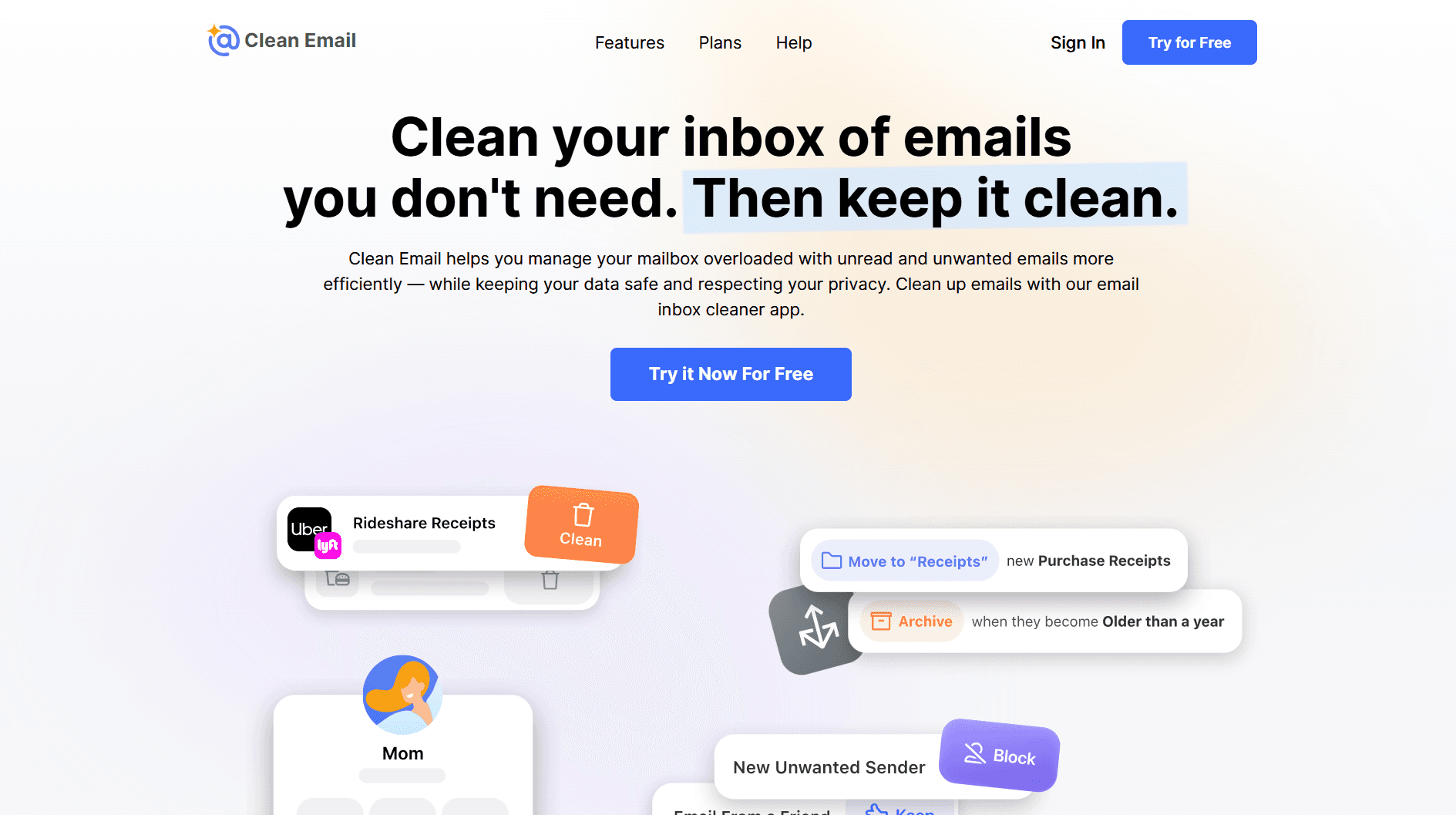
Clean Email is an AI email inbox cleaner app that focuses on bulk actions, filters, and rule-based automation rather than adaptive intelligence. It helps reduce visible clutter, but it requires manual setup and ongoing tuning to stay effective.
Key Features
Smart Folders & Smart Views: Groups similar emails (like social updates or promotions) for quick bulk deletion or archiving.
Auto Clean Rules: Enables you to create rules to automatically archive, label, or mark certain emails as read. That's helpful, but requires setup.
Unsubscriber Tool: Identifies mailing lists and simplifies opting out of newsletters.
Screener: Blocks emails from unknown senders until you approve them.
Cleaning Suggestions: Offers recommendations for reducing inbox clutter.
Pros
Flexible email provider support
Available on iOS, macOS, Android, and web (but no Windows app).
Data privacy commitment, with measures to keep personal information secure.
Cons
Not truly AI-powered, relying heavily on manual rules instead of adaptive learning.
No prioritization or context awareness, so essential emails can still get buried.
No auto-replies or workflow features, limiting usefulness for sales or leadership teams.
Setup takes time, especially if you depend on multiple filters or rules.
Pricing
1 account: $9.99 per month
5–10 accounts: $19.99–$29.99 per month
3. SaneBox
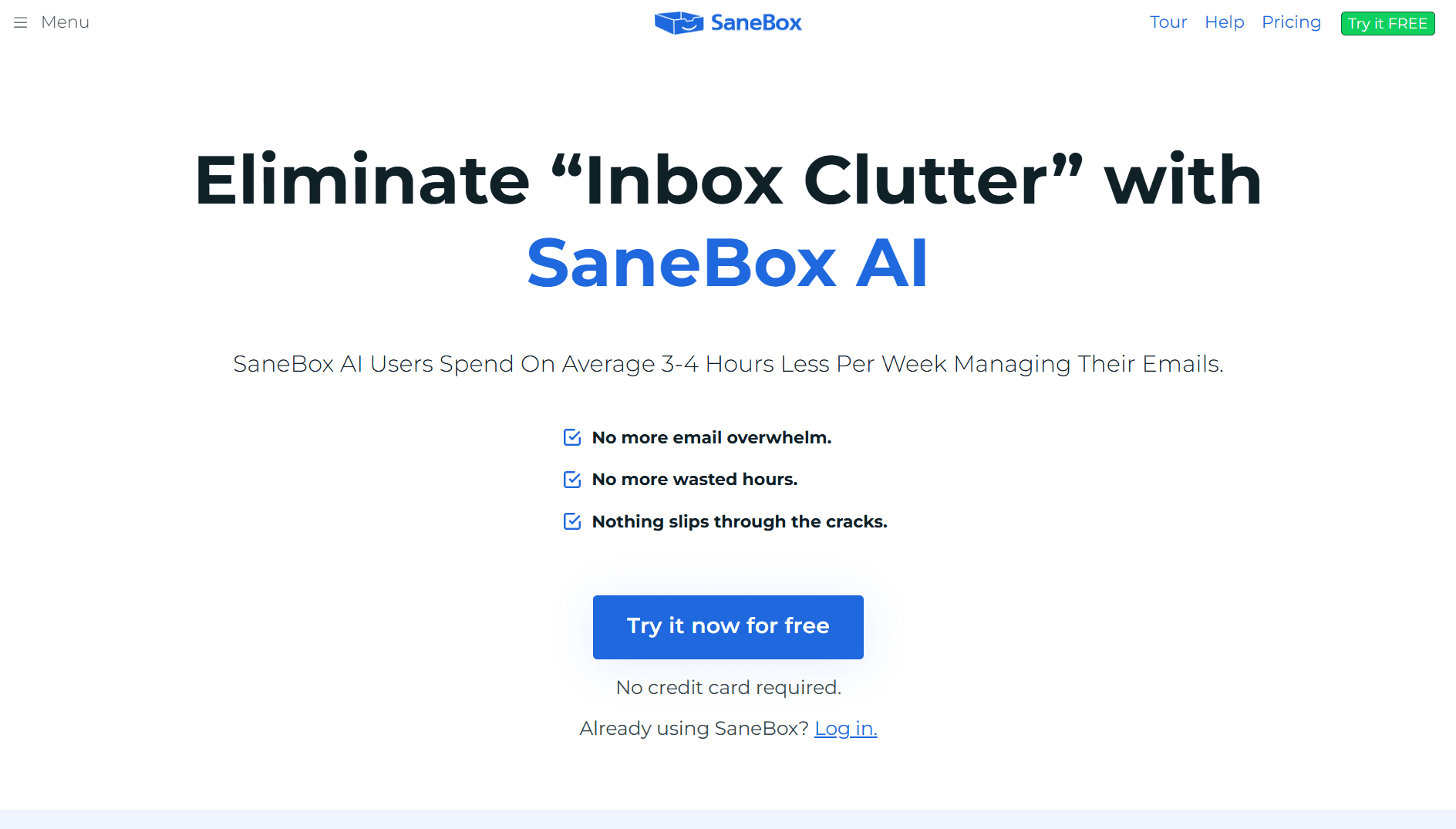
SaneBox automatically sorts emails into category-based folders to reduce inbox noise and keep your primary inbox cleaner. It's lightweight and easy to set up, but it relies heavily on folder-based rules. That can feel restrictive for teams that need deeper automation or more thoughtful prioritization.
Key Features
SaneLater: Moves low-priority emails out of your inbox to reduce distractions.
BlackHole: Unsubscribes you from mailing lists with a single action.
Daily Digest: Summarizes everything SaneBox filtered so you can review what you missed.
Reminders & Snooze: Nudges you to follow up on unanswered emails or bring back messages when you're ready.
SaneNoReplies: Tracks outbound emails that haven't received a response.
Do Not Disturb: Temporarily pauses incoming emails to focus on work.
Pros
Fast setup with minimal configuration required.
Simple training process: you drag emails into the correct folder, and it learns.
Broad email compatibility, making it accessible across most inboxes.
Cons
Only six custom folders, which restrict customization for power users.
Important emails can occasionally get sorted into the wrong category due to rigid rules.
No built-in email writer, making it less useful for professionals who want AI-powered drafting.
Not ideal for sales teams since it lacks multi-channel outreach, follow-up automation, and contextual understanding.
Beyond sorting and basic reminders, it doesn't offer advanced workflow features.
Pricing
Snack: $3.49 per user/month (1 account)
Lunch: $5.99 per user/month (2 accounts)
Dinner: $16.99 per user/month (4 accounts)
4. Mailstrom
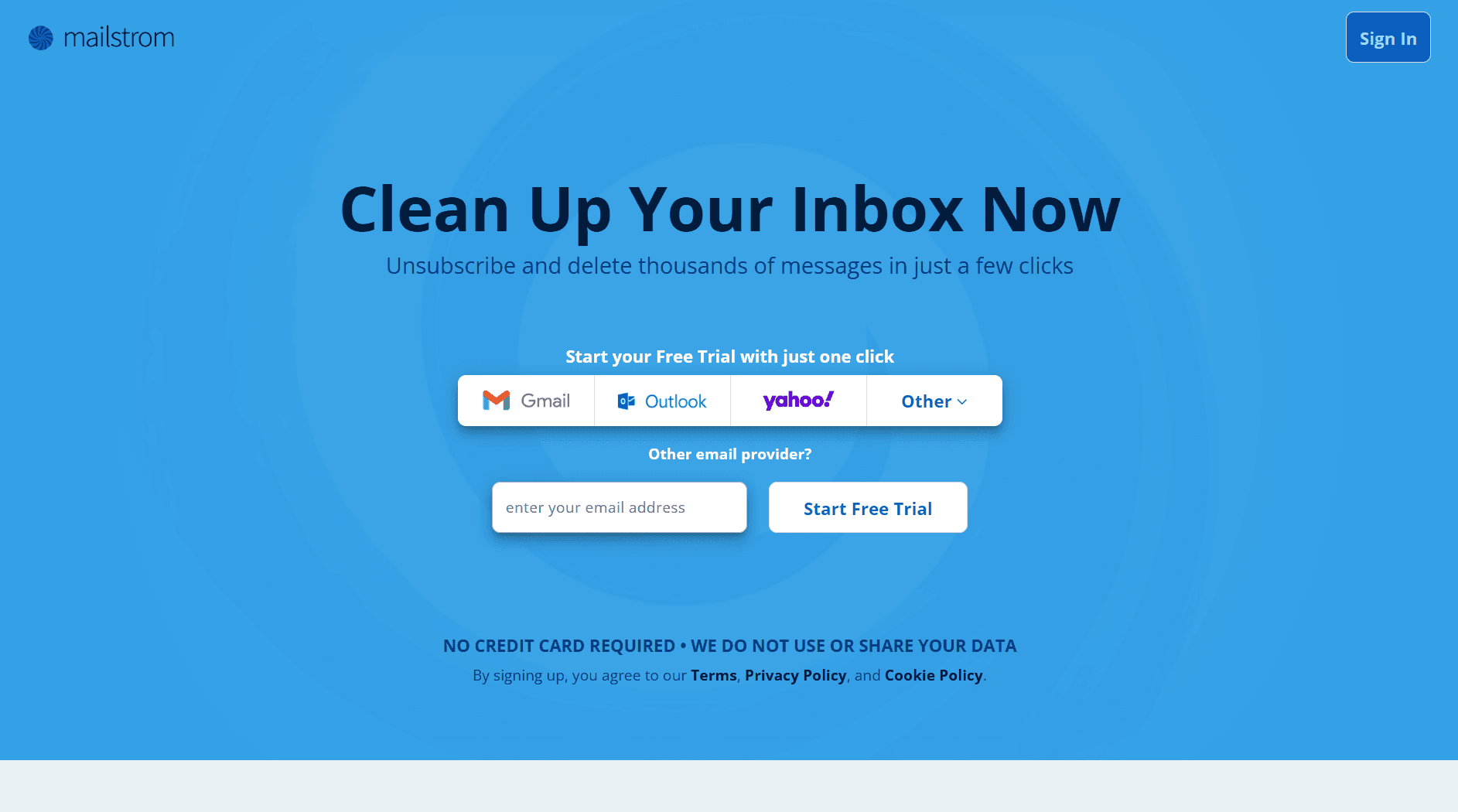
Mailstrom helps you clear bulk email quickly by grouping messages so you can delete or archive them in large batches. It's effective for one-time cleanup sessions but lacks the intelligent automation needed for ongoing, hands-off inbox management.
Key Features
Pattern-Based Grouping: Organizes emails by sender, subject, date, or size for fast bulk actions.
Bundle & Act: Lets you archive, delete, or label large groups of related emails (e.g., receipts, promos) with a single action.
One-Click Block: Quickly filters out unwanted senders to prevent future clutter.
IMAP Compatibility: Works with Gmail, Outlook, Yahoo, and any IMAP provider.
Pros
Great for large-volume cleanup, especially if your inbox is years behind.
Easy to use, with a straightforward interface.
Safe access via encrypted authentication and no server-side email storage.
Cons
Limited AI capabilities: Relies on manual input and filters; no adaptive prioritization or intelligent sorting.
No built-in auto-unsubscribe tool, making it harder to prevent clutter from recurring senders.
Lacks automation for ongoing management.
Paid service, which can feel limiting given the lack of deeper automation.
Pricing
Basic: $9 per month (1 account)
Plus: $14 per month (3 accounts)
Pro: $29.95 per month (20 accounts)
5. Unroll.Me
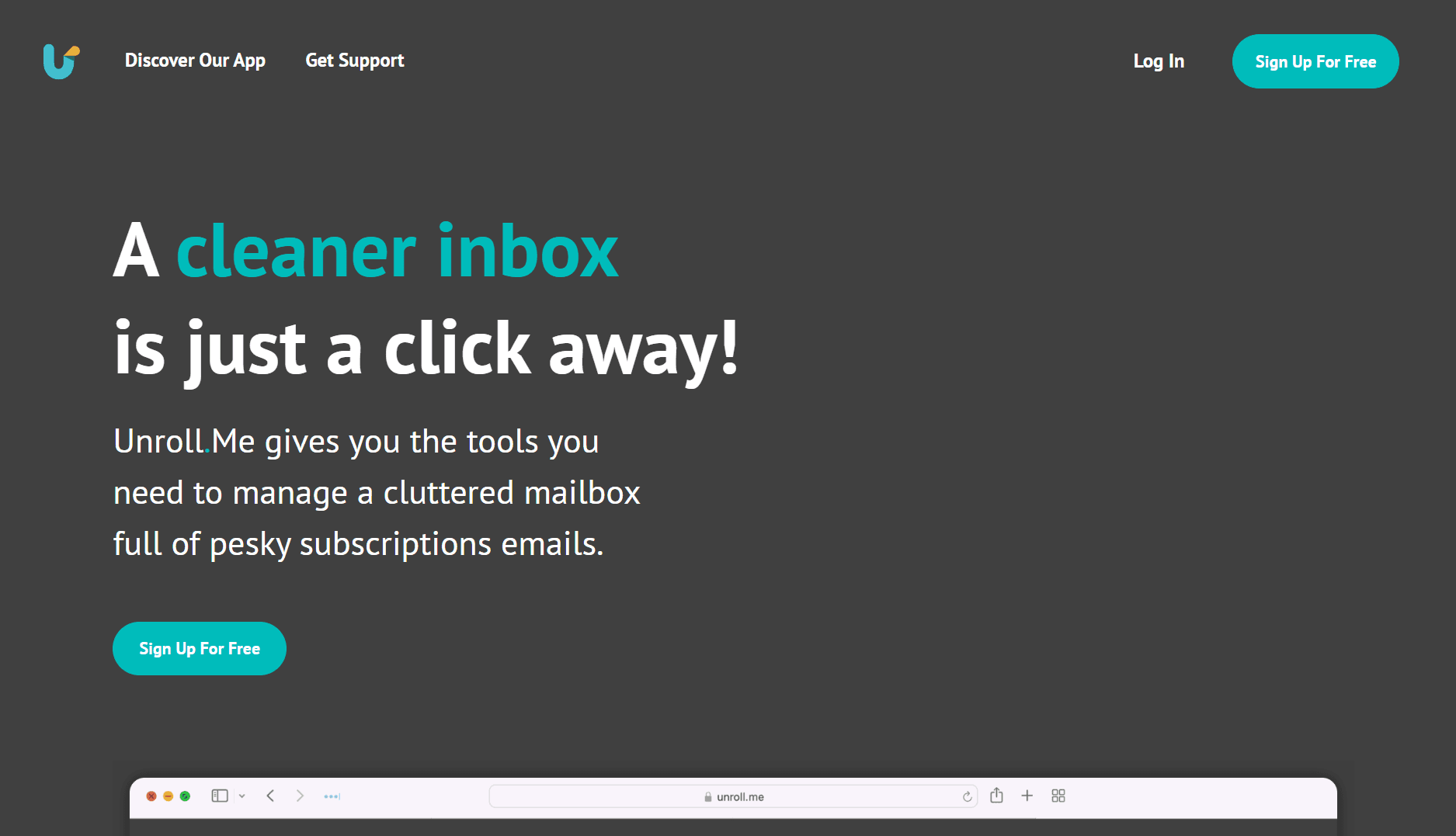
Unroll.Me focuses almost entirely on subscription management. It bundles newsletters into a daily digest and makes bulk unsubscribing simple. While it helps reduce surface-level clutter, it offers limited automation and can misclassify emails, so you still need manual oversight.
Key Features
Bulk Unsubscribe: Remove multiple newsletter subscriptions in one click.
Rollup Digest: Groups subscriptions into a daily summary so they don't flood your inbox.
List View: Shows all the subscriptions you're signed up for, making management easier.
Cross-Platform Support: Works with major email providers like Gmail, Outlook, and Yahoo.
Pros
Great for newsletter control, especially if you're overwhelmed by promos and recurring messages.
One-click unsubscribe saves time compared to hunting for opt-out links.
Cons
Only filters subscription emails, leaving the rest of your inbox clutter untouched.
Important messages can be incorrectly labeled as promos.
Still requires manual inbox cleanup because non-promotional bulk emails aren't addressed.
No AI-powered prioritization, task extraction, or context awareness.
Supports one email account at a time, which slows down professionals managing multiple inboxes.
Pricing
Free, but with data extracted from commercial emails for market research purposes.
6. Cleanfox
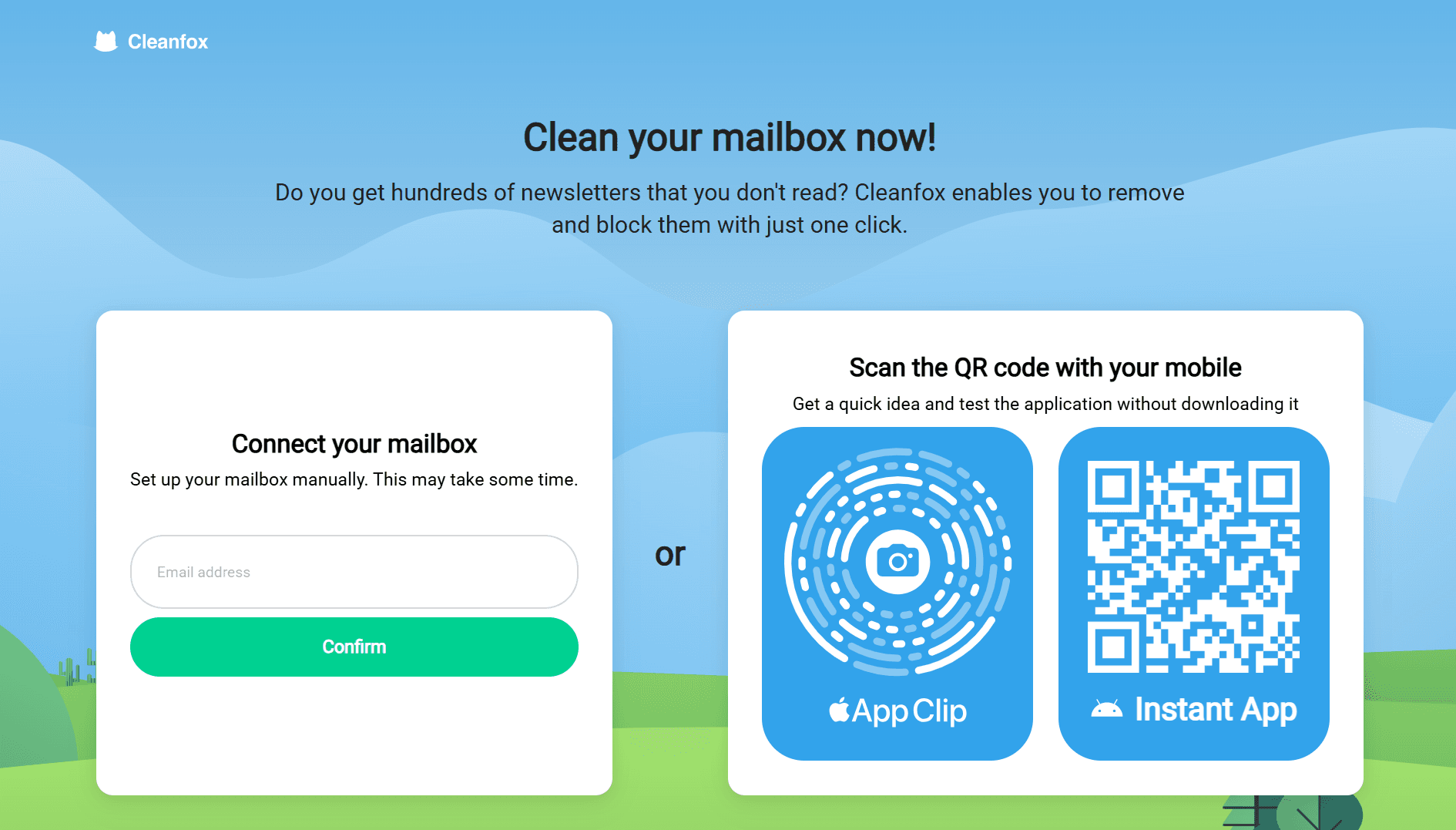
Cleanfox is a simple tool designed to clean up newsletters and old promotional emails while promoting a "green inbox" philosophy. It's easy to use and free, but its automation is limited, and its data practices may be a concern for privacy-focused professionals.
Key Features
Bulk Unsubscribe & Delete: Quickly remove old newsletters and delete promotional emails in batches.
Swipe Controls: Clear emails with quick swipe actions.
Environmental Dashboard: Shows the carbon footprint linked to your inbox usage.
Email Statistics: Provides insights into how many newsletters you receive and open.
Pros
Free to use, with no subscription fees.
Straightforward interface, making quick newsletter cleanup easy.
No app download required, which lowers adoption barriers.
Cons
Limited automation, offering only basic newsletter and promo cleanup.
Inconsistent detection, sometimes failing to unsubscribe properly or only moving emails to trash.
No advanced inbox features, such as snoozing, prioritization, smart tagging, or AI-driven organization.
Swipe controls can cause accidental deletions, especially during fast bulk cleanup.
Data privacy concerns arise as anonymized user data is collected and used for market research.
Pricing
Free, but with revenue generated from the sale of anonymized data.
7. Trimbox
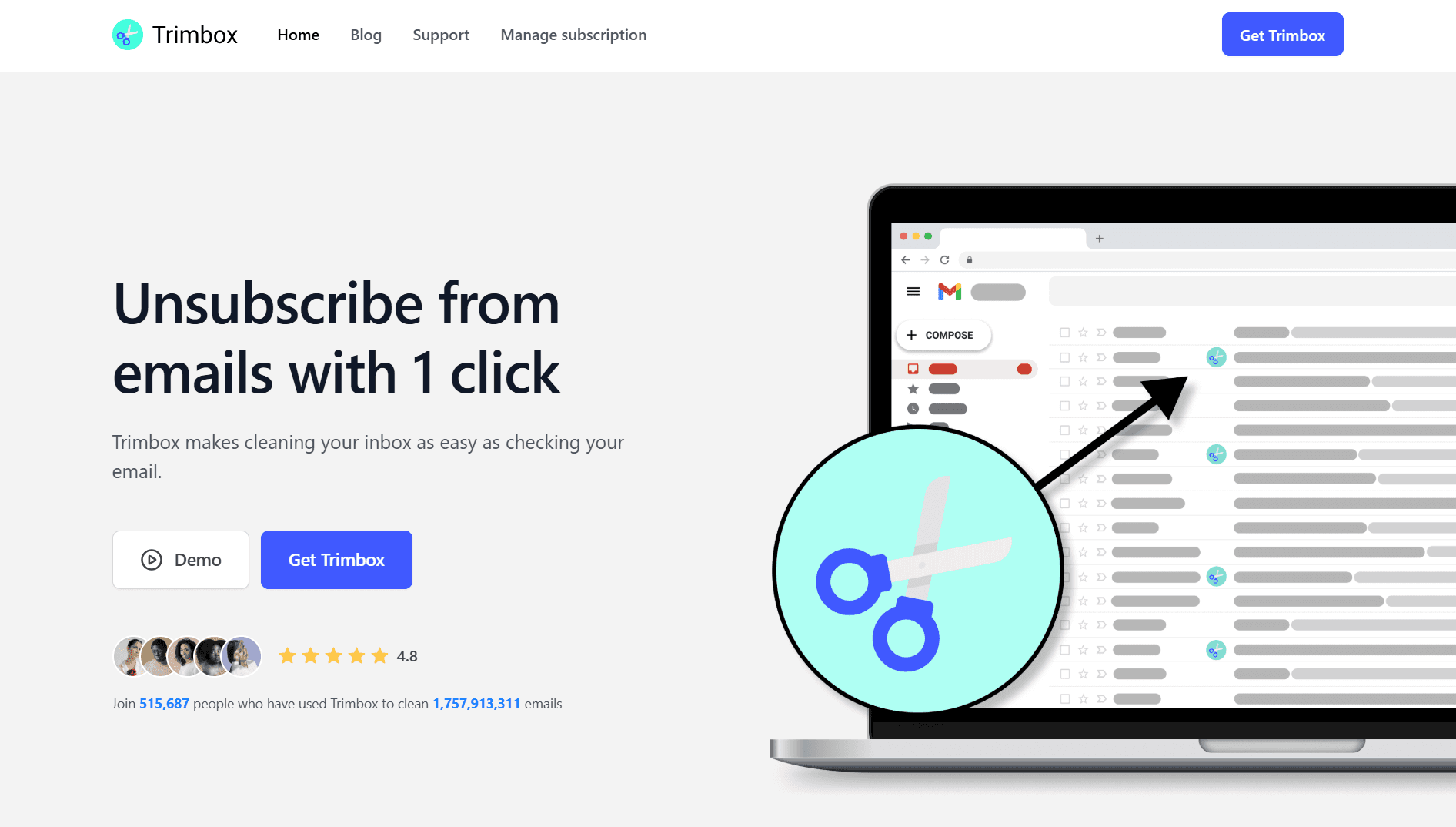
Trimbox focuses primarily on unsubscribing from mailing lists and removing unwanted emails to reduce inbox clutter. It's convenient and straightforward for Gmail users, but its unsubscribe method is limited, and automation is minimal.
Key Features
One-Click "Unsubscribe": Identifies mailing lists and creates Gmail filters to send future emails to trash.
Mass Delete Tools: Quickly remove old emails from specific senders or categories when storage is running low.
Automatic Scan: Detects unwanted newsletters without requiring you to open each email.
Cross-Device Access: Available as a web app, browser extension, and on iOS/Android.
Pros
Simple one-click cleanup for newsletters and recurring senders.
Suitable for multiple Gmail accounts, making it convenient for personal and secondary inboxes.
Easy onboarding, with no complex setup required.
Cons
Not a true unsubscribe, since it uses filters to trash incoming mail rather than removing you from mailing lists.
No bulk unsubscribe, which slows down cleanup for large inboxes.
Minimal automation, requiring manual work for sustained inbox hygiene.
Gmail-heavy product: Inconsistent or nonfunctional with Outlook and some Android setups.
Minimal free trial, allowing only 10 unsubscriptions before paid plans begin.
Pricing
Trimbox Unlimited: $3.33/month (billed annually), or $19.99/month (billed monthly)
Suggested Read: Best Email Automation Tools in 2025
With so many "good" options in mind, choosing the right one and setting it up correctly is what determines how quickly you see results. Here's how to get started.
Setting Up an AI Email Cleaner: A Step-by-Step Guide
A few thoughtful steps upfront can dramatically reduce inbox noise, prevent misclassification, and help the AI learn what truly matters in your day. The selection and setup process determines how effectively the tool supports you over time.
Step 1: Choose the Right AI Email Cleaner
Before setting anything up, you need a tool that fits your workflow. An effective AI email cleaner should reduce your inbox load, not add more friction. Here's what to look for:
Understand Your Needs: Knowing the problems you want solved helps you filter out tools that don't fit. Start by identifying the most significant pain points in your inbox.
Too many newsletters?
Missing high-priority emails?
Need help with sorting, snoozing, or follow-ups?
Check Compatibility: Compatibility is non-negotiable if you rely on your inbox every day. Make sure the tool works smoothly with your email provider.
Most AI cleaners support Gmail and Outlook.
Some tools only work well with Gmail.
A few struggle with IMAP or mobile apps.
Evaluate the Interface: Choose a tool that is intuitive and clean. A complicated interface takes more time to learn than it saves.
Look at the Features That Matter: Not every AI cleaner offers the same capabilities. The features below should guide your shortlist:
Feature Category | What to Look For |
|---|---|
Inbox Organization | Automatic sorting by sender, category, or relevance |
Spam + Noise Control | Strong filters to keep junk out of your primary inbox |
Unsubscribe Options | One-click unsubscribing and newsletter detection |
Bulk Actions | Delete or archive hundreds of emails at once |
Reminders / Follow-Ups | Helpful for client management or sales pipelines |
Storage Cleanup | Tools that detect large attachments and outdated emails |
Pro Tip: If your role involves leadership, sales, or operations, prioritize tools that rank emails by importance or extract tasks, not just ones that tidy newsletters.
Consider Cost: Review the pricing structure and the value you get in return. Choose what aligns with your workload and budget.
Check Reviews & Reliability: Before committing, skim recent user reviews or testimonials to learn:
Ease of setup
Whether misclassification is common
Support quality
Hidden limitations
Key Insight: Real-world feedback shows how well the tool performs during busy weeks, not just on a feature page.
Step 2: Connect Your Email Account
Log in through the tool's interface and grant the required permissions so it can sync your inbox.
Pro Tip: If you manage multiple inboxes (e.g., sales, support, personal), connect them one at a time. This prevents early misclassification and lets the AI learn each inbox separately.
Step 3: Customize Your Sorting Preferences
Once connected, tailor how you want emails to be organized. This ensures the system matches your real workflow rather than creating new habits you won't follow.
Examples of helpful customizations:
Move newsletters and automated alerts into a dedicated folder.
Route the invoices or approvals into their own category for quick review.
Keep prospect or client emails in the primary inbox.
Flag emails requiring a response within a specific timeframe.
Step 4: Train AI for Improved Accuracy
Most AI cleaners improve as they observe your actions. The more consistent you are in marking, moving, or archiving emails, the faster the system adapts.
How to train it effectively:
Mark high-value senders as important
Move non-essential threads out of your primary inbox
Correct misclassifications when you see them
Step 5: Enable Alerts for Priority Messages
Turn on notifications for emails from people or topics that matter most to your business. These include investors, clients, direct reports, and key partners. This ensures time-sensitive messages rise above the noise.
Step 6: Monitor and Adjust Accordingly
AI doesn't get everything perfectly right from the start. A quick check-in each week helps you refine sorting rules, adjust filters, and identify any patterns that don't align with your workflow.
What to review:
Are priority emails being surfaced correctly?
Are low-value messages staying out of your primary inbox?
Are follow-up or reminder features working as expected?
Pro Tip: Treat the first 2 weeks as a calibration period. After that, the AI handles most of the work with minimal oversight.
Also Read: Top AI Email Assistants for Managing Your Inbox in 2025
Conclusion
The tools in this guide show how AI can help reduce email chaos, sort messages faster, and bring more order to your inbox. However, each option approaches cleanup differently. Some implement bulk deletion, while others focus on newsletters or folder-based sorting. That gives you a clearer sense of what's possible and what's still missing in most solutions.
NewMail AI goes further by pairing inbox cleanup with features that support your entire workday: priority ranking, task extraction, daily briefings, and a privacy-first foundation. It's built for people who need more than a tidy inbox. It supports professionals who manage deals, approvals, and high-stakes communication where missing an email isn't an option.
If email overload is slowing your decisions or hiding essential conversations, it's time for a more competent cleanup. Try NewMail AI for free and see what it feels like to stay ahead of a messy inbox, finally.

FAQs
1. Do I still need an AI cleaner if I already use Gmail filters?
Yes. Gmail filters only follow static rules. AI understands changing priorities, detects urgency, and adapts as your role or projects shift, offering context-aware sorting that your manual filters can't replicate.
2. How does an AI Gmail cleaner manage multiple inboxes without mixing everything?
It learns behavior patterns per inbox, keeping priorities separate for each account. This prevents personal updates, sales leads, and internal approvals from being combined into a single stream, reducing confusion for multi-inbox users.
3. Can AI handle both long threads and short transactional emails?
AI identifies decision points in long threads and flags impactful transactional messages. This approach ensures action-worthy emails surface regardless of format or length.
4. Can an AI email cleaner distinguish between internal updates and external client messages?
Yes. It detects sender relationships, thread patterns, and communication frequency, allowing it to separate internal chatter from client-sensitive messages that need faster visibility.
5. Will using an AI email inbox cleaner slow down my inbox or email loading times?
Most tools operate via cloud-based processing, so performance impact is minimal. Lag typically appears in rule-heavy or bulk-action systems, not adaptive AI-driven ones.
