in Gmail](https://file-host.link/website/newmail-uzhwp3/assets/blog-images/0768d69e-cf95-48ec-a0d0-24c48862894f/1776254274771987_7ea35c7fe5c143c7a5059c9d0bf79101/360.webp)
Introduction
Professionals lose deals and drop critical threads not because they forget—but because Gmail's inbox doesn't remind them at the right moment. The average worker receives 117 emails daily, skimming most in under 60 seconds. Important follow-ups disappear into inbox chaos, buried beneath newsletters and low-priority messages.
Gmail does offer built-in reminder features, but how well they work depends on how you set them up. This guide covers exactly how to configure each option—and when native tools fall short of what busy professionals actually need.
Key Takeaways
- Gmail has three native reminder tools: Nudges, Snooze, and Schedule Send — each built for a different use case
- Self-reminders and timed outbound emails are separate workflows — set them up independently
- Conditional triggers ("remind me only if no reply") require third-party extensions; Gmail's native tools cannot do this alone
- Leaving emails unread as makeshift reminders is the most common habit that breaks down at volume
- Tool selection depends on your scenario: individual tracking, team outreach, or recurring campaigns
How to Set Up Automated Email Reminders in Gmail
Step 1: Enable Gmail Nudges for Forgotten Emails
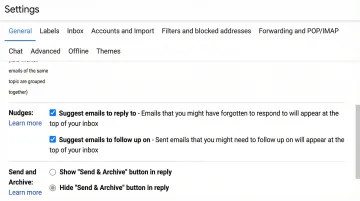
Nudges is Gmail's AI-powered feature that flags emails that need attention, prompting you about messages you haven't replied to and sent emails that haven't received responses.
Desktop setup:
- Click the gear icon in Gmail's top-right corner
- Select "See all settings"
- Under the "General" tab, scroll to "Nudges"
- Check "Suggest emails to reply to" and "Suggest emails to follow up on"
- Click "Save Changes" at the bottom
Mobile setup (iOS and Android):
- Open Gmail and tap the menu icon (three horizontal lines)
- Scroll down and tap "Settings"
- Select your account
- Tap "Inbox customizations" or "Inbox"
- Enable "Nudges"
Nudges are passive suggestions shown at the top of your inbox — not scheduled alerts. They work as a safety net, not a reliable trigger for time-sensitive follow-ups.
Step 2: Use Gmail's Snooze Feature to Schedule Inbox Returns
Where Nudges surface emails passively, Snooze gives you direct control. It temporarily removes an email from your inbox until a date and time you choose, then returns it to the top.
How to snooze an email:
- Hover over the email in your inbox (desktop) or swipe right (mobile)
- Click the clock icon
- Choose a preset time (Later today, Tomorrow, This weekend, Next week) or select "Pick date & time" for custom scheduling
- The email moves to the "Snoozed" label and returns to your inbox at the scheduled time
One limitation worth knowing: Snooze only works on emails you've already received. It can't trigger reminders on sent emails or alert you when someone hasn't replied to your outreach.
Step 3: Use Schedule Send to Automate Outbound Reminder Emails
To address the gap Snooze leaves on the outbound side, Schedule Send lets you queue emails you've already written and deliver them at a future date and time — useful for appointment reminders, recurring announcements, or pre-planned outreach.
Steps to schedule an email:
- Click "Compose" in Gmail
- Write your email as normal
- Click the dropdown arrow next to the "Send" button
- Select "Schedule send"
- Choose a suggested time or select "Pick date & time" for custom scheduling
- Click "Schedule send"
Gmail allows a maximum of 100 scheduled emails at any time. Scheduled emails appear under "Scheduled" in the left sidebar, where you can edit or cancel them before they send.
This works well for pre-set campaigns, appointment confirmations, and weekly team updates. It does not support conditional follow-ups — for example, "only send this if they haven't replied."
Step 4: Set Up Automated Follow-Up Conditions Using Gmail Filters and Canned Responses
For rule-based automation, Gmail Filters combined with Templates (the renamed version of Canned Responses) let you auto-label incoming emails or send automatic replies based on conditions you define.
Enable Templates:
- Go to Settings > See all settings > Advanced
- Enable "Templates"
- Click "Save Changes"
Create a template:
- Compose a new email with your standard response
- Click the three dots in the compose window's bottom-right
- Select Templates > Save draft as template > Save as new template
- Name your template
With your template saved, you can attach it to a filter that fires automatically:
Create a filter with auto-reply:
- Go to Settings > See all settings > Filters and Blocked Addresses
- Click "Create a new filter"
- Set conditions (e.g., "From" contains a specific email address)
- Click "Create filter"
- Check "Send template" and select your saved template
- Click "Create filter"
This method handles inbox organization and auto-replies to incoming emails well. It cannot create conditional "if no reply" follow-up sequences — that requires a third-party tool.
Key Variables That Affect Your Email Reminder Results
Four variables determine whether your Gmail reminders succeed or create chaos. Getting any one wrong leads to missed follow-ups or reminder overload.
Trigger Type (Time-Based vs. Condition-Based)
Time-based reminders (Snooze, Schedule Send) fire regardless of context. Condition-based reminders — for example, "if no reply in 3 days" — only trigger when specific criteria are met.
In sales contexts, relying solely on time-based tools means sending redundant emails to people who already replied. That damages sender reputation and wastes effort. 70% of unanswered email chains stop after the first attempt, and time-based tools alone can't fix that — you need conditional logic.
Reminder Frequency and Spacing
Spacing matters more than volume. Send too frequently and you trigger spam filters or unsubscribes. Wait too long and the engagement window closes entirely.
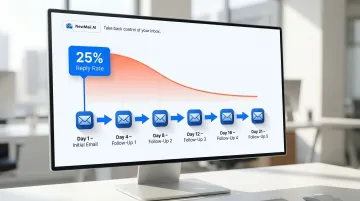
Analysis of 10 million email threads found the most successful cadence is six touches over three weeks, spaced 3-4 days apart. Sales reps who send their first follow-up within 24 hours see reply rates around 25% — those who wait longer see steep drop-offs.
Personalization in Reminder Content
Generic follow-ups — think "Just checking in!" — get ignored. Reminders that add context or new information perform measurably better.
Customized emails achieve 10% higher open rates and 2x the reply rates compared to generic templates. The data breaks down further: personalized subject lines boost response rates by 30.5%, while personalized email bodies add another 32.7%.
Tool Selection (Native Gmail vs. Third-Party Extension vs. Automation Platform)
Each tool tier trades off simplicity against power. Native Gmail requires no setup but offers no conditional logic. Third-party extensions add trigger-based automation but request data access permissions. Automation platforms give you full flexibility — at the cost of technical setup time.
Match the tool to your use case:
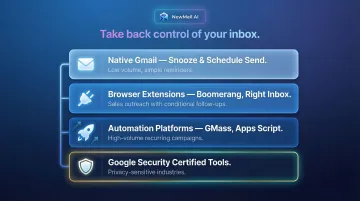
- Low volume, simple reminders: Native Gmail (Snooze, Schedule Send)
- Sales outreach with conditional follow-ups: Third-party extensions (Boomerang, Right Inbox)
- High-volume recurring campaigns: Automation platforms (GMass, Apps Script)
- Privacy-sensitive industries: Google Security Certified tools with zero data retention
Common Mistakes When Setting Up Gmail Email Reminders
Using Unread Emails as Informal Reminders
Leaving emails unread as mental flags breaks down at scale and creates inbox anxiety. 24% of people use their email inbox as their primary task management method, but with 117 daily emails, unread counts quickly become meaningless. Critical emails disappear beneath newer messages, and you lose track of which unread items actually require action.
Setting Reminders Without Context
When a snoozed email resurfaces days later with no note or label, you often have to re-read the entire thread to remember what action is needed. Pair reminders with Gmail labels (e.g., "Pending Response," "Follow Up Friday") or add notes in third-party tools to preserve context:
- Gmail labels like "Awaiting Reply" or "Follow Up Friday" surface intent instantly
- Draft notes in a third-party tool capture the specific next step before you snooze
- Subject line edits (if forwarding to yourself) can embed a quick action cue
This keeps the required action visible the moment the reminder fires.
Choosing Only Time-Based Triggers for Sales or Client Follow-Up
Sending a follow-up to someone who already replied — because a timed reminder fired anyway — makes it obvious you didn't read their response. Gmail's native tools can't provide conditional triggers, so in active outreach scenarios, consider tools that fire only when no reply has been received. For high-volume sales or client work, that distinction matters.
Over-Reminding or Stacking Too Many Reminders on the Same Thread
Stack too many reminders on the same thread and you'll start ignoring all of them. When several fire at once, the signal-to-noise ratio collapses. Limit yourself to one or two reminders per thread with clear spacing between them — and if a thread needs more than two, it likely needs a task in a dedicated system instead.
When Gmail's Built-In Reminders Aren't Enough
Native Gmail handles individual, manual use cases well but breaks down when volume increases, when follow-up logic needs to be conditional, or when team-wide consistency is required.
Third-party solution categories:
- Browser extensions (Boomerang, Right Inbox): Send reminders only if no reply is received and cancel scheduled follow-ups automatically when someone responds. These integrate directly into Gmail's interface but require OAuth permissions that grant access to your email data.
- Mass outreach tools (GMass): Connect to Google Sheets for recurring campaigns, sending automated emails to new rows at set intervals (hourly, daily, weekly) with auto follow-ups based on recipient behavior.
- AI inbox assistants: Prioritize emails, extract follow-up tasks, and flag overdue threads — reducing manual reminder setup by identifying what needs attention before you do.
That last category is where NewMail AI fits. It works directly inside Gmail, Outlook, and Apple Mail — extracting follow-up tasks and drafting reminders in your voice without storing email content. For professionals in legal, finance, or healthcare who can't use tools that retain email data, NewMail's Google Security Certified, zero-retention architecture makes it a workable option where most third-party tools aren't.
Frequently Asked Questions
How do I set up automated email reminders in Gmail?
Gmail offers three native tools for reminders: Nudges for AI-suggested follow-ups, Snooze to return emails at a set time, and Schedule Send for outbound timed messages. Conditional automation — for example, "remind me only if no reply" — requires a third-party tool like Boomerang or Right Inbox.
How do I schedule emails to send automatically in Gmail?
Compose your email, click the dropdown arrow next to the "Send" button, select "Schedule send," and choose a future date and time. The email will be delivered automatically at that time—no additional tools required. You can manage up to 100 scheduled emails simultaneously.
How do I create an automated email response in Gmail?
For away auto-replies, use Gmail's Vacation Responder under Settings > General. For rule-triggered responses to specific senders or subjects, create a Template and pair it with a Gmail Filter — no third-party tools needed.
How do I send an automated email reminder from a Google Form?
Google Forms has no built-in reminder feature. Connect your form to a Google Sheet, then use GMass or Google Apps Script to trigger automated emails based on form responses.
How do I write a gentle reminder email in Gmail?
Reference the original thread, add new context rather than a bare "checking in," and close with one clear call-to-action. NewMail AI can draft follow-up reminders in your own voice, pulling context from the thread and timing the message appropriately.
How do I automatically forward emails from a specific sender in Gmail?
Go to Settings > See all settings > Filters and Blocked Addresses > Create a new filter. Enter the sender's email in the "From" field, click "Create filter," check "Forward it to," select or add a forwarding address, and click "Create filter." Gmail handles this natively — no add-ons needed.