Introduction
Knowledge workers spend 28% of their workweek—roughly 11 hours—managing email, with the average professional receiving 121 messages daily. The cost extends beyond lost time: constant email interruptions occur every two minutes, and each context switch steals 23 minutes of focused work.
The usual workarounds don't fix this. Folder rules, manual filters, and scheduled email blocks address surface symptoms—you still decide what's urgent, what can wait, and what needs a real reply versus a two-word acknowledgment.
This guide walks through how to use AI to take over that triage work. Here's what you'll learn:
- How AI sorts and prioritizes your inbox automatically
- Which tools handle drafting replies in your own voice
- How to set up a practical AI email workflow in minutes
- What to look for in an AI email assistant (including privacy tradeoffs)
Key Takeaways
- AI categorises emails by intent and urgency, not just keywords or sender rules
- Setup takes 2–5 minutes—tools connect to Gmail, Outlook, or Apple Mail with no technical configuration
- AI drafts replies in your voice so responses are ready for review, not written from scratch
- Start with labelling and categorisation, then enable automated drafts once you trust the output
- Privacy matters: verify zero data retention policies before granting inbox access
When Should You Use AI to Manage Your Inbox?
AI email management isn't just for executives. If you receive 50+ emails daily or spend more than 90 minutes on inbox triage, AI assistance typically delivers measurable time savings. The tipping point varies by role: sales professionals averaging 100–150 emails per day face an estimated annual cost of over $56,000 in email-related productivity loss, while senior managers and executives see even higher burdens.
That loss is largely preventable — but only if you're deploying AI where it actually belongs. It shouldn't fully replace judgment on sensitive or high-stakes communications. Client escalations, legal negotiations, and confidential HR matters still require human oversight.
Consider your operational context:
- Automate newsletters and internal updates; keep client threads and strategic discussions under human review
- Use AI drafts when fielding support tickets or sales inquiries with tight SLAs — turnaround drops fast
- Lean harder on AI during seasonal spikes (year-end planning, quarterly reviews) when volume surges unpredictably
What You Need Before You Start
Compatible email client (Gmail, Outlook, or Apple Mail): This determines which AI tools work natively without separate forwarding setups. Microsoft 365 dominates the enterprise sector with over 446 million commercial seats, while Gmail leads among startups and mid-sized firms.
Defined sorting priorities: The AI needs a clear categorization logic to work from. Identify 3–5 categories that reflect your actual workday — demo requests, escalations, internal approvals — before you configure anything.
A "review before send" habit: AI drafts need human sign-off, especially in the first 1–2 weeks. Check suggested replies before they go out to catch any tone or context mismatches.
None of this requires technical skills or API configuration — inbox-native AI tools handle setup in minutes, unlike DIY automation that requires custom integrations.
How to Sort, Manage, and Draft Email Replies with AI
The process follows a defined sequence: connect your inbox first, configure categories second, then activate drafts. Skipping steps early on leads to mislabelling and miscategorised mail that's hard to untangle later.
Connect Your Inbox and Choose Your AI Tool
"Inbox-native" means the AI works directly inside your existing client (Gmail, Outlook, Apple Mail) rather than requiring a separate dashboard. Tools like NewMail AI install in roughly 2 minutes with OAuth authentication and require no email storage by default.
What to check during setup:
- OAuth permissions: Start with read-only access during testing; grant send access only after you've validated the AI's categorisation accuracy
- Data retention policy: Choose tools that process emails ephemerally — especially for client or confidential communications
- Storage vs. processing: Some tools retain encrypted context (your tone preferences) but delete email content immediately after processing — confirm which applies
NewMail AI, for example, processes emails ephemerally and maintains zero data retention agreements with AI providers like Anthropic and Mistral, ensuring data is never stored and is immediately discarded after analysis.
Set Up Sorting Categories and Labels
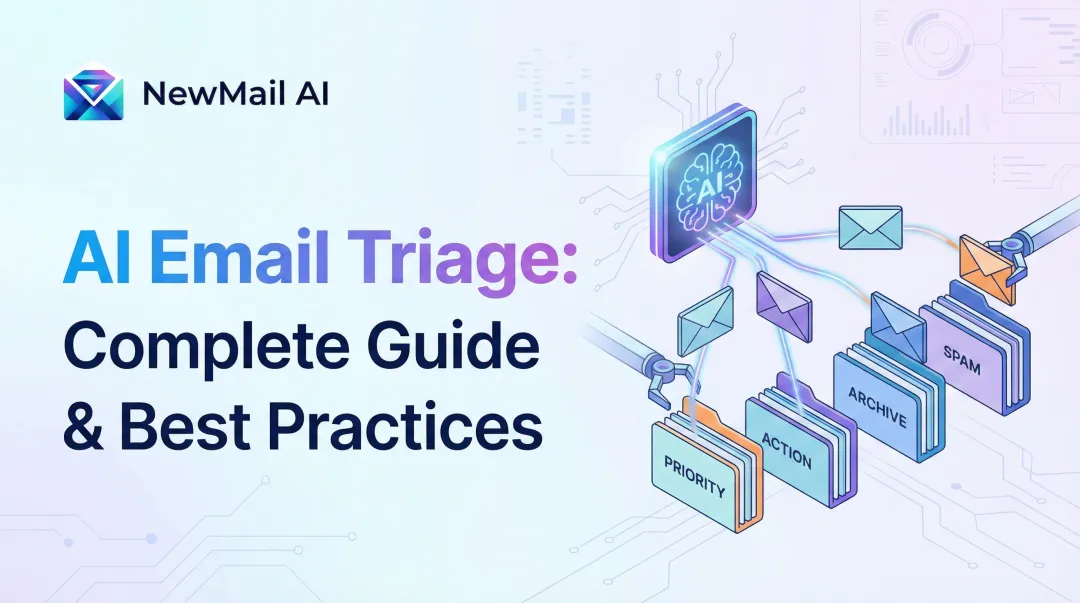
AI categorisation works differently from keyword rules: it reads the intent, urgency, and relational context of an email rather than scanning for exact phrases. Transformer-based AI models achieve 98–99% accuracy in email intent classification, far outperforming traditional filters.
Smart categories to consider:
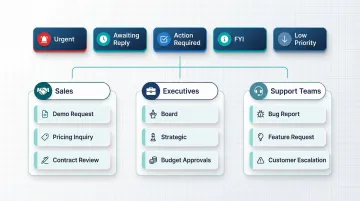
- Urgent: Deadlines, escalations, time-sensitive requests
- Awaiting Reply: Threads where you're blocking progress
- Action Required: Tasks, approvals, scheduling requests
- FYI: Updates, newsletters, non-critical information
- Low Priority: Marketing, automated alerts, bulk mail
Custom categories vary by role. Sales teams typically add "Demo Request," "Pricing Inquiry," and "Contract Review." Executives benefit from "Board," "Strategic," and "Budget Approvals." Support teams usually need "Bug Report," "Feature Request," and "Customer Escalation."
Feed this context to the AI during initial setup. Most tools allow you to describe each category in plain language ("emails from clients asking for pricing details or quote requests"), which the AI uses to train its classification logic.
Enable Priority Inbox and Triage Logic
AI surfaces high-value messages by analysing sender importance, thread history, keywords signalling deadlines or decisions, and learned behaviour from past user actions. Gmail's Priority Inbox, for example, uses hundreds of behavioural signals—whom you email, which messages you open, reply to, star, or archive—to predict the likelihood of you acting on a message.
Static vs. dynamic priority inboxes:
- Static: Based on pre-set rules (all emails from your manager are high-priority)
- Dynamic: AI continuously adjusts based on what you open, reply to, and ignore, improving over time as it learns your actual behaviour
Dynamic models adapt to shifting patterns. Stop reading newsletters you once opened regularly, and the AI demotes them automatically. A new client who becomes a frequent contact rises in priority without any rule updates on your end.
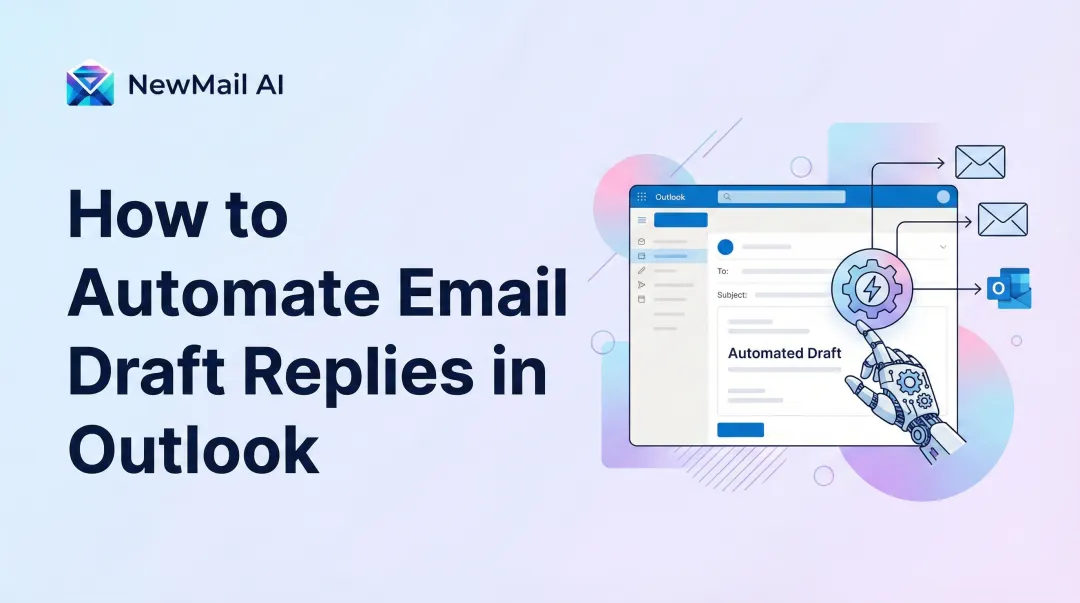
Activate AI-Drafted Replies
AI learns to draft in your voice by studying past replies for tone, length, phrasing patterns, and common responses. Tools like NewMail AI calibrate this in under 60 seconds, analysing sent emails to extract your communication style, role context, and standard links or FAQs.
The review-then-send workflow:
AI drafts should appear as editable suggestions, not auto-sends. Configure confidence thresholds or approval requirements so nothing goes out without a human checkpoint in the early stages.
- Low confidence: AI flags the draft for full review when it's unsure about tone or intent
- High confidence: AI presents a near-final draft but still requires your approval before sending
- Manual override: Always retain the ability to disable drafting for specific senders or thread types
Research shows that AI-generated business messages are perceived as professional and effective, but recipients rate senders as less sincere when they know AI was involved. This reinforces the importance of personalising drafts and ensuring they reflect your genuine intent.
Monitor Output and Refine Over Time
First 1–2 weeks:
- Check miscategorised emails daily and correct labels manually
- Review draft tone for accuracy—does it sound like you?
- Note which categories produce too many or too few hits
Corrections made in this window directly shape the model's behaviour for months ahead. If "Urgent" catches too much, refine the definition. If the AI misses escalations, add keywords or sender patterns it should prioritise.
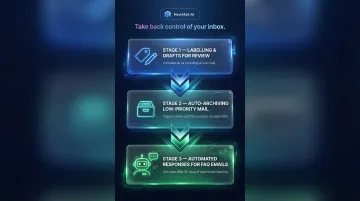
Gradually expand automation:
- Start with labelling and drafts-for-review
- Add auto-archiving of low-priority mail once categorisation proves reliable
- Consider automated responses for confirmed FAQ-type emails only after the system has proven consistent
Best Practices for Getting Consistent Results
Getting reliable results from an AI email system comes down to a few deliberate habits — set these up early and the system compounds over time.
- Start in read-only mode. Configure the AI to label and summarise before granting any send or delete permissions. Building trust in stages prevents costly mistakes.
- Treat categories as living rules. Revisit your sorting logic monthly as inbox patterns shift — new projects, new clients, seasonal changes. AI works best when categories reflect your current reality.
- Reserve manual replies for high-stakes threads. Define which email types the AI should flag rather than draft — client escalations, negotiations, legal or financial matters, anything requiring nuanced judgement.
- Use AI digest summaries to batch your email time. AI-powered summarisation can cut newsletter reading time by 80%, and checking email three times daily measurably reduces psychological stress. A daily digest makes that batching practical.
Frequently Asked Questions
Can AI help me sort my emails?
Yes, modern AI email tools sort by intent, urgency, and sender context—not just keywords. Setup typically takes minutes inside Gmail or Outlook without any technical configuration. Over time, the AI refines its sorting based on how you actually use your inbox—flagging what matters, quieting what doesn't.
Can ChatGPT organise my emails?
ChatGPT itself is not an inbox-connected tool, but AI email assistants that use similar language models and plug directly into your mail client can handle sorting, categorisation, and drafting from inside Gmail, Outlook, or Apple Mail. NewMail AI is one example—it connects in under two minutes with no separate app required.
What is the best AI tool for email?
It depends on what you need most. For inbox-native experience combined with strict data privacy, NewMail AI is built specifically for professionals who can't compromise on either—with zero email storage by default and direct integration into Gmail and Outlook.
Is it safe to give AI access to my inbox?
Look for OAuth-only access, zero email storage by default, GDPR compliance, and data retention agreements with AI providers. NewMail AI, for example, is Swiss-made, Google Security Certified, and processes emails ephemerally—nothing is stored after analysis.
How do AI email assistants draft replies in my voice?
The AI learns from a sample of past emails to match your tone, length, and phrasing. Good tools include your standard links, FAQs, and sign-offs so drafts require minimal editing.
How long does it take to set up an AI email assistant?
Inbox-native tools typically take 2–5 minutes to connect and configure basic categories. More sophisticated voice calibration and custom sorting rules can be refined over the first week of use.