This constant barrage creates real consequences: missed opportunities, delayed responses, and mounting inbox anxiety. For sales teams, the cost is measurable—conversion rates are 8x higher when leads are contacted within the first 5 minutes versus 6+ minutes. For everyone else, the cost is quieter but just as real: important emails buried under newsletters, decisions delayed because you couldn't find the right thread, and the nagging feeling that something critical just slipped through.
AI email triage offers a way out. This guide covers what AI email triage is, how it works technically, how to set it up properly, and how to choose a privacy-safe solution that won't expose your sensitive communications.
Key Takeaways
- AI email triage uses machine learning to classify, prioritise, and summarise incoming emails — so you act on what matters instead of sorting through everything
- Unlike basic filters, AI triage reads full content and understands context, urgency, and conversation history — not just sender names or keywords
- Core capabilities: priority inbox, thread summaries, draft replies in your voice, and automatic task extraction
- Setup takes minutes; results show up within days — fewer missed emails, faster response times, and real time savings
- Privacy matters: choose tools with zero data retention, GDPR compliance, and strong security certifications to protect sensitive email content
What Is AI Email Triage?
AI email triage is the use of artificial intelligence to automatically sort, categorise, and prioritise incoming emails based on content, context, and urgency—rather than just sender or subject line rules.
Basic email filters apply binary logic. You create a rule: "If sender is newsletter@company.com, move to Newsletters folder." That's filtering. AI triage makes contextual judgments: "This reply from the prospect you've been chasing for two weeks matters more than anything with 'URGENT' in the subject line, even if that urgent message came from your CEO."
Traditional Gmail tabs or Outlook folder rules can't do this. They sort by sender domain or keyword match, but they can't read the full email thread to understand that this particular message represents a turning point in a stalled negotiation.
Who Benefits Most
Different roles face distinct inbox challenges, but the underlying need is the same: emails that matter should surface immediately, not get buried.
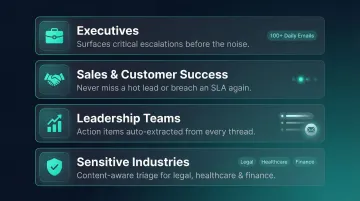
- Executives managing 100+ emails daily get intelligent prioritisation that surfaces decision requests and escalations first, pushing FYIs to the bottom
- Sales and customer success teams can monitor response SLAs and catch time-sensitive leads before they go cold—research suggests response time within 5 minutes dramatically outperforms waiting 30, making priority detection a revenue issue
- Leadership teams use automated action item extraction across threads, so commitments made in long email chains don't disappear into archived folders
- Professionals in sensitive industries—legal, healthcare, finance, government contracting—require triage that understands content, not just metadata, because the cost of a missed email is rarely just inconvenience
How AI Email Triage Works
AI email triage operates through four core technical capabilities. Understanding each one shows why the technology goes far beyond basic filtering rules.
Classification and Prioritisation
AI reads the full email body—not just headers—and applies natural language understanding to assign urgency tags, categories, and priority scores. Sophisticated systems analyse sender relationship history and complete thread context, not isolated messages.
For example, empirical studies show SVM models achieve 99.16% accuracy on hybrid email datasets, while BERT models fine-tuned for email classification achieve F1 scores of 0.87 to 0.90. These aren't theoretical numbers—they represent real-world performance in enterprise environments.
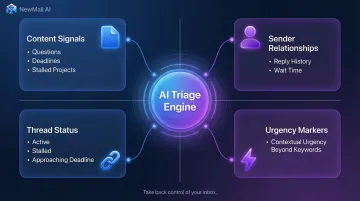
The system evaluates:
- Content signals: Questions requiring decisions, requests with deadlines, mentions of stalled projects
- Sender relationships: Whether this person has been waiting weeks for a reply or emails you daily
- Thread status: Whether this conversation is active, stalled, or approaching a critical deadline
- Urgency markers: Not just the word "urgent," but contextual urgency based on conversation history
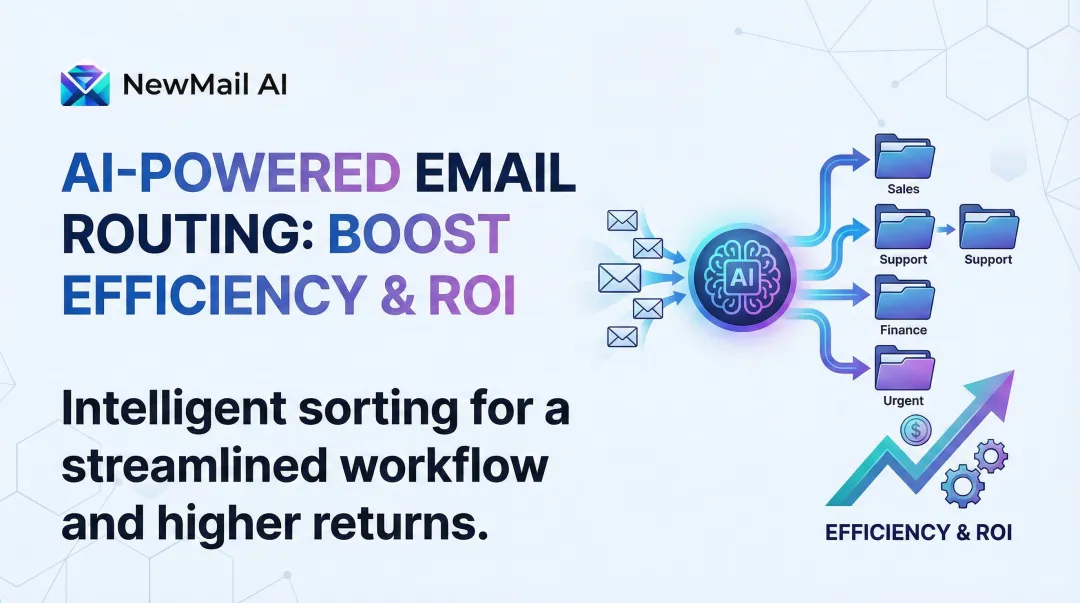
Categories might include customer escalation, billing issue, sales lead, internal request, partnership enquiry, or newsletter—each assigned based on meaning, not keywords.
Thread Summarisation
Long email chains consume significant time to re-read. AI-powered thread summarisation condenses 20-message threads into 2–4 sentence summaries with key points and open action items.
Google Workspace's Gemini and Microsoft 365's Copilot both offer thread summarisation features that allow users to grasp conversation context in seconds instead of rereading entire threads. The AI identifies what happened, what's being asked, and what you need to address—giving you clarity before you draft a response.
This capability is especially valuable in customer service contexts, where understanding what the customer wants, what's already been tried, and what should be addressed next can mean the difference between a resolved issue and an escalated complaint.
Context-Aware Reply Drafting
AI generates suggested responses that reflect conversation history, your tone, and standard templates. The distinction matters: generic templated replies feel robotic and require heavy editing. AI that learns your personal writing voice produces drafts you can send with minimal changes.
The best systems analyse your sent emails to understand how you open messages, how you structure explanations, which phrases you favour, and how you close. They adapt tone based on context—concise for internal requests, friendly for partnership enquiries, firm for overdue invoices. Drafts aren't final outputs; they compress a 10-minute writing task into a 30-second review-and-edit task.
Task and Action Item Extraction
Commitments hide in email copy: "Can you send the invoice by Friday?" "Please confirm the meeting." "Let me know if the proposal works." AI identifies these buried action items and surfaces them as tasks or calendar events.
This closes the gap between reading an email and acting on it. Without extraction, you read the email, think "I need to remember to do that," then forget when the next 15 emails arrive. With extraction, the task appears in your to-do list with a link back to the source email, a suggested due date, and the relevant context.
Assisted vs. Autonomous Triage
AI triage operates on a spectrum between two modes:
Assisted mode keeps you in control of every decision. The system flags priority emails, drafts replies, and extracts tasks—but you review and approve everything before action.
Autonomous mode handles routine emails without your involvement. Newsletters get archived automatically. Common questions get answered using your standard responses. Follow-ups get sent when recipients don't reply.
Most professionals should start with assisted triage. Let the AI handle categorisation and draft generation, but keep yourself in the loop for all decisions. As you build trust in the system's accuracy—typically after 1–2 weeks of calibration—you can grant autonomy for low-stakes email types.
Key Benefits of AI Email Triage
Time Reclaimed
The productivity gain isn't just fewer emails to read. It's eliminating the cognitive overhead of deciding what matters.
Knowledge workers spend 28% of their workweek managing email—but much of that time isn't reading messages. It's scanning subject lines, opening and closing threads to check if they're important, mentally sorting, and context-switching between unrelated topics. AI triage handles this automatically, freeing 5–10 hours per week for actual work.
Faster Response Times and SLA Improvement
AI-prioritised inboxes surface time-sensitive emails immediately, reducing time-to-first-response.
For sales teams, this translates directly to revenue. Companies responding within an hour are 7x more likely to qualify a lead than those responding later. When your AI triage flags hot leads within seconds of arrival, you can respond while the prospect is still engaged.
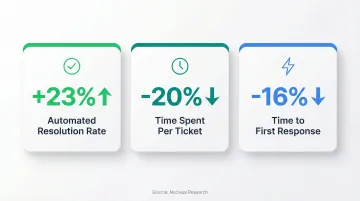
For customer success teams, SLA compliance affects retention. Nucleus Research found that AI-powered email management delivers measurable results:
- Automated resolution rates up 23%
- Time spent per ticket down 20%
- Time to first response down 16%
Reduced Email Anxiety and Fewer Missed Messages
When you trust that AI has flagged everything important, clearing your inbox stops feeling like a daily battle.
High email load is positively associated with workplace stress and negatively associated with psychological detachment, leading to burnout. The anxiety isn't just volume—it's the fear that something critical is buried in the noise.
AI triage removes that fear. Important emails surface automatically. Low-priority messages stay at the bottom. You can batch-process your inbox at set times rather than monitoring it constantly, confident that anything urgent has already been flagged.
How to Set Up AI Email Triage: A Step-by-Step Guide
Step 1: Audit Your Inbox Before You Automate
Map your current email landscape. What types of emails do you receive most?
Common categories include:
- Customer enquiries or support requests
- Sales leads and prospect communications
- Internal requests from colleagues
- Invoices, billing, and vendor communications
- Escalations requiring immediate attention
- Partnership or collaboration emails
- Newsletters and promotional content
Identify which categories consume the most time and which carry the most consequence if missed. These are the categories your triage rules should prioritise first.
Track one week of emails manually: note which messages required immediate action, which could wait, and which were purely informational. This data tells you where automation will deliver the highest ROI.
Step 2: Define Your Categories, Urgency Levels, and Guardrails
Decide on 4–6 priority categories that reflect your actual work:
- Urgent / Needs Reply Today
- Client Escalation
- Sales Lead
- Internal Request
- Newsletter / Marketing
- FYI / No Action Required
Set guardrails: which email types should never be auto-archived? Which require human review before any reply is drafted? Which can be handled autonomously?
Identify compliance-sensitive content (legal documents, contracts, pricing discussions) that should always route to a human queue. These guardrails prevent the AI from making costly mistakes during the learning period.
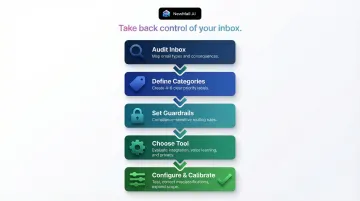
Step 3: Choose the Right Tool for Your Setup
Look for:
Native integration with your email client (Gmail, Outlook, Apple Mail) — tools that work directly inside your existing inbox require less adjustment and offer faster adoption.
Content-based triage — the system should read and understand email bodies, not just headers.
**Voice learning for draft replies** — generic templates feel robotic; AI that learns your voice produces usable drafts.
Transparent data handling — confirm whether the tool stores email content, uses your data for model training, and holds GDPR compliance certification. These are non-negotiable for any professional or enterprise use case.
Inbox-native tools work inside your existing email client, so you don't need to learn a new interface or switch between applications. NewMail AI, for example, works inside Gmail, Outlook, and Apple Mail with a two-minute setup. It processes emails ephemerally with no stored email content, and holds Google Security Certified status with Zero Data Retention agreements with AI providers.
Step 4: Configure, Test, and Calibrate
Connect your email account and grant the necessary permissions. Define category labels and set confidence thresholds — emails the AI is uncertain about should route to human review.
Configure approval workflows for sensitive message types. Any email containing "contract," "pricing," or "legal" should require your review before the AI drafts a reply.
Expect a calibration period of 1–2 weeks. Actively correct misclassifications as they appear: move mislabelled sales leads to the right category, downgrade newsletters flagged as urgent. Each correction trains the system.
Start with a smaller scope (just sales emails or support requests) before expanding to your entire inbox. This keeps the scope of any problems manageable while the system learns.
Step 5: Track What's Working
Monitor core KPIs:
- Time-to-first-response — speed of replies to priority emails
- Automation coverage — percentage of emails handled without manual intervention
- Error rate — frequency of misclassifications requiring manual correction
- Qualitative feedback — reduced email anxiety, fewer missed messages
Measure before and after. If you were spending 2 hours per day on email and now spend 45 minutes, that's a 62% productivity gain, which is defensible ROI for justifying the tool to leadership or scaling it across a team.
AI Email Triage Best Practices
Keep Humans in the Loop for High-Stakes Emails
Establish a clear policy: which email types require human approval before any response is sent?
Always require review for:
- Contracts, pricing discussions, legal matters
- Complaints from named clients or high-value accounts
- Negotiations involving significant budget or terms
- Internal communications involving HR, compliance, or sensitive topics
AI should draft and suggest; a human should review and send. Treating AI outputs as suggestions—not final actions—reduces error risk during the early weeks and builds justified trust over time.
Train the AI with Feedback, Not Just Initial Setup
Most tools improve through usage signals: which flagged emails you opened first, which drafts you edited heavily, which archived messages you rescued.
Actively correcting misclassifications in the first two weeks produces a noticeably more accurate system. Deliberate feedback consistently outperforms passive use — the system learns faster when you actively correct it.
When the AI gets it right, you don't need to do anything. When it gets it wrong, correct it immediately. Each correction refines how the system handles similar emails going forward.
Integrate Triage with Your Task and Calendar Workflow
AI email triage creates its greatest ROI when extracted tasks land in your actual task manager or CRM—not in a separate interface you'll forget to check.
Set up task extraction so identified action items:
- Link back to the source email (preserving context)
- Include suggested due dates based on email content
- Route to the right assignee in team environments
- Sync with your existing task management system
If your triage tool extracts "send invoice by Friday" but that task lives in a separate dashboard you check once a week, you've gained nothing.
Set a Consistent Time for Inbox Review, Not Constant Checking
AI triage enables batch processing. Because urgent emails are surfaced automatically, you no longer need to monitor your inbox in real time.
Research on email batching is mixed—one study found that limiting email checking to three times daily reduced stress, while another found no evidence that batching reduces stress (though batching was associated with higher rated productivity).
The key: trust the AI to surface urgency. Check your priority inbox at 2–3 set times per day (morning, midday, late afternoon) rather than reactively. Handle everything flagged as urgent first. Batch-process everything else.
This behavioral shift is where much of the productivity gain materializes. You're no longer context-switching every 2 minutes. You're processing email in focused blocks, then returning to deep work.
Is AI Email Triage Safe? Privacy and Security Considerations
Yes, AI email triage tools need to read your email content to work—and that's where the privacy risk lives.
The core concern is legitimate: if a tool reads your emails, what happens to that content? Is it stored? Is it used to train AI models? Who has access?
Key Questions to Ask Any Tool
Does it store your email content?
Tools that store full email archives create persistent data risk. If the company is breached, your entire email history could be exposed. The privacy-safe model is ephemeral processing—reading emails in-memory and immediately discarding them after analysis.
Does it use your emails to train AI models?
Enterprise AI vendors including OpenAI, Anthropic, and Mistral do not train models on enterprise API data by default. OpenAI stopped using customer data for training as of March 1, 2023. Anthropic and Mistral offer Zero Data Retention policies that discard all inputs immediately after processing.
However, not all email tools use enterprise APIs. Some use consumer AI services that do train on user data. Always confirm the tool's data processing agreement.
Is it compliant with GDPR or relevant data regulations?
Three GDPR articles are directly relevant here:
- Article 25: Requires data protection by design and by default
- Article 28: Mandates that controllers use only processors providing sufficient technical and organizational safeguards
- Article 35: Requires a Data Protection Impact Assessment (DPIA) for new technologies likely to result in high risk
If the tool serves European customers but isn't GDPR-compliant, it's violating regulations. Check for explicit GDPR compliance statements and available Data Protection Agreements.
Does it have independent security certifications?
Google Workspace apps requesting restricted scopes (broad access to Gmail messages) must pass an annual Cloud Application Security Assessment (CASA) Tier 3, performed by a third-party authorized lab. Look for certifications like SOC 2, ISO 27701, or equivalent independent audits.
What Strong Data Protection Looks Like
A well-protected tool will cover all five of these bases:
- Reads and discards emails immediately — no content stored after processing
- Holds Zero Data Retention agreements with AI providers, ensuring partners don't store or train on your data
- Encrypts any stored context (preferences, settings) using AES-256 or equivalent
- Meets GDPR requirements, including a Data Protection Officer contact and documented user rights to deletion
- Holds independent security certifications — SOC 2, ISO 27701, or Google Security Certified
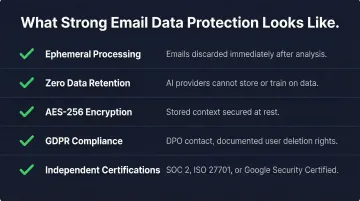
NewMail AI, for example, is built on a zero email storage architecture by default. Emails pass through the system ephemerally for analysis, then are immediately deleted. The platform is GDPR-compliant, Google Security Certified (the highest level of data security certification for Google Workspace applications), and has Zero Data Retention agreements with AI providers including Anthropic and Mistral. That combination matters most for legal, finance, healthcare, and executive teams where email content is routinely sensitive.
How to Evaluate Any Tool's Privacy Posture
- Read the data processing agreement, not just the privacy policy — the DPA contains the actual legal commitments
- Look for explicit statements about model training; if the tool doesn't clearly say "we do not use your data to train AI models," assume it does
- Check for third-party security certifications, since self-reported security claims are less reliable than independent audits
- Confirm access scopes — triage tools typically need write access to draft replies and create tasks, but the tool should explain why it needs each specific permission
Tools that can't answer these questions clearly signal poor data hygiene. If the privacy policy is vague or the company won't provide a Data Protection Agreement, find another option.
Frequently Asked Questions
What is an email triage system?
An email triage system is a structured process—manual or AI-powered—for sorting, categorising, and prioritising incoming emails so the most important messages receive attention first. Unlike basic inbox folders or filters, triage systems evaluate urgency and importance to surface critical communications before routine ones.
How to use AI to triage emails?
Connect an AI email tool to your inbox, define your priority categories and triage rules, let the AI classify and surface important emails, review its suggestions, and refine based on what it gets right or wrong. Start with assisted triage (AI suggests, you approve) before granting autonomy for routine email types.
How to do email triage?
Manual email triage involves scanning sender, subject, and first line of each message, assigning urgency (act now, defer, or delete), then processing in priority order. AI automates this judgment at scale, applying consistent rules to every message without the cognitive fatigue of manual sorting, which is especially valuable when managing 100+ emails daily.
Is it safe to give AI my email address?
Triage tools require access to your inbox to read and classify messages, not just your email address. Safety depends on the tool's architecture — look for zero data retention, GDPR compliance, and independent security certifications, which ensure your email is processed ephemerally without being stored or used for training.
Which AI is the best for emails?
Prioritise tools that offer content-based triage (reads full emails, not just headers), native inbox integration, reply drafting in your voice, and strong privacy credentials. NewMail AI covers all of these for Gmail, Outlook, and Apple Mail users, with setup in under two minutes.
What's the best AI email security tool?
AI email security tools (detecting phishing, malware, unauthorised access) differ from AI email triage tools (managing inbox productivity). For triage with security-grade data handling, look for tools with zero data retention, military-grade encryption, GDPR compliance, and third-party security certifications like Google Security Certified or SOC 2.