This guide is for anyone managing a Gmail or Outlook inbox who wants to set up reliable auto-replies. We'll cover when to use auto-replies, how to set them up step-by-step, how to write them well, and how to avoid common mistakes.
Key Takeaways
- Setting up automatic email responses in Gmail or Outlook takes under 5 minutes using built-in settings
- Auto-replies work best for out-of-office situations, customer acknowledgments, support ticket receipts, and business inquiry responses
- Keep auto-replies short and professional — state why you're away, when you'll respond, and who to contact
- Limit auto-replies to contacts or specific senders to prevent spam loop issues
- For high-volume inboxes, AI email assistants can draft personalized replies in your voice without manual effort
What Are Automatic Email Responses (and When to Use Them)
Automatic email responses are pre-written messages sent when an incoming email meets a set condition—such as a date range, sender type, or subject trigger. They cover everything from vacation notices to customer support acknowledgments, and knowing when to use them (and when not to) is half the battle.
Core use cases where auto-replies add real value:
- Out-of-office notifications for vacations, parental leave, or sick days
- Customer support ticket acknowledgments confirming receipt and setting response timeframes
- Job application confirmations letting candidates know their submission was received
- Business inquiry responses acknowledging initial contact and providing next steps
When NOT to use auto-replies:
- Situations requiring empathy or nuanced, personal responses
- Reply loops — other automated senders can trigger endless chains
- Sensitive message content that a generic reply would handle poorly
- Newsletters or marketing emails, which risk triggering spam complaints
How to Set Up Automatic Email Responses: Step-by-Step
Gmail and Outlook each handle auto-replies differently — and your account type matters. POP/IMAP accounts face real limitations that Exchange accounts don't. Here's exactly what to do on each platform.
Setting Up Auto-Replies in Gmail
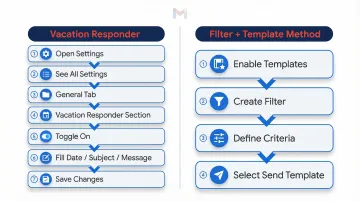
Gmail's "Vacation Responder" is the primary auto-reply tool. Here's how to enable it:
- Open Gmail and click Settings (gear icon)
- Select See all settings
- Navigate to the General tab
- Scroll to the Vacation responder section
- Toggle Vacation responder on
- Fill in your start/end date, subject line, and message body
- Click Save Changes
Gmail-specific behaviors to understand:
- Gmail sends the auto-reply only once per contact within a 4-day window unless you edit the message. If the same person contacts you again after four days and your auto-reply is still active, they'll receive it again.
- Emails going to spam or mailing lists do not trigger the responder, reducing unwanted auto-reply loops.
Check the box to limit replies to contacts only — this prevents spam and newsletter loops, keeping your auto-reply aimed at real human senders.
When you return, toggle the vacation responder off manually. Gmail disables it automatically at 11:59 PM on your end date, but verify this manually to be safe.
Advanced option — Gmail filters: For business inquiry or job application scenarios, create a filter using keywords, sender, or subject to trigger a saved template response:
- Enable templates: Settings → See all settings → Advanced → Templates
- Create a filter: Settings → Filters and Blocked Addresses → Create a new filter
- Define search criteria (sender, subject keywords)
- Check Send template and select your saved template
Setting Up Auto-Replies in Outlook
Outlook works differently than Gmail — and the path you take depends on which version you're running.
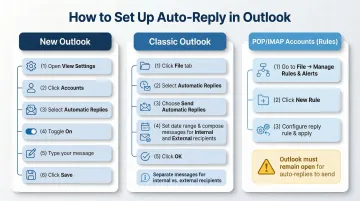
New Outlook:
- Click View → View Settings
- Select Accounts
- Click Automatic Replies
- Toggle Turn on automatic replies
- Set your time period and write your message
- Click Save
Classic Outlook:
- Click File → Automatic Replies
- Select Send automatic replies
- Set your date range
- Compose messages for inside/outside your organization
- Click OK
One feature worth using: write different messages for internal colleagues vs. external contacts. Your team needs less context than a client, so keep internal messages brief and save the full detail for external replies.
Automatic Replies only work with Exchange/Microsoft 365 accounts. If you're using Gmail, Yahoo, or a POP/IMAP account inside Outlook, you'll need to use Rules instead.
To set up Rules, go to File → Manage Rules & Alerts → New Rule. Select "Apply rule on messages I receive," define your conditions, and choose "reply using a specific template."
One hard limitation: client-side rules only fire when Outlook is actively running. If you close the app while you're away, no auto-replies go out.
How to Write an Effective Auto-Reply Message
Auto-replies should be short, clear, and professional. They exist to set expectations — not to overshare or showcase personality.
Every effective auto-reply should cover four things:
- Confirms the message was received
- Briefly states the reason for absence or delay
- Gives an expected return date or response timeframe
- Offers an alternative contact or next step for urgent matters
Ready-to-Use Templates
Out-of-Office / Vacation:
Subject: Out of Office

Thank you for your email. I'm currently out of the office until [return date] with limited access to email.

If your matter is urgent, please contact [colleague name] at [email] or [phone number]. Otherwise, I'll respond to your message when I return on [date].

Best regards,
[Your Name]
Customer Support Acknowledgment:
Subject: We've received your request

Hi [Name],

Thank you for reaching out. We've received your request and our team will respond within 24–48 business hours.

In the meantime, visit our help center at [link] for quick answers to common questions.

Best,
[Team Name]
Business Inquiry Response:
Subject: Thank you for your inquiry

Thank you for contacting [Company Name]. We've received your message and will follow up within 24 hours.

We appreciate your interest and look forward to speaking with you soon.

Best regards,
[Your Name]
Job Application Acknowledgment:
Subject: Application Received

Thank you for applying to the [position title] role at [Company Name].

We've received your application and our hiring team will review it carefully. We'll reach out within 2 weeks if your qualifications match our current needs.

We appreciate your interest in joining our team.

Best,
[Hiring Team]
With your template drafted, a few practical rules separate polished auto-replies from ones that create more problems than they solve.
Key Do's
- Keep it under 5 sentences
- Use a professional tone even if informal in person
- Include your email signature
- Warn any colleague you're redirecting emails to
Common Don'ts
- Avoid humor in professional auto-replies — it rarely lands the way you intend
- Don't omit a return date
- Don't forget to turn it off when you return
- Disable external auto-replies to avoid reply loops with newsletters or marketing lists
Common Auto-Reply Mistakes and How to Fix Them
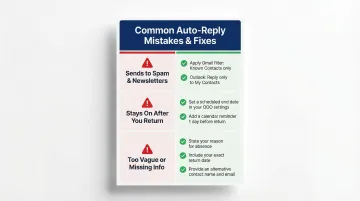
Most auto-reply problems come down to setup errors or message content issues. Here are the three most common mistakes — and exactly how to fix them.
Auto-Reply Sends to Every Email (Including Spam and Newsletters)
Enabling "send replies to everyone" triggers responses to newsletters, automated emails, and potentially creates reply loops with other auto-responders. To fix this:
- In Gmail, set up a filter with specific sender or subject criteria so replies only trigger for real human senders
- In Outlook, select "My contacts only" under external automatic replies
Auto-Reply Stays On After You Return
Forgetting to disable your auto-reply after returning means colleagues and clients keep receiving your out-of-office message — a quick way to undermine credibility. Two steps prevent this:
- Set a firm end date and time when configuring the auto-reply (both Gmail and Outlook support this natively)
- Add a calendar reminder as a backup to manually confirm it's off on your first day back
Message Is Too Vague or Missing Key Information
An auto-reply that says only "I'm out of the office" without a return date or alternative contact frustrates senders and generates unnecessary follow-ups. Before enabling any auto-reply, confirm it includes:
- A brief reason for your absence
- A clear return date and timeline
- A point of contact or next step for urgent matters
Pro Tips for Smarter, More Effective Auto-Replies
Test before you activate: Send yourself a test email from a secondary account before going offline to confirm the auto-reply fires correctly, the formatting looks right, and the message reads clearly. This prevents embarrassing typos or broken links.
Segment responses by audience: If your email client supports it (Outlook does natively), write different auto-reply messages for internal team members vs. external contacts. Your team needs less context than an external client or prospect—they likely already know you're on vacation and who to contact.
Go beyond static templates for high-volume inboxes: If you're managing a large email load, a static out-of-office message only covers so much ground. Tools like NewMail AI learn your communication style in 60 seconds and draft responses tailored to each thread's context—working directly inside Gmail, Outlook, and Apple Mail without requiring a separate app. It processes emails without retaining content, which matters for professionals in regulated industries or anyone handling sensitive correspondence.
Frequently Asked Questions
What is an automated email response?
An automated email response is a pre-written message sent automatically when incoming mail meets set conditions—like a date range or sender type—without any manual action. It's commonly used for out-of-office situations, support ticket acknowledgments, and business inquiries.
What is a good automated email response?
A good auto-reply is brief, professional, and informative. It acknowledges receipt, gives a reason for the delay or absence, states when the sender can expect a real reply, and provides an alternative contact if urgent.
How to write an automated email reply?
Start with acknowledgment, include a brief reason and return date, add an alternative contact or self-help link if relevant, and keep the total message under 5 sentences with a professional tone. Avoid humor and be specific about timelines.
What are some automatic email replies?
Common types include out-of-office/vacation replies, customer support ticket acknowledgments, business inquiry responses, job application confirmations, and parental or sick leave notifications.
What is an example of an automatic customer service auto-reply email?
"Hi [Name], thank you for reaching out. We've received your request and our team will respond within 24–48 business hours. In the meantime, visit our help center at [link] for quick answers." That structure works for most customer-facing contexts and is easy to adapt for your brand voice.
Will my automatic reply send to every email I receive, including spam?
Both Gmail and Outlook offer an option to limit auto-replies to contacts only — it's worth enabling this to avoid reply loops with newsletters, automated senders, or spam. By default, auto-replies go to all incoming messages.