Introduction
Microsoft 365 users spend 60% of their time on communications—emails, chats, and meetings—leaving just 40% for actual creation work. With the average worker receiving 117 emails daily, most professionals spend roughly 2.6 hours per day managing their inbox. The problem isn't just volume; it's that most of this time is reactive, not strategic.
Outlook is one of the most widely used email clients globally, particularly in enterprise settings. Yet most users barely scratch the surface of what it can do. Without intentional configuration, Outlook's default setup creates an undifferentiated inbox that demands constant attention, keeping professionals stuck in reactive mode instead of doing meaningful work.
That's what this guide is for. It covers how to organize your Outlook inbox, the native features most users ignore, the best third-party add-ins, and how AI is changing the way professionals handle email—with specific steps you can act on right away.
Key Takeaways
- Focused Inbox, Quick Steps, and keyboard shortcuts are powerful native features most Outlook users never fully leverage
- A structured inbox system built around Rules, Categories, and the 5 D's framework creates the foundation for productivity
- Third-party add-ins fill critical gaps in task management, writing quality, scheduling, and CRM functionality
- AI tools working natively inside Outlook handle drafting, inbox triage, and task extraction automatically
- Privacy-first AI solutions with zero data retention and military-grade encryption keep sensitive communications protected
Why Managing Email in Outlook Is Harder Than It Looks
Outlook is powerful, but its default configuration isn't optimized for high-volume professional email. Without intentional setup, users end up with an inbox that treats every message as equally urgent, creating decision paralysis.
The three most common failure modes:
- No triage system — Re-reading the same emails two or three times to decide what needs action is a hidden time tax most professionals don't notice until they track it.
- Tool fragmentation — Digital workers toggle between applications roughly 1,200 times each day, losing nearly four hours per week reorienting themselves. Switching between Outlook, Teams, task managers, and CRMs compounds this steadily.
- Notification overload — Microsoft 365 telemetry shows employees are interrupted every two minutes during core work hours—275 times daily—by meetings, emails, or chats. Since it takes an average of 23 minutes to fully resume an interrupted task, the math works against you fast.
These problems stack on each other. The fix isn't simply installing more tools — it's pairing deliberate inbox organization with the right add-ins and AI assistance to automate repetitive decisions and protect deep work time.
How to Organize Your Outlook Inbox for Maximum Efficiency
The 5 D's Decision Framework
The 5 D's of email management—Delete, Do, Delegate, Defer, and Document—create a decision filter for every incoming email. Applying this framework removes inbox paralysis and transforms your email into a clear action system.
The framework:
- Delete — Eliminate emails with no value (newsletters you'll never read, outdated threads)
- Do — Handle emails requiring under 2 minutes immediately
- Delegate — Forward to the appropriate person with clear action context
- Defer — Schedule time to handle emails requiring deeper work
- Document — Archive reference material in searchable folders
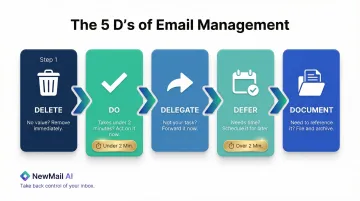
This methodology, created by productivity expert Merlin Mann and popularized in 2007, is closely aligned with David Allen's Getting Things Done strategy and specifically adapts GTD's processing rules for email.
Build an Action-Based Folder Structure
Once you have a decision framework, the next step is giving every email somewhere to land. Create folders that reflect workflow stages, not topics — action-based folders reduce search overhead and create visual clarity.
Recommended structure:
- @Action — Emails requiring your response or decision
- @Waiting — Delegated items where you're awaiting replies
- @Reference — Archived information you may need later
- @Someday — Low-priority ideas or projects for future consideration
The "@" symbol forces these folders to the top of your folder list, making them immediately accessible.
Set Up Outlook Rules for Automatic Routing
Outlook Rules automatically sort incoming email based on sender, subject keywords, or domain, so you spend zero time manually sorting what arrives.
Common rule applications:
- Route all emails from your manager to a "Priority" folder
- Send newsletters to a "Read Later" folder automatically marked as read
- Move internal notifications (calendar invites, system alerts) to separate folders
- Flag emails containing specific project names or customer references
To create a rule: Right-click any email → Rules → Create Rule → Define conditions and actions.
Use Categories as Visual Priority Signals
Outlook's color-coded Categories tag emails by project, urgency, or context. Combined with Focused Inbox, they create an at-a-glance priority system.
Effective category examples:
- Red — Urgent/Today
- Yellow — This Week
- Green — Projects (assign specific categories like "Product Launch")
- Blue — Needs Follow-Up
To apply: Right-click email → Categorize → Select or create category.
Avoid the "Inbox as To-Do List" Anti-Pattern
Leaving emails in your inbox as reminders backfires. Instead, convert flagged emails into tasks in Microsoft To Do directly from Outlook, creating clean separation between communication and action.
Flagged emails sync automatically to Microsoft To Do's "Flagged email" list. The result: your inbox shrinks to genuine conversations, while your task list holds the actual work — each item linked back to its source email for full context.
- Flag the email the moment you identify it needs action
- Check your To Do "Flagged email" list during dedicated task-review time
- Archive the original email once the task is complete
Essential Native Outlook Features Most Users Overlook
Quick Steps: One-Click Multi-Action Macros
Quick Steps perform multi-action sequences with a single click—mark as read, move to folder, and flag for follow-up simultaneously.
Practical Quick Step examples:
- Client Triage: Move to "@Action" folder, categorize as "Client," flag for today, mark as unread — saves 4 clicks per email
- Newsletter Archive: Mark as read, move to "Reference/Newsletters," categorize as "Reading" — one click instead of three
- Delegate and Track: Forward to team member, move to "@Waiting," flag for follow-up in 3 days — nothing falls through the cracks
To create: Home tab → Quick Steps → New Quick Step → Define actions.
Keyboard Shortcuts That Matter
Mastering even five Outlook keyboard shortcuts cuts time spent per email.
High-impact shortcuts:
- Ctrl+R — Reply
- Ctrl+Shift+R — Reply All
- Ctrl+F — Forward
- Delete — Delete email
- Ctrl+Shift+V — Move to folder (Classic Outlook)
- Insert — Flag email
- Ctrl+N — Compose new message (New Outlook/Web)
For high-volume inboxes, switching from mouse to keyboard for common actions typically saves 15-20 minutes per day — time that compounds quickly across a week.
Focused Inbox: Machine-Learning Triage
Focused Inbox separates your inbox into two tabs—Focused and Other—using machine learning to filter noisy sources like bulk email.
How it works: The algorithm considers which emails and contacts you interact with, learning over time which messages matter most.
Training the system: Right-click any message → **Always move to Focused inbox** or Always move to Other inbox. The more you train it, the more accurate it becomes.
Limitations: Focused Inbox is reactive rather than fully customizable. It learns from your behavior but doesn't allow granular rule creation like traditional filters. For complex workflows, combine it with Rules and Categories for optimal results.
Best Productivity Add-ins for Outlook
Task and Project Management
Microsoft To Do integrates natively with Outlook, converting flagged emails directly into tasks with due dates, reminders, and notes. The task name becomes the email subject and includes a text preview for context.
Use "My Day" in To Do as a daily prioritization ritual powered by your email flow. Each morning, review flagged emails and assign them to "My Day" to create a focused daily agenda.
Note: Flagged email sync only works for primary mailboxes (shared mailboxes aren't supported) and initially populates the 100 most recently flagged emails from the last 30 days.
Boomerang for Outlook fills gaps Outlook leaves in follow-up tracking. Schedule emails to send later, set follow-up reminders if you don't receive a reply, and get cross-platform read receipts. Compatible with Outlook on the Web and Outlook 2013/2016/Mac for Office 365 mailboxes.
Writing, Templates, and Communication Quality
Grammarly for Microsoft Outlook provides real-time grammar, tone, and clarity suggestions as you compose emails. For sales and customer-facing teams, it's particularly useful — full-sentence rewrites, tone adjustment, and generative text prompting keep communication sharp where it counts.
Shared Email Templates allows teams to create, store, and share response templates inside Outlook for recurring scenarios — support replies, sales follow-ups, onboarding sequences. Key capabilities include:
- Fillable text boxes and dropdowns for variable content
- Mail merge for personalized bulk responses
- Compatible with Classic, New, and Web Outlook on Windows and macOS
Teams handling 50+ similar emails per week typically recoup that setup time within the first day of use.
CRM and Contact Management
One of the most-asked questions about Outlook: Does it have CRM functionality? It doesn't natively, but add-ins like eWay-CRM embed full contact, deal, and project management directly inside the Outlook interface.
For sales and account management teams — where switching between inbox and CRM kills momentum — eWay-CRM is the most-installed add-in category. Core features include:
- Convert emails to deals, contacts, or projects in one click
- Automatically log and share email threads with your team
- Available on Outlook for PC, Mac, web, and mobile (requires Microsoft 365)
How AI Is Transforming Outlook Email Productivity
Email clients are evolving beyond spam filtering into active inbox management. AI now drafts replies in your voice, extracts action items from threads, and prioritizes emails based on context and relationships. 75% of global knowledge workers use AI at work as of 2024, with email management among the top use cases.
AI-Powered Inbox Triage
Instead of manual rules, AI reads incoming emails and assigns them to custom priority categories based on meaning and urgency. The system surfaces emails requiring action and suppresses low-priority noise—all without manual configuration.
This intent-based approach moves beyond sender-based filtering to understand what needs to happen next: decisions needed, information to provide, follow-ups required, or responses expected.
AI Email Drafting
Tools that learn from your past emails generate context-aware reply drafts in your own voice, including FAQs, links, and relevant context—particularly useful for executives and sales professionals managing hundreds of emails weekly.
64% of early Microsoft Copilot users said it helps them spend less time processing email, and 85% said it helps them get to a good first draft faster.
Privacy-First AI: NewMail AI
Those productivity gains only matter if your data stays protected. NewMail AI works natively inside Outlook (as well as Gmail and Apple Mail) with no separate interface required. It sets up in under two minutes, creating a personalized priority inbox with custom categories, drafting replies in your voice, and extracting tasks automatically.
What differentiates it:
- Emails are processed ephemerally and discarded immediately — nothing is stored by default
- Zero Data Retention agreements with AI providers (Anthropic and Mistral) mean your data is never used for model training
- Built in Switzerland under GDPR, one of the world's strictest data protection frameworks
- All stored preferences and context are protected with AES military-grade encryption
- Google Security Certified at the highest level for Google Workspace applications
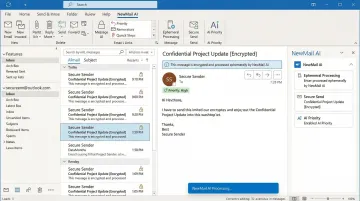
This makes NewMail AI a practical fit for legal, finance, and healthcare professionals who can't compromise on either productivity or data protection. A one-time analysis of your sent emails — taking about 60 seconds — trains the platform to draft responses that match your tone across different contexts.
Frequently Asked Questions
How to use Outlook to improve productivity?
Start with Focused Inbox and Rules to automatically triage incoming mail. Use Quick Steps and keyboard shortcuts to process messages faster, then convert flagged emails into tasks via Microsoft To Do. Add-ins for AI drafting, scheduling, and CRM functionality extend Outlook further without switching between apps.
Is Outlook a productivity tool?
Outlook is primarily an email and calendar client, but with proper configuration—including Rules, Categories, Quick Steps, and third-party add-ins—it functions as a broader productivity hub for communication, task management, and scheduling.
Is there a CRM for Outlook?
Outlook doesn't have built-in CRM functionality, but add-ins such as eWay-CRM embed full CRM features (contact management, deal tracking, email logging) directly inside the Outlook interface without requiring a separate application.
What are the 5 D's of email management?
Delete (eliminate no-value emails), Do (handle sub-2-minute tasks immediately), Delegate (forward with clear context), Defer (schedule deep-work emails), and Document (archive reference material).
How do I organize my Outlook emails effectively?
Use action-based folders (@Action, @Waiting, @Reference), color-coded Categories for visual priority, and Outlook Rules for automatic routing. Focused Inbox handles machine-learning triage on top of those manual structures.
What is the most efficient Outlook layout?
Set Reading Pane on the right or bottom for fast previewing without opening emails. Enable the To-Do Bar to show tasks and calendar at a glance. Maintain a minimal folder structure in the left panel to reduce visual noise and navigation time.