This guide covers the exact steps to configure Microsoft 365 for inbox control, the specific settings that determine results, common setup mistakes, and when native tools may fall short of what high-volume users need.
Key Takeaways
- Microsoft 365 includes native tools—Focused Inbox, rules, categories, retention policies—and results depend on consistent setup and use
- Setup involves enabling Focused Inbox, building inbox rules, organizing with categories and folders, and configuring retention labels
- Rule logic, retention period settings, and category structure directly determine whether your inbox stays manageable or becomes unmanageable
- Native M365 tools suit standard professional use but often fall short for executives, high-volume teams, or industries requiring AI prioritization and zero-data-retention compliance
How to Set Up Email Management in Microsoft 365
Step 1: Enable and Train Focused Inbox
Turn on Focused Inbox in Outlook (web, desktop, and mobile) to separate your inbox into two tabs: Focused (high-priority) and Other (lower priority). Microsoft's algorithm uses sender history, read frequency, and reply patterns to determine which emails land in which tab.
To enable Focused Inbox:
- Outlook on the web: Settings (gear icon) > Mail > Focused Inbox
- Outlook desktop: View tab > Show Focused Inbox
- Outlook mobile: Settings > Focused Inbox
Why training matters: Focused Inbox is an adaptive algorithm, not a set-and-forget filter. Move emails between tabs regularly to improve accuracy. Left untrained, the algorithm defaults to Microsoft's assumptions about priority — not yours.
Known limitations: Focused Inbox is not supported for Microsoft 365 shared mailboxes. For business-critical communications (such as HR or payroll), admins can create a mail flow rule that applies the message header X-MS-Exchange-Organization-BypassFocusedInbox: true to force specific emails into the Focused tab.
Step 2: Create Inbox Rules to Automate Sorting
Inbox rules automate message handling — but rule type and storage limits affect how reliably they work for high-volume users.
To build inbox rules:
- Outlook on the web / New Outlook: Settings (gear icon) > Mail > Rules
- Classic Outlook Desktop: File > Manage Rules & Alerts
Impactful rule types to create:
- Auto-filing by sender domain: Route all emails from specific domains (such as @vendor.com) to dedicated folders
- Flagging emails with keywords: Mark emails containing "urgent" or "invoice" in the subject line
- Routing newsletters to Read Later: Move bulk subscriptions to a separate folder for batch processing
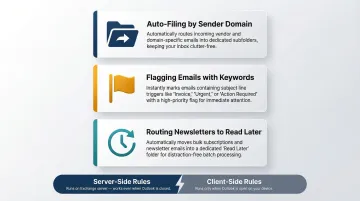
Server-side vs. client-side rules: Server-side rules run on the Exchange mail server even when Outlook isn't running, making them essential for teams using multiple devices. Client-side rules — for example, rules that play a sound or assign a category — only execute when the classic Outlook desktop client is open.
Rule quotas: Microsoft limits rules by total storage space, not by count. The default quota is 256 KB, with a valid range of 32–256 KB. Design lean logic and use the "stop processing more rules" action to avoid quota bloat and logic conflicts.
Step 3: Set Up Categories and Folders for a Consistent Structure
Outlook offers two organization methods: folders (hard filing) and color-coded categories (soft tagging).
Practical framework:
- Folders: Use for archiving emails by project, client, or time period (such as "2024 Q1 Contracts")
- Categories: Use for visual tagging across multiple contexts (such as "Urgent," "Follow-up," or "Legal")
Category sync limitations: Category information synchronizes with the Exchange server, but Outlook for iOS and Android uses a cached category list that may lag when new categories are added from desktop or web. To force a refresh, use Outlook on the web or reinstall the mobile app.
Step 4: Configure Email Retention Labels and Compliance Policies
Steps 1–3 focus on individual inbox organization. Step 4 shifts to organizational controls: Microsoft Purview (formerly Compliance Center) enables admins to create retention labels that automatically keep or delete emails based on defined time periods — essential for regulated industries and teams with records management requirements.
To configure retention policies:
- Navigate to Microsoft Purview compliance portal
- Select Information Governance > Labels
- Create retention label with desired keep/delete settings
- Assign to mailboxes or the entire organization
Plan requirements: Retention policy setup requires Microsoft 365 admin access and a qualifying plan (Business Premium, E3, or higher). Auto-applying labels via trainable classifiers or triggering disposition reviews requires E5 or specific Microsoft Purview add-ons.
Key Microsoft 365 Settings That Directly Affect Email Management Results
Two M365 users with the same plan can have vastly different inbox experiences based entirely on how these four variables are configured—configuration drives outcomes. Nothing is automatic.
Retention Period and Scope
M365's junk email filter and Safe Senders/Blocked Senders lists operate independently from Focused Inbox. Overly aggressive settings can route legitimate client emails to Junk without any notification.
The Outlook Junk Email Filter offers four sensitivity levels:
| Filter Level | Description |
|---|---|
| No Automatic Filtering | Turns off automatic filtering, but still evaluates messages using the Blocked Senders List. Microsoft recommends this setting in M365 to prevent conflicts with Exchange Online Protection (EOP) spam verdicts. |
| Low | Filters only the most obvious junk messages |
| High | Aggressive filtering; catches more junk but increases the risk of false positives |
| Safe Lists Only | Most restrictive; only messages from the Safe Senders or Safe Recipients lists are delivered to the Inbox |
Email addresses and domains in the Safe Senders List are never treated as junk email. In Exchange Online, if a message is routed to the Junk folder by a policy, Safe Senders list entries are honored and the message bypasses the Junk folder.
Shared Mailbox and Delegation Configuration
Teams managing shared inboxes (info@, support@, sales@) frequently run into duplicate replies and missed messages when delegation permissions and send-as rights aren't properly scoped. The distinctions between permission types matter:
- Shared Mailbox: A mailbox that multiple users can access to read and send email. A shared mailbox can store up to 50 GB of data without requiring a license. To increase the limit to 100 GB or place it on litigation hold, an Exchange Online Plan 2 license is required.
- Full Access: Allows a delegate to open the mailbox and view/modify contents, but does not allow them to send messages from the mailbox.
- Send As / Send on Behalf: Required to actually send mail from the shared mailbox. "Send As" makes the message appear directly from the mailbox, while "Send on Behalf" shows the delegate's name.
Mailbox audit logging is turned on by default in Exchange Online, logging actions like SendAs and SendOnBehalf. For deeper investigations, admins can use the Microsoft Purview audit log to track FolderBind (delegate folder access) and SoftDelete actions within shared mailboxes.
What You Need Before Setting Up Email Management in Microsoft 365
Preparation directly determines how smooth the setup process is—most configuration failures happen because teams skip the audit phase and jump straight into building rules.
Microsoft 365 Plan and Admin Access Requirements
Which M365 plans include which management features:
| Feature | Microsoft 365 Business Basic / Standard | Microsoft 365 Business Premium | Microsoft 365 E3 | Microsoft 365 E5 |
|---|---|---|---|---|
| Exchange Online (Focused Inbox & Rules) | Yes | Yes | Yes | Yes |
| Create & Publish Retention Labels | No | Yes | Yes | Yes |
| Auto-Apply Labels (Trainable Classifiers) | No | No | No (Requires Add-on) | Yes |
| Disposition Review | No | No | No (Requires Add-on) | Yes |
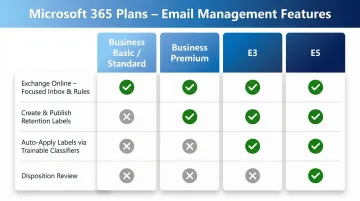
Confirm whether you have admin rights or need to request them from IT before proceeding.
Existing Inbox Audit Before Configuration
Run an inbox audit before building any rules or folders:
- Identify your top 10 senders by volume — which domains or individuals fill your inbox most
- Categorize email by action type: immediate response, read-only, or archive
- Document any legal hold or regulatory retention requirements for your industry
Getting this on paper first prevents rule conflicts and folder rework down the line.
Common Mistakes When Managing Email in Microsoft 365
Over-relying on Focused Inbox Without Training It
Focused Inbox is an adaptive algorithm, not a set-and-forget filter. Professionals who never move emails between Focused and Other tabs are letting Microsoft's defaults decide what matters — which doesn't reflect actual work priorities. Train the filter by regularly moving emails between tabs to improve accuracy over time.
Building Rules Without a Stop-Processing Instruction
Creating multiple rules for overlapping conditions without enabling "stop processing more rules" causes unpredictable behavior. Emails get moved, flagged, and forwarded all at once, creating duplicates or silent losses.
To fix this:
- Open your rules list and review any overlapping conditions
- Enable "stop processing more rules" on each rule that should take priority
- Test with a sample message to confirm only one rule fires per match
Ignoring Retention Policies Until a Legal or Compliance Event
Many teams only discover they have no enforceable email retention policy when responding to a legal hold, audit, or data subject access request — at which point emails may already be auto-deleted or unrecoverable. Define retention labels in Microsoft Purview now and assign them to mailboxes or the full organization before a compliance event forces the issue.
When Native Microsoft 365 Email Tools Aren't Enough
M365's native tools cover the fundamentals well. For executives and high-volume professionals managing 100+ emails per day, though, the native stack lacks intelligent prioritization, AI-assisted drafting in a user's own voice, and the granular privacy guarantees that regulated industries require.
Knowledge workers spend approximately 28% of their workweek managing email, and the average worker is interrupted by a meeting, email, or notification every 2 minutes. Native M365 tools can help organize this volume, but they don't reduce the cognitive load of deciding what matters or how to respond.
Situations Where Native Tools Fall Short
Native M365 becomes a bottleneck in specific scenarios:
- Handling time-sensitive communication across multiple stakeholders: Native rules can't prioritize based on context or urgency beyond sender and subject keywords
- Drafting personalized responses at scale: Built-in quick parts and templates lack the intelligence to adapt tone and content to the specific thread
- Extracting action items from meeting threads: No native capability to automatically identify tasks, owners, and due dates from email conversations
- Working in sensitive industries where AI assistants must guarantee zero data retention: Microsoft 365 Copilot processes data through Microsoft's infrastructure, which may not meet the strictest privacy requirements for regulated industries
How AI-Powered Add-Ons Extend M365's Capabilities
Tools like NewMail AI work natively inside Outlook and add a layer M365 Copilot doesn't offer: AI drafts written in the user's own voice, a priority inbox with custom categories, and task extraction built into the same interface.
Built in Switzerland and GDPR-compliant, NewMail AI processes emails ephemerally by default through Zero Data Retention agreements with AI providers like Anthropic and Mistral — no email content is stored permanently.
NewMail AI integrates directly into Outlook to provide:
- Intent-based categorization that classifies emails by meaning and urgency — not just sender or subject keywords
- AI drafting in your voice: learns your communication style in 60 seconds and generates context-aware replies that sound like you wrote them
- Automatic task extraction: Identifies actions in emails and links them to a to-do list so tasks don't get forgotten
- Instant meeting recaps: Delivers summaries of what happened, what was decided, and what happens next
- Military-grade encryption and zero data retention: Processes emails ephemerally with no permanent storage, meeting the strictest privacy requirements for regulated industries
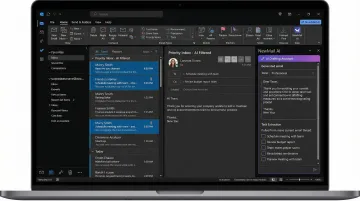
When email volume outpaces what Focused Inbox and native rules can handle, the practical question isn't whether to add a layer — it's which one fits your workflow and privacy requirements.
Frequently Asked Questions
What is the software for managing emails in Microsoft Office?
Microsoft Outlook is the primary email management application within Microsoft 365 (formerly Office 365). It includes features like Focused Inbox, rules, categories, and retention integration with Microsoft Purview for compliance.
Does Microsoft 365 have built-in email management tools?
Yes, M365 includes several native tools—Focused Inbox, inbox rules, color categories, shared mailboxes via Exchange Online, and compliance features through Microsoft Purview. Advanced retention and compliance features require Business Premium or Enterprise plans.
How do I organize my Outlook inbox in Microsoft 365?
Enable Focused Inbox, create server-side rules to auto-sort emails, assign color categories for visual tagging, and build a simple folder structure for archiving. Start with just two or three rules — you can expand the system once those are working reliably.
What is Focused Inbox in Microsoft 365?
Focused Inbox is a built-in Outlook filter that splits your inbox into two tabs: Focused (high-priority) and Other (lower priority), based on sender history, read patterns, and engagement signals. It improves over time as you move emails between tabs to train it.
How do I set up email retention policies in Microsoft 365?
Go to the Microsoft Purview compliance portal, navigate to Data Lifecycle Management, and create a new retention policy. You'll need admin access and an eligible M365 plan (Business Premium, E3, or E5) to define how long emails are kept or automatically deleted across the organization.
Can I use AI to manage emails in Microsoft 365?
M365 includes Microsoft Copilot for email summarization and drafting (available on select plans for $30/user/month). Third-party tools like NewMail AI can be added inside Outlook to enable personalized AI drafting, priority inbox management, and task extraction — with zero data retention and GDPR-compliant privacy by default.