Introduction
Knowledge workers receive an average of 117 emails daily. According to McKinsey, 28% of the workweek goes to managing email — and a significant portion of that is spent staring at blank reply windows. Automation can fix that.
First, a key distinction: auto-reply sends a response automatically, while auto-draft creates a draft for your review before anything goes out. Auto-drafting keeps you in control without starting from scratch every time.
This guide covers:
- The main methods for automating draft replies in Outlook
- What each method requires to set up
- Which situations each approach suits best
- Common mistakes to avoid
Key Takeaways
- Outlook offers Quick Steps, templates, Power Automate, and AI add-ins for draft automation
- Auto-drafting cuts response time while keeping you in control of every send
- Setup quality — triggers, templates, and tone — determines how useful drafts actually are
- For sensitive inboxes, privacy-first AI that drafts in your voice offers the strongest results
- The right method depends on your M365 plan, technical comfort, and reply volume
How to Automate Email Draft Replies in Outlook
Outlook offers three ways to automate draft replies — each suited to a different level of complexity. Quick Steps and templates work well for simple, recurring responses. Power Automate handles rule-based, high-volume drafting. Copilot brings AI context-awareness to the mix.
Using Outlook Email Templates and Quick Steps
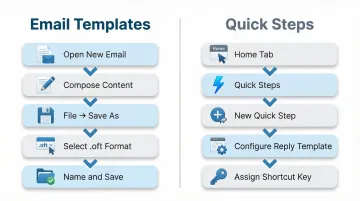
To create an email template:
- Open a new email in Outlook
- Compose the content you want to reuse
- Navigate to File → Save As
- Select Outlook Template (.oft) from the Save as type dropdown
- Name and save the template
To load a saved template, go to New Items → More Items → Choose Form. Templates work best for responses that rarely change — meeting confirmations, standard FAQs, onboarding replies.
Quick Steps take this further by automating multi-step actions in one click:
- Go to the Home tab
- Click Quick Steps → New Quick Step
- Choose an action (like "Reply" or "New Message")
- Configure the template to auto-populate
- Assign a shortcut key if desired
Requirements:
- Desktop Outlook (included in Microsoft 365 Business Standard, Business Premium, Apps for Business, and Enterprise E3/E5)
- Not available in Microsoft 365 Business Basic, which includes web and mobile versions only
When your replies need to respond dynamically — triggered by sender, subject, or folder — templates alone won't cut it. That's where Power Automate comes in.
Using Power Automate to Auto-Create Draft Replies
Power Automate can automatically create draft replies based on specific email triggers:
To build a basic flow:
- Sign in to Power Automate
- Select Create → Automated cloud flow
- Choose the trigger "When a new email arrives (V3)" (Office 365 Outlook connector)
- Add filters:
- Sender email address or domain
- Subject keywords
- Specific folder
- Add the action "Draft an email message"
- Configure fields:
- To: Use dynamic content from the trigger (sender's email)
- Subject: Reference the original subject or customize
- Body: Insert your template text or dynamic content
Requirements:
- Microsoft 365 Business Basic, Standard, or Premium subscription (Power Automate Standard connectors included)
- Basic familiarity with flow logic
- Clear trigger definitions to avoid drafting on every email
Power Automate drafts are static — they can't adapt to email context or tone, but they excel at high-volume, predictable scenarios.
For threads that require understanding context, summarizing prior exchanges, or matching your tone, you need something more intelligent.
Using Microsoft Copilot in Outlook for AI Draft Suggestions
Microsoft 365 Copilot generates contextual draft replies directly in Outlook:
Here's how to use it:
- Open an email thread
- Click the Copilot icon in the toolbar
- Select "Reply with Copilot" or "Draft with Copilot"
- Review the AI-generated draft
- Edit as needed before sending
Requirements:
- Microsoft 365 Copilot add-on license: $30.00/user/month (annual) — check Microsoft's regional pricing for local rates
- Compatible base plans: Business Basic, Standard, Premium, Apps for Business, E3, E5, F1, F3
Without the Copilot license, users can access Suggested Replies — a simpler feature offering short, pre-set response options processed entirely within your organization's servers.
Copilot drafts adapt to thread context and can summarize prior exchanges, making it suitable for complex email threads. For straightforward threads with clear context, drafts are usually usable with minor edits. For ambiguous or multi-topic threads, expect to refine more heavily — treat it as a starting point, not a finished reply.
When Should You Automate Email Draft Replies in Outlook?
Automation works best when your emails follow a pattern — same questions, same structure, predictable replies.
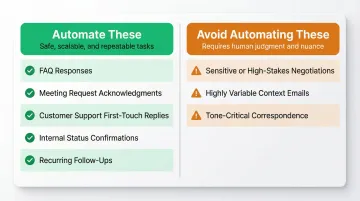
Strong use cases:
- FAQ responses
- Meeting request acknowledgments
- Customer support first-touch replies
- Internal status update confirmations
- Recurring follow-ups
When automation adds friction:
- Highly personalized or sensitive communications (negotiations, complaints requiring empathy, executive correspondence)
- Emails where context changes significantly each time
- Threads where getting the tone wrong has real consequences
If you receive fewer than 20 emails per day, manual drafting is likely faster than any setup effort. The real payoff comes at higher volumes — or for teams managing shared inboxes where consistency matters.
Key Factors That Affect the Quality of Automated Drafts
Trigger Precision
Vaguely defined triggers—like "all incoming emails"—cause the system to generate irrelevant drafts. The more specific the condition (sender domain, subject keywords, email category), the more useful each draft will be.
Template Quality
The draft is only as good as the template behind it. Generic, boilerplate language produces drafts that require heavy editing. Well-crafted templates that mirror your actual communication patterns produce near-ready drafts.
Tone and Voice Calibration
Rule-based methods (Quick Steps, Power Automate) use static templates that don't adapt to conversational tone. AI-powered methods can learn or be prompted to match your style, which determines how much editing a draft needs before it's ready to send.
Context Awareness
Static automation cannot read the email thread. AI tools that analyze the incoming message and pull in relevant context—like prior exchanges and key details—produce more accurate, contextually relevant drafts.
A Forrester Total Economic Impact study found that Microsoft 365 Copilot users save an average of 9 hours per month, with 20% time savings on email writing attributed to context-aware AI drafting.
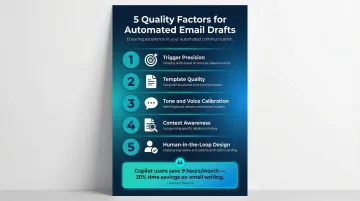
Human-in-the-Loop Design
Auto-drafts should always require explicit human review and send approval. Automation that bypasses this step introduces risk. The goal is to eliminate blank-page time, not human judgment.
Common Mistakes When Automating Draft Replies in Outlook
Skipping Trigger Definition
Creating broad, catch-all automation that drafts a reply to every incoming email generates noise and dilutes the value of automation entirely. Scope triggers to specific email types — by sender, subject keyword, or folder — before launch.
Using Static Templates for Dynamic Conversations
A template written once can quickly become outdated or factually wrong as policies and offerings change. Schedule periodic template reviews — quarterly at minimum — to keep content accurate and on-brand.
Ignoring Data Privacy Implications
Many third-party Outlook add-ins for AI drafting process email content on external servers. Check the following before connecting any tool to a professional inbox:
- Data retention policies
- GDPR compliance (Article 28 requirements)
- Where email content is processed
- Whether the provider performs Data Protection Impact Assessments (DPIAs)
For AI providers, look for Zero Data Retention (ZDR) options. Both OpenAI and Anthropic offer ZDR for enterprise API customers, bypassing standard 30-day retention logging.
Beyond Built-in Outlook Tools: AI Add-Ins That Draft in Your Voice
Built-in Outlook automation—Quick Steps and Power Automate—produces static drafts that don't adapt to context or tone. For professionals managing high volumes of varied email, an AI add-in that reads the incoming email and generates a contextually appropriate, personalized draft is a fundamentally different workflow.
What to look for in an AI email drafting tool for Outlook:
- Native inbox integration (no tab-switching)
- Ability to learn or be configured to match your writing style
- Context-awareness across email threads
- Clear data handling policies (does it store content? where is data processed?)
NewMail AI is a privacy-first AI email assistant built for this use case. It works directly inside Outlook, drafts replies in your voice, and uses zero data retention by default—email content is processed ephemerally and never stored. The platform holds Zero Data Retention agreements with AI providers like Anthropic and Mistral, ensuring GDPR compliance and Swiss-based data protection.
Setup takes about 2 minutes, with a 14-day free trial available. The AI learns your voice and style in 60 seconds by analyzing your sent emails, enabling it to draft replies that match your tone.
That same approach scales to teams. For groups of 20 or more, shared inbox automation requires consistent tone and knowledge-base alignment across members—not just one person's voice. NewMail's Enterprise Plan supports this with company-specific context configuration (FAQs, policies, links), plus KPI dashboards, SSO, and dedicated account management.
Conclusion
Outlook offers a genuine range of options for automating draft replies—from Quick Steps for simple templates to Power Automate for trigger-based flows to AI tools for context-aware, voice-matched drafts. The right method depends on email volume, reply complexity, and available tools.
Most failed automation setups come down to poorly defined triggers, generic templates, or choosing a method that doesn't match the use case—not the technology itself.
Start with one method that matches your most common email pattern. Get that working well before layering in additional automation. The human judgment step stays—automation just gets you to the draft faster.
Frequently Asked Questions
How do I send a draft email automatically?
Outlook doesn't natively "send" drafts automatically (that's auto-reply territory). Power Automate can create a draft automatically when a trigger email arrives, but the user then reviews and sends manually.
What is the AI tool for drafting emails?
The main options are Microsoft Copilot (built into M365 on qualifying plans) and third-party AI add-ins like NewMail AI that work inside Outlook. Pick based on whether you need tone personalization, data privacy guarantees, or both.
Can Outlook automatically create draft replies without any add-ins?
Yes, via Quick Steps and Email Templates (no add-in needed) or via Power Automate (included in many M365 plans). However, these are static and don't adapt to incoming email content.
What's the difference between auto-reply and auto-draft in Outlook?
Auto-reply (Out of Office or Automatic Replies) sends a response immediately without human review. Auto-draft creates a ready-to-review draft that the user approves before sending, preserving quality control.
Is it safe to use AI tools to auto-draft emails in Outlook?
Safety depends on the tool's data handling practices. Check whether the tool stores email content, where data is processed, and whether it complies with GDPR. Tools with zero data retention policies and inbox-native processing carry significantly lower risk.
How does Microsoft Copilot help with email draft replies in Outlook?
Copilot generates contextual draft replies inside Outlook by reading the full email thread. It requires a paid Microsoft 365 Copilot license add-on — worth noting if you're evaluating cost against third-party alternatives.