Introduction
Automatic replies in Outlook are one of the most commonly used email features — yet setting them up correctly trips up more professionals than expected. The challenge isn't the feature itself, but navigating three distinctly different versions — Classic Outlook desktop, New Outlook for Windows, and Outlook on the Web — each with its own navigation path.
According to Microsoft's documentation, the built-in Automatic Replies feature requires an Exchange or Microsoft 365 account.
If you're using Gmail, Yahoo, or another POP/IMAP account through Outlook, the "Automatic Replies" button won't appear — you'll need a Rules-based workaround that requires leaving Outlook running continuously.
This guide covers:
- Step-by-step setup for each major Outlook version
- What to write to avoid the vague "I'm away" trap
- Configuration options that prevent post-vacation reply mishaps
- How to troubleshoot when replies don't send
Key Takeaways
- Out of Office replies notify senders you're unavailable and send one automated response per contact during your absence
- Setup steps differ by version — Classic desktop, New Outlook for Windows, and Outlook on the Web each use different navigation paths
- You need Microsoft 365/Exchange for the built-in feature; POP/IMAP accounts require Rules instead
- Always set an explicit end date to prevent replies firing after you return
- Write a specific message: include your return date, an emergency contact, and what senders can expect
How to Set Up Out of Office Automatic Replies in Outlook
The setup process differs depending on which version of Outlook you're using — Classic desktop, New Outlook for Windows, or the web app. Find your platform below and follow those steps only.
Classic Outlook (Desktop App)
Navigate to File > Automatic Replies in the Classic Outlook desktop application.
If you don't see the Automatic Replies button, you're using a POP or IMAP account (Gmail, Yahoo, or personal email) rather than Exchange or Microsoft 365. The built-in feature isn't available for these account types. You'll need to create a Rule under File > Manage Rules & Alerts instead, but remember that Outlook must remain open and running for Rules-based replies to work.
Configuration steps:
- Select Send automatic replies
- Enable Only send during this time range
- Set your start and end date/time to prevent replies firing indefinitely
- Configure two separate messages:
- Inside My Organization tab for colleague-facing messages
- Outside My Organization tab for external contacts
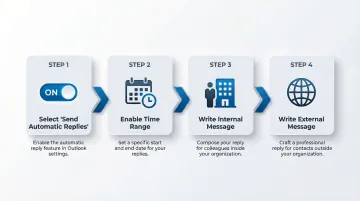
When choosing who receives external replies, select My contacts only rather than "Anyone outside my organization." Microsoft explicitly recommends this to prevent your auto-reply from responding to newsletters, mailing lists, and junk email.
Click OK to save. A yellow banner will appear under the ribbon confirming automatic replies are active, with a Turn off button if you need to cancel early.
New Outlook for Windows
Navigate to View tab > View Settings > Accounts > Automatic Replies.
Toggle on Turn on automatic replies, then enable Send replies only during a time period with specific start and end times.
Write separate messages for:
- Inside your organization (internal colleagues)
- Outside your organization (external contacts)
Important limitation: New Outlook doesn't support automatic replies for Gmail, Yahoo, or other non-Exchange accounts. These accounts won't display the Automatic Replies toggle.
Outlook on the Web (OWA / Outlook.com)
Navigate to Settings gear icon > Mail > Automatic replies and toggle on Turn on automatic replies.
Enable Send replies only during a time period and set your start and end times.
Unlike the desktop apps, Outlook on the Web includes calendar-blocking options that help protect your schedule during your absence:
- Block my calendar for this period – marks you as out of office on your calendar
- Automatically decline new invitations – rejects meeting requests during your absence
- Decline and cancel my meetings during this period – removes you from scheduled meetings
Compose your reply message in the text box (formatting options are available). Optionally enable Send replies outside your organization and write a separate message for external senders. Click Save when finished.
How to Write an Effective Out of Office Message
Most out of office messages fail not because of setup errors but because of vague or unhelpful content. A generic "I'm away" message leaves senders frustrated and generates more follow-up emails upon return.
What Every OOO Message Must Include
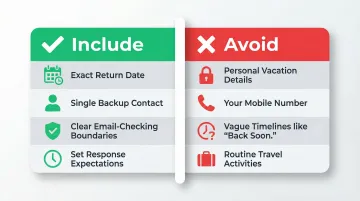
Your exact return date with realistic response expectations:
"I'll reply to emails upon my return on Monday, 15 March. For time-sensitive matters, please contact [name] at [email]."
A single backup contact for urgent issues (not two or three). Forbes recommends offering only one real alternative to avoid decision paralysis.
Clear boundaries about when and if you'll check email. Don't promise to "check periodically" unless you genuinely will.
Example Templates
Professional short version (internal):
I'm away until Tuesday, 10 March, and will have limited email access. For urgent requests, please contact Sarah Chen at sarah.chen@company.com.
Detailed version with alternate contact (internal):
I'm out of the office from 5–10 March attending the annual conference. I'll respond to all emails upon my return on Monday, 13 March.

For urgent project approvals, contact Michael Torres at m.torres@company.com.
For client escalations, reach out to our support team at support@company.com.
External client version:
Thank you for your email. I'm currently away and will return on Monday, 13 March. Your message has been received and I'll respond within 24 hours of my return.

For immediate assistance, please contact our client services team at clients@company.com or call +41 22 123 4567.
Internal vs. External Message Strategy
Internal colleagues need operational details: who to escalate to, your direct backup contact, and project-specific guidance. They're part of your organization and need actionable alternatives.
External clients need a professional tone, reassurance their message was received, and a clear return date. They don't need to know internal team structures or personal vacation details.
What NOT to Include
- Oversharing personal details ("I'm in the Maldives celebrating my anniversary")
- Your mobile number unless absolutely necessary for your role
- Vague timelines like "back soon" or "away for a while"
- Normal work activities that don't justify an OOO ("flying to a client meeting")
Beyond Static OOO Messages
For professionals managing high email volumes, static out of office messages share one core limitation: every sender gets the same reply, whether they sent an urgent client request, a newsletter, or a quick internal question.
NewMail AI addresses this by drafting personalized replies in your voice for every incoming email — at your desk or away. Rather than a fixed template, it reads the full thread and generates a response tailored to that specific sender and question. Setup takes under 60 seconds, and the AI adapts to your communication style from the first use.
Key Settings That Shape How Your Automatic Reply Works
Date Range / Time Period Setting
Without an end date, automatic replies continue firing after you return until manually turned off. The result: colleagues and clients receive "I'm away" messages days after you're back at your desk.
Always set an explicit end date during setup — and confirm the replies are off when you return.
"Send Once Per Sender" Behavior
Outlook sends only one automatic reply per sender during an active OOO period, even if they email you multiple times. This prevents the same contact from receiving multiple identical replies.
If a sender reports not receiving your reply, they likely received one earlier in the same OOO period — Outlook won't send a second.
Internal vs. External Audience Scope
Internal replies go to anyone with an email address under your Microsoft 365 organization domain.
External replies can be scoped to:
- Anyone outside my organization — sends to every external sender, including newsletters and spam
- My contacts only — sends only to addresses in your contacts list
Microsoft recommends "Contacts only" to prevent auto-replies being sent to mailing lists, newsletters, and potential spam traps.
Common Mistakes and How to Fix Them
Skipping the End Date/Time
Leaving the time period toggle off — or skipping the end date entirely — means your reply keeps firing after you're back. Colleagues wonder why you're still "away" three days later.
Always enable "Only send during this time range" and set an explicit end date. When you return, check the yellow notification banner or Settings menu to confirm automatic replies are off.
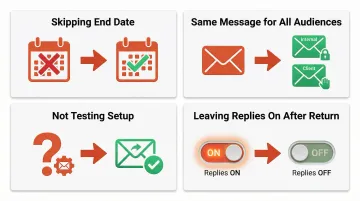
Using the Same Message for Internal and External Audiences
A single generic message leaves internal colleagues without enough context — and gives external contacts more internal detail than they need.
Write two distinct messages:
- Internal: operational details — backup contact, escalation path, project specifics
- External: professional tone, clear return date, reassurance that someone will follow up
Not Testing the Setup
Assuming the configuration worked without checking is how you discover — on day three of your vacation — that no one received your automatic reply.
Before going offline, send a test email from a secondary account (personal Gmail or a colleague's). Verify the reply fires correctly and the message reads as intended, including both internal and external versions if you've configured them.
Leaving Replies On After Returning
Forgetting to turn off automatic replies means colleagues and clients keep getting OOO messages days after you're back — making you look unresponsive when you're not.
The moment you return, check the yellow notification banner in Classic Outlook or go to Settings > Automatic Replies in the web version and switch the toggle off manually. Don't rely solely on the end date to stop it.
Troubleshooting: Why Your Automatic Replies Aren't Working in Outlook
"Automatic Replies" Button is Missing
Your account is likely a POP or IMAP account (Gmail, Yahoo, or a personal email address) rather than an Exchange or Microsoft 365 account. The built-in Automatic Replies feature is not available for POP/IMAP accounts.
Workaround: Create a Rule under File > Manage Rules & Alerts to send auto-replies. One critical limitation: Outlook must stay open and running for the rule to fire.
Replies Are Set Up But Senders Report Not Receiving Them
Most likely causes:
- The sender already received a reply during this OOO period (Outlook sends only once per sender)
- The time range is set to future dates and hasn't started yet
- The sender is an external contact but "Send replies outside my organization" is disabled
The fix:
- Check the active date window — confirm today's date falls within the start/end range
- Confirm the automatic replies toggle is on
- Verify the "Send replies outside my organization" checkbox is enabled if external contacts aren't receiving replies
External Contacts Aren't Receiving Replies
Even when Automatic Replies are active, external senders may not receive them if the external reply scope is misconfigured. If the setting is enabled but limited to "Contacts only," anyone outside your saved contacts list is silently excluded.
The fix:
- Open Automatic Replies and check whether "Send replies outside my organization" is enabled
- If it's set to "Contacts only," either add the sender to your contacts or switch the scope to "Anyone outside my organization"
- Note that the "Anyone" option will also send auto-replies to newsletters and mailing lists — a worthwhile trade-off to keep in mind
Conclusion
Setting up automatic replies in Outlook is straightforward once you know which version you're using — Classic desktop, New Outlook, or web. Getting it right means paying attention to two details: your date range and audience scope, and writing a message that actually helps senders rather than just confirming you're gone.
The 88% of Exchange mailboxes now deployed in the cloud means most professionals can rely on server-side automatic replies that work even when their computer is off. That covers planned absences — but it leaves the other 250 workdays a year unaddressed.
For professionals dealing with high email volume on a daily basis, NewMail AI drafts replies in your voice, prioritizes your inbox, and extracts action items — without storing your email data. It's built for the inbox problems that don't have an out-of-office solution.
Frequently Asked Questions
Why won't my automatic replies work in Outlook?
The most common cause is having a POP/IMAP account (Gmail, Yahoo) rather than a Microsoft 365/Exchange account. The built-in Automatic Replies feature only works with Exchange. Users on POP/IMAP need to use Outlook Rules as a workaround, which requires keeping Outlook open continuously.
Can I set up Outlook to automatically reply to every incoming email?
Outlook's automatic reply sends once per sender per active OOO period, not once per email. For truly unlimited auto-replies to every message, you need a Rules-based approach. This requires Outlook to remain open and running, and it won't respect the "once per sender" limitation.
Can I customize my Outlook automated email response?
Yes. Outlook allows full text formatting including font, colour, and hyperlinks. You can create entirely different messages for internal colleagues versus external clients using the "Inside My Organization" and "Outside My Organization" tabs.
What is the difference between Out of Office and automatic replies in Outlook?
"Out of Office" is simply the colloquial name for what Microsoft officially calls "Automatic Replies" — there is no functional difference between the two. Both terms point to the same setting under File > Automatic Replies or Settings > Mail > Automatic replies.
What are some good examples of Outlook automatic reply messages?
Include your return date and one alternate contact. For example — internal: "Away until 13 March. For urgent approvals, contact Sarah Chen at sarah.chen@company.com." External: "I'm away until 13 March and will respond within 24 hours of my return. For immediate help, email support@company.com."