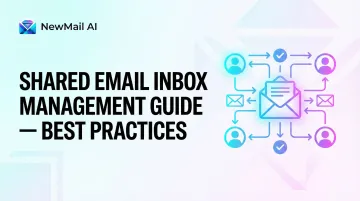
Introduction
Most teams set up a shared inbox—support@, sales@, info@—and assume the hard part is done. It isn't. Without clear processes, that shared address becomes a liability: multiple people see the same email, no one knows who owns it, and customers wait.
The risks of poor shared inbox management are measurable and costly. Missed emails, duplicate replies, accountability gaps, and slow response times directly damage customer relationships and revenue. B2B customers expect email responses within 4 hours. The actual industry average is 12 hours and 10 minutes — a gap wide enough to drive churn and erode trust before a conversation even begins.
What follows is a practical guide to managing shared inboxes effectively — from choosing the right approach to building workflows that hold up under volume. Whether your team is reactive and overwhelmed or looking to get ahead of the chaos, there's a clear path forward.
Key Takeaways
- A shared inbox without clear processes leads to chaos — missed emails, duplicate replies, and zero accountability
- Proactive management (triage, labels, assignments) beats reactive firefighting every time
- Documented workflows, canned responses, and role clarity form the foundation of a well-run shared inbox
- AI-assisted tools automate triage, surface urgent emails, and cut manual sorting significantly
- A consistent daily, weekly, and monthly routine keeps shared inboxes from becoming cluttered and unmanageable
Why Shared Email Inbox Management Matters
A shared inbox is only as effective as the system managing it. Without structure, multiple users accessing the same inbox creates confusion: emails sit unowned, duplicate replies embarrass the team, and response times lag unpredictably.
The business cost is measurable. Research and industry data consistently point to the same pattern:
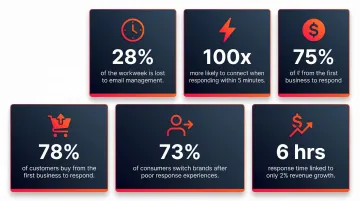
- Knowledge workers spend 28% of their workweek managing email — over 580 hours lost annually
- Responding within 5 minutes makes sales teams 100 times more likely to connect vs. waiting 30 minutes
- 78% of customers buy from the first responder
- Responding within 6 hours correlates with up to 2% revenue growth for support teams
- 73% of consumers will switch to a competitor after multiple bad experiences
The cost of reactive management compounds fast. Teams without triage protocols spend more time sorting and searching than actually responding — and that drain grows directly with email volume, turning a shared inbox from an asset into a bottleneck.
Types of Shared Email Inbox Management Approaches
Not all teams manage shared inboxes the same way. The approach should match the team's size, email volume, and workflow complexity.
Reactive Management
Reactive management means handling emails as they arrive with no assigned ownership or pre-set workflow. Each team member decides individually what to respond to, when to respond, and how to respond. This works for very small teams or low-volume inboxes, but breaks down quickly as volume scales.
Without an assignment system, emails sit in limbo — everyone assumes someone else is handling them. Two people unknowingly reply to the same thread. Nothing gets resolved. 62% of companies fail to respond to customer service emails entirely, and reactive models are a leading cause.
Proactive / Process-Driven Management
Proactive management establishes documented workflows and ownership rules before problems arise. Teams define who responds to which email type, what the expected response time is, and where an email goes at each stage — then stick to it regardless of volume.
The results are measurable. According to Hiver's customer data, teams with documented workflows achieve:
- 30% faster response times
- 15-20% higher customer satisfaction scores
- 3-5 hours saved per agent each week
AI-Assisted Management
Proactive workflows solve the structure problem — but when volume is high enough, even well-organized teams spend hours on triage. AI-assisted management addresses that gap by adding automated priority classification and draft generation on top of existing workflows, so human attention goes where it actually matters.
Tools like NewMail AI work natively inside Gmail and Outlook to auto-prioritize incoming emails, draft replies in your team's voice, and detect when threads are stalling—without requiring a separate platform. AI-assisted management is particularly valuable for high-volume inboxes where manual triage becomes unsustainable.
Core Best Practices for Managing a Shared Email Inbox
Most shared inbox problems aren't caused by email volume — they're caused by missing structure. Without clear ownership rules, documented workflows, and consistent habits, even a small team will duplicate replies, drop threads, and frustrate customers. The practices below fix that.
Document Your Workflow Before You Need It
Every team member must understand:
- Who responds to which email type
- What the expected response time is
- Where an email goes at each stage (triage → assigned → in progress → awaiting reply → resolved)
Without documentation, onboarding new team members becomes impossible, and consistency evaporates. Documented workflows serve as the single source of truth when conflicts arise or handoffs occur.
What to document:
- Email ownership rules (e.g., billing questions → finance team, product bugs → technical support)
- SLA targets by email type and customer tier
- Escalation procedures for urgent or sensitive issues
- Response templates and when to use them
Create Clear Ownership and Accountability Systems
Assigning emails to specific team members prevents duplicate replies and ensures every message has a responsible party. An email should never sit in "unassigned" status unless it's brand new and awaiting triage.
What an assignment system looks like in practice:
- Assign each email to one owner during daily triage
- Use labels or tags like "Assigned: [Name]" to make ownership visible
- Establish a handoff protocol when emails need to move between team members
- Never allow multiple people to reply to the same thread without explicit coordination
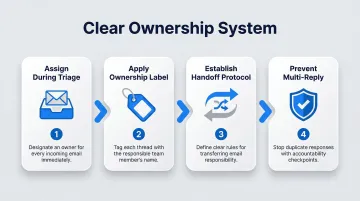
Clear ownership makes accountability visible — no more assuming someone else picked it up.
Use Labels, Folders, and Categories to Organize at Scale
Consistent label/folder structures allow the whole team to see the status of any conversation at a glance. Common structures include:
- In Progress — Currently being worked on
- Awaiting Reply — Waiting for customer or external response
- Escalated — Requires manager or specialist intervention
- Resolved — Completed, ready for archiving
Labels should be team-agreed and standardized, not invented per individual. When everyone uses the same system, searching and handoffs become faster and more reliable.
Build a Canned Response Library for Faster, Consistent Replies
Pre-written response templates for frequent inquiry types reduce response time and eliminate tone inconsistencies across team members. Building a response template library for the top 20 inquiry types cuts per-email handling time by 40% to 60%.
Best practices for templates:
- Create templates for common scenarios: order confirmations, troubleshooting steps, pricing inquiries, refund policies
- Include personalization placeholders (customer name, order number, specific issue)
- Update templates quarterly based on recurring inquiry patterns
- Allow team members to edit templates before sending to maintain authenticity
Templates also let newer team members reply confidently without waiting for manager review — which cuts turnaround time for routine requests.
Enforce Security Protocols Specific to Shared Access
Shared inboxes present higher security risks than individual inboxes: credential sharing, unauthorized access when a team member leaves, and exposure to spam attacks on public-facing aliases like info@ or support@.
Best practices:
- Individual authenticated access, not shared passwords — Each team member should access the shared inbox through their own authenticated account. Microsoft explicitly states that shared mailboxes are not intended for direct sign-in.
- Two-factor authentication (MFA) — Enforcing MFA makes accounts 99% less likely to be hacked.
- Prompt access removal for departing team members — Disable access within 24 hours of departure to prevent unauthorized access.
- Disable legacy protocols — Turn off IMAP and POP unless explicitly needed, as these often lack modern authentication protections.
Pursue Inbox Zero as a Team Standard
Inbox zero means every email is actioned (responded to, delegated, snoozed, or archived) so the inbox reflects only what still needs attention. When applied to a shared inbox, this principle reduces mental overhead and prevents important messages from aging undetected.
How to maintain inbox zero:
- Triage all new emails during fixed daily windows
- Action or assign every email before leaving the inbox
- Archive resolved conversations immediately
- Review "Awaiting Reply" emails weekly to catch stalled threads
Inbox zero isn't about perfectionism — it's about making sure nothing urgent gets buried under routine noise.
Warning Signs Your Shared Inbox Management Is Failing
Shared inbox problems rarely surface all at once. Small inefficiencies accumulate quietly until response times slip, emails fall through the cracks, and teams start blaming each other. These are the patterns worth watching for.
Response Times Are Rising or Inconsistent
Increasing average response times—particularly when email volume hasn't changed—indicate triage and assignment systems are breaking down. Companies with average first response times under 10 hours achieve CSAT scores over 90%, while delays beyond 24 hours cause satisfaction to plummet.
Without shared response standards, quality varies noticeably depending on who picks up the email — a problem that's harder to spot than slow response times but equally damaging to customer trust.
Duplicate Replies and Ownership Confusion Are Frequent
When two team members unknowingly reply to the same email, or when emails sit unanswered because everyone assumed someone else handled them, it signals the absence of an effective assignment or read-status tracking system.
Duplicate replies waste capacity and signal disorganization to customers. Ownership gaps are subtler — emails simply age unnoticed until a frustrated customer follows up.
The Inbox Is Constantly Cluttered and Hard to Search
A perpetually full inbox with no labeling, no archived closed threads, and no visible status indicators signals that organizational systems (labels, folders, assignment workflows) were never established or have broken down.
The compounding effect accelerates as email volume grows. 67% of workers feel overwhelmed by their inbox, and 82% say they miss important emails because their inboxes are bogged down.
Shared Inbox Management Routine: Daily, Weekly, and Monthly
Management frequency should match the team's email volume and the stakes of the inbox. A sales@ inbox needs more active management than a rarely-used info@ address.
Management Frequency Reference Guide
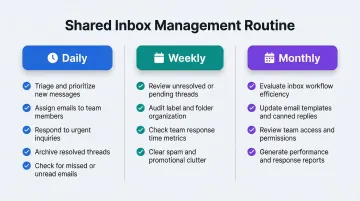
Daily tasks:
- Triage all new emails within defined SLA windows
- Assign unowned emails to specific team members
- Respond to or action all flagged/priority threads
- Archive resolved conversations
- Conduct a quick inbox-zero sweep at day's end
Weekly tasks:
- Review unresolved or aging threads (any thread older than 3 business days)
- Assess team response time trends
- Update or create new canned response templates based on recurring inquiry patterns
- Check that labels/folder structure is being applied consistently
Monthly tasks:
- Conduct a full inbox audit—remove outdated labels, reassess who has access
- Review and update workflow documentation
- Evaluate whether automation rules are still serving their intended purpose
- Check for any security or access changes needed (departing team members, new hires)
Volume-Based Adjustments
Adjust your routine based on email load:
- High-volume inboxes (customer support at 100+ emails/day): use shift-based ownership and real-time triage. Shared inboxes become bottlenecks when teams exceed 10 agents or handle more than 200 emails per day — at that point, dedicated helpdesk tooling is worth the investment.
- Low-volume inboxes (a vendor contact alias at 5-10 emails/week): weekly review is sufficient; daily triage adds overhead without value.
Conclusion
A shared email inbox is a team asset that requires structured management. The right combination of documented workflows, ownership systems, labeling, automation, and a consistent routine is what separates a high-performing team inbox from one that creates daily frustration.
As email volume grows, AI-assisted tools that work natively inside existing email clients can help teams stay on top of priorities without adding complexity or switching platforms. NewMail AI integrates directly inside Gmail and Outlook, handling automated triage, priority detection, and context-aware draft generation. It's built on a privacy-first architecture — Swiss-based, GDPR-compliant, and certified for zero data retention with AI providers — so teams in sensitive industries can use it without compliance concerns.
Teams can start with a 14-day free trial with full access by signing up at NewMail AI — no credit card required.
Frequently Asked Questions
What is the best way to manage a shared email inbox?
The best approach combines several core practices:
- Documented workflows with clear email ownership and assignment
- Consistent labeling and canned responses for common queries
- A daily triage routine to keep the inbox actionable
- Automation (such as AI-assisted priority detection) to handle repetitive sorting
This frees your team to spend time on responses that actually need human judgment.
How does a shared email inbox work?
A shared inbox allows multiple team members to read, respond to, and send emails from a single shared address (e.g., support@company.com). Each member accesses it through their individual authenticated account rather than a shared login, maintaining security and accountability while enabling collaboration on customer communications.
What is the difference between a collaborative inbox and a shared mailbox?
A shared mailbox is a basic email address multiple users can access. A collaborative inbox adds team-specific features like assignment, internal comments, collision detection, and workflow automation built directly into the email interface—turning a shared address into a coordinated team workspace.
What are the 4 and 5 D's of shared email inbox management?
The 4 D's are Delete, Delegate, Defer, and Do—action categories applied during triage to ensure every email is immediately actioned rather than left open-ended. The 5th D sometimes added is Document. This framework ensures emails never sit in limbo without a clear next step.
How do you prevent duplicate replies in a shared inbox?
Duplicate replies are prevented by using an assignment system where each email has one assigned owner, enabling collision detection if your tool supports it, and following a clear rule that unassigned emails are not replied to until ownership is confirmed. Visible status labels like "Assigned: [Name]" help teams coordinate.
How many people can access a shared email inbox?
There is no universal cap, but coordination challenges grow quickly with team size. As a rule of thumb, inboxes handling more than 10 active agents or 200+ daily emails typically need dedicated helpdesk tooling rather than a standard shared mailbox setup.