Introduction
Nearly 30% of meetings now span multiple time zones—up 8% since 2021 according to Microsoft's 2025 Work Trend Index. The result: a well-timed email has become a competitive advantage. Send at the wrong local time and your message is likely buried under a morning inbox flood before your recipient reads a word.
Gmail's "Schedule Send" feature doesn't automatically adjust for recipient time zones. It anchors to your current Gmail time zone setting—not theirs. This guide covers the exact steps to verify your settings, calculate the right send time, and ensure your emails arrive during business hours anywhere in the world.
Key Takeaways
- Gmail's Schedule Send uses your Gmail time zone setting, not the recipient's location
- Verify your time zone in Settings → General before scheduling, then calculate the correct send time manually
- On desktop, use the arrow next to Send; on mobile, tap the three-dot menu
- Scheduled emails live in the Scheduled folder and can be edited or cancelled anytime
- Gmail limits scheduled emails to 100 at once
How to Schedule Emails in Gmail by Time Zone
Scheduling emails across time zones comes down to three things: your Gmail time zone setting, your composed message, and the correct send time for where your recipient actually is. Get all three right and your email lands exactly when it should.
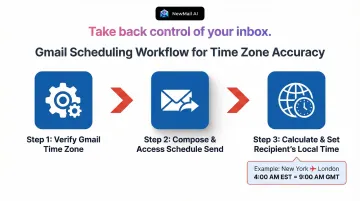
Step 1: Verify Your Gmail Time Zone Setting
Gmail schedules sends based on the time zone in your account settings—not your device's OS or your recipient's location. If Gmail defaulted to a previous location after travel, every scheduled email will go out at the wrong time regardless of what you enter.
To check your current time zone:
- Open Gmail and click the gear icon in the top-right corner
- Select "See all settings"
- Stay on the "General" tab
- Scroll to find the time zone display
The time zone shown here is what Gmail uses for all scheduled sends. If it's incorrect, update it now. This is a one-time configuration that persists across sessions, but should be verified whenever you relocate or switch devices.
Step 2: Compose Your Email and Access Schedule Send
On desktop:
- Click Compose and write your email normally
- Add recipients, subject line, and body content
- Instead of clicking Send, click the small down arrow (chevron) directly beside the Send button
- Select Schedule send from the dropdown
On mobile (iOS and Android):
- Open the Gmail app and tap Compose
- Write your email
- Tap the three vertical dots in the top-right corner
- Select Schedule send
Step 3: Calculate and Set the Right Send Time for the Recipient's Time Zone
Gmail does not auto-convert times to match your recipient's location. You need to calculate what time in your own time zone corresponds to their target local time.
For example: if you want an email to arrive at 9 AM in London (UTC+0) and you're in New York (EST, UTC−5), schedule it for 4 AM your time.
How to find the recipient's current local time:
- Search "[City] current time" in your browser
- Use a world clock tool like timeanddate.com
- Check Google Calendar's world clock feature
- In the Schedule send menu, select Pick date & time
- Enter the precise date and calculated time in your time zone
- Click Schedule send
The email moves to your Scheduled folder and sends at the exact UTC equivalent of the time you entered. To review, edit, or cancel any scheduled email, go to the Scheduled label in Gmail's left sidebar. Gmail supports up to 100 scheduled emails at once.
When Does Scheduling Gmail Emails by Time Zone Actually Matter?
Not every email requires time zone math. The calculation becomes critical when sender and recipient operate in different time zones and timing directly influences open rates, urgency, or professionalism.
Core use cases where this matters:
- Reaching prospects during their business hours boosts reply rates and keeps you out of the "deal with this later" pile
- Landing follow-ups at 9 AM in their inbox — not yours — signals you respect their schedule
- Coordinating team announcements so every region receives them at the start of their workday, not mid-afternoon
- Sending time-sensitive requests early enough in their day to get a same-day response
When it's less critical:
- Internal emails within the same time zone
- Non-urgent informational messages where timing is flexible
- Replies to active threads where response cadence is already established
That said, timing matters beyond open rates. Research shows recipients overestimate how quickly a sender expects a reply when emails arrive outside work hours — putting unnecessary pressure on them before the day even starts. Scheduling emails to land during recipient business hours removes that friction entirely.
Key Variables That Affect Time Zone Scheduling Accuracy in Gmail
Scheduling outcomes depend on several controllable settings and behaviors. Getting even one of these wrong can cause your email to land at the wrong time.
1. Your Gmail Account Time Zone Setting
Gmail's scheduler anchors to the account's time zone as configured in Settings—not your device's OS time zone. If these differ—say, your laptop auto-updated to a new city's time after a flight—the scheduled time will be off. Before scheduling from a new device, confirm both settings match.
2. Daylight Saving Time (DST) Gaps
Scheduling near a DST transition can introduce a one-hour error. The risk is highest when the recipient's region observes DST on a different date than yours—or doesn't observe it at all.
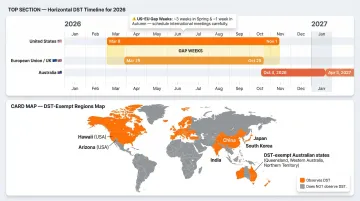
2026 DST Transitions:
- United States: Starts March 8, ends November 1
- European Union/UK: Starts March 29, ends October 25
- Australia: Starts October 4, ends April 5
The US shifts its clocks weeks before the EU and UK. During those gap weeks, the standard offset between New York and London temporarily changes—add or subtract one hour manually to compensate.
Major regions that do NOT observe DST:
- United States: Hawaii and most of Arizona
- Asia: China, Japan, India, South Korea
- Parts of Australia (Queensland, Northern Territory, Western Australia)
3. How the "Pick Date & Time" Interface Works
The time you enter in Gmail's custom scheduler reflects your current Gmail time zone—not UTC or the recipient's local time. The calculation must happen before you enter the time, not after.
Example: If you are in New York (EST, UTC-5) and want the email to arrive at 9 AM in Paris (CET, UTC+1), you would schedule it for 3 AM New York time.
4. Device vs. Gmail Account Time Zone Conflicts
On mobile, if the Gmail app references device time and the device has auto-updated to a new location while traveling, scheduled times may calculate incorrectly relative to your intended home time zone. Verify which time zone the mobile app is currently referencing before scheduling important messages.
Verify which time zone the mobile app is currently referencing before scheduling important messages. Keeping all four variables aligned—account settings, DST awareness, manual calculation, and device sync—is the only way to guarantee your email lands exactly when you intend.
Common Mistakes When Scheduling Gmail Emails by Time Zone
Assuming Gmail auto-adjusts for the recipient's time zone. It doesn't. Gmail has no idea where your recipient is located — the conversion is entirely on you. Always verify the recipient's local time before scheduling any cross-border email.
Scheduling too far in advance without reviewing. Circumstances change: recipients take leave, projects shift, and emails go stale. Check anything scheduled more than a week out. The Scheduled folder makes this straightforward to audit.
Forgetting weekends and local holidays. A well-timed 9 AM Monday email in your country can land on a public holiday in the recipient's. Check for national holidays when scheduling to international contacts — timeanddate.com is a reliable quick reference.
Troubleshooting Gmail Time Zone Scheduling Issues — and When to Go Beyond Native Gmail
Even with careful setup, things can go wrong. Here's how to diagnose the most common problems.
Problem 1: Email Did Not Send at the Scheduled Time
Likely causes: Account sync issues or browser session problems.
The fix:
- Verify internet connectivity
- Check whether your Gmail session was logged out
- Confirm the email is still in the Scheduled folder
Note that Gmail's servers—not your device—handle the actual send, so the device does not need to be on for scheduled emails to deliver.
Problem 2: Scheduled Email Appears in Sent Folder Immediately Without Delivering
This is expected behavior in Gmail. Emails move to Sent when scheduled but are only delivered at the set time. Pending scheduled emails are also visible in the dedicated Scheduled folder.
Problem 3: Cannot Find or Edit a Scheduled Email
The fix:
- Navigate to the Scheduled label in the left sidebar
- Open the email
- Click Cancel send
- Make edits
- Reschedule
Canceling converts the email back to a draft.
When Native Gmail Falls Short — and What to Use Instead
For professionals managing high-volume outreach to recipients across multiple time zones, manually calculating send times for every email becomes impractical. At that scale, the bottleneck isn't scheduling itself — it's context switching between contacts, time zones, and send windows dozens of times a day.
Tools like NewMail AI work directly inside Gmail and automate the coordination layer, so you're not manually calculating optimal send times for each recipient. It's built for exactly this use case: high-volume professional email with no extra tools required.
Frequently Asked Questions
Does Google Calendar automatically adjust to time zone?
Yes, Google Calendar can automatically use the device's time zone if "Use device time zone" is enabled. Calendar stores events in UTC so they display correctly as you travel. However, this affects Calendar events only—not Gmail scheduled emails, which use the Gmail account time zone setting.
What time zone does Gmail use when scheduling emails?
Gmail schedules emails based on the time zone configured in Gmail Settings (Settings → See all settings → General → Time zone), not the device's operating system time zone or the recipient's location.
How do I know what time to schedule an email for someone in a different time zone?
Search your recipient's city name + "current time" in your browser, or use a world clock tool. Then calculate backwards from their target business hour to find the equivalent time in your Gmail time zone.
Can I schedule Gmail emails from my phone?
Yes—in the Gmail mobile app, access Schedule send via the three-dot menu in the compose window, then choose a preset time or use "Pick date & time" for a custom slot. The same time zone caveats apply.
What happens to scheduled emails if I change my time zone in Gmail?
If you change your Gmail time zone after scheduling an email, that email sends at the original clock time read against the new time zone—meaning it can arrive at an unintended hour. Always reschedule any queued emails after changing your time zone setting.
How many emails can I schedule at once in Gmail?
Gmail allows up to 100 scheduled emails at any given time. For high-volume outreach, this limit can become a constraint—third-party tools or email automation platforms may be more appropriate.