Introduction
Scheduling a meeting shouldn't take longer than the meeting itself. Yet professionals spend at least 3 hours weekly just on coordination — checking availability, drafting scheduling emails, and chasing down reschedules. Google Calendar serves over 500 million active users monthly, but the back-and-forth surrounding those calendars stays manual. The average knowledge worker toggles between apps 1,200 times daily, and each context switch costs 23 minutes to fully regain focus.
Even teams running entirely on Google Calendar still deal with conflicts that slip through, events that never get updated, and the mental overhead of keeping it all organized manually.
This guide covers exactly what a Google Calendar AI assistant can automate, how to configure one correctly, and how to get reliable results in real daily workflows — not just ideal scenarios.
Key Takeaways
- AI assistants can automate meeting proposals, rescheduling, and task extraction — but only with clearly defined scheduling rules
- Setup requires calendar access, defined working hours, buffer preferences, and a tool that integrates with Gmail or Google Calendar
- Some tools only suggest times; others handle full end-to-end scheduling including confirmations
- Google's native Gemini covers the basics; tools like NewMail AI go further with email-to-calendar automation
- Prioritize assistants with zero data retention and GDPR compliance to protect sensitive communications
What Can a Google Calendar AI Assistant Actually Automate?
Native Google Calendar vs. AI Layer
Google Calendar manages events you create manually — it stores them, sends reminders, and syncs across devices. An AI assistant adds interpretation: it reads context from emails, conversations, or tasks and takes scheduling actions on your behalf without requiring you to manually create each event.
Core automations available include:
- Finding open time slots across multiple calendars simultaneously
- Proposing meeting times directly inside email threads
- Sending invites and confirmations automatically
- Updating events when conflicts arise without manual intervention
- Extracting action items from emails and surfacing scheduling requests
The Email-to-Calendar Workflow Gap
Most scheduling decisions originate in email. A client asks for a call, a colleague proposes a meeting — but translating those requests into calendar events requires switching between Gmail and Calendar, copying details, and manually checking availability. AI assistants bridge this gap by detecting scheduling intent in emails and proposing times based on your actual calendar availability, all within the email interface.
That's exactly the workflow NewMail AI addresses. It works natively inside Gmail to extract scheduling intent from incoming emails and surface actionable scheduling prompts tied directly to your Google Calendar availability — eliminating the manual copy-paste step entirely.
What AI Assistants Cannot Do Without Configuration
AI assistants cannot reliably:
- Infer preferences for meeting-free mornings or focus blocks
- Respect personal buffer times between meetings
- Handle complex multi-timezone coordination
- Distinguish between high-stakes strategic meetings and routine check-ins
These capabilities require explicit configuration. Without predefined rules, the AI fills any open slot — which is why the choice between Google's native Gemini feature and a third-party assistant matters.
Google Gemini vs. Third-Party AI Assistants
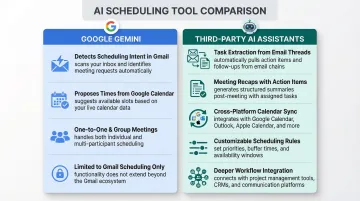
Google's Gemini "Help Me Schedule" (available to Google Workspace users):
- Detects scheduling intent in Gmail drafts
- Proposes times based on your Google Calendar
- Handles one-to-one and group meetings when participants' calendars are visible
- Limited to scheduling within Gmail; doesn't extract tasks or provide meeting recaps
Third-party AI assistants offer broader automation:
- Task extraction from email threads
- Meeting recaps with action items
- Cross-platform calendar sync
- Customizable scheduling rules (buffers, blackout windows, priority windows)
- Deeper workflow integration beyond basic time proposals
What You Need Before Getting Started
Prerequisites:
- An active Google account with Google Calendar — the AI connects directly via OAuth to read availability and create or modify events
- Defined scheduling preferences: working hours, preferred meeting windows, buffer times, and protected blocks — otherwise the AI schedules into any open slot
- A compatible AI assistant that integrates with Gmail or Google Calendar: your choice here determines automation depth, from simple time suggestions to full coordination with email handling and confirmations
How to Set Up and Use a Google Calendar AI Assistant (Step-by-Step)
Most scheduling problems aren't tool problems — they're setup problems. If you connect an AI assistant without configuring your preferences first, it will schedule meetings around your calendar, not around how you actually work.
Connecting Your AI Assistant to Google Calendar
Typical connection process:
- Authorize the AI assistant via OAuth 2.0 in the assistant's settings or your Google account permissions
- Grant calendar access scopes (read-only, events management, or full calendar control depending on the tool)
- Verify which calendars the assistant can see — personal, work, or shared team calendars
Common setup error: Granting access but not verifying calendar visibility. If you maintain separate work and personal calendars, the assistant will only optimize around calendars it has explicit permission to access. Check the assistant's settings to confirm it sees all relevant calendars.
OAuth permission issues to avoid:
- 401 errors (invalid credentials) occur when access tokens expire
- 403 errors (insufficient permissions) happen when the token lacks required scopes or when trying to modify shared calendar properties without organizer privileges
Configuring Your Scheduling Preferences
Define these rules inside the AI assistant's settings before activating automation:
- Working hours — When you're available for meetings (e.g., 9 AM – 5 PM)
- Meeting buffers — Minimum time between consecutive meetings (e.g., 15 minutes)
- Blackout windows — Time blocks you want protected from scheduling (e.g., mornings for deep work)
- Meeting duration defaults — Standard lengths for different meeting types
Some AI assistants go further at this stage. NewMail AI, for instance, works natively inside Gmail and can extract scheduling intent from incoming emails — such as a client requesting a call — then surface actionable prompts tied directly to your Google Calendar availability. That removes the manual step of switching between your inbox and calendar entirely.
Activating Scheduling Automation
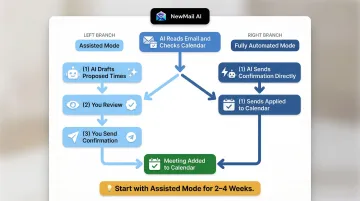
Once active, the assistant handles incoming meeting requests by:
- Reading email context to identify scheduling intent
- Checking your calendar against configured rules (working hours, buffers, blackout windows)
- Either proposing times or responding on your behalf depending on the tool's mode
Two automation modes:
- Assisted scheduling — The AI drafts a response with proposed times for you to review before sending. Use this mode when you're starting out and still verifying the assistant's judgment.
- Fully automated scheduling — Confirmations go out without your input. Switch to this only after you've confirmed the assistant consistently respects your working hours and buffer rules.
Start with assisted mode for the first 2-4 weeks before switching to fully automated.
Monitoring and Adjusting
What to review during the first month:
- Are buffer times being respected, or are back-to-back meetings appearing?
- Do proposed meeting slots align with your actual productivity windows?
- Are rescheduling actions creating calendar conflicts?
- Is the assistant catching all meeting requests regardless of email format?
If you notice consistent patterns in the above, your configuration likely needs tuning. Common signs include:
Configuration issues to fix:
- Scheduling outside stated working hours
- Missing buffer rules between meetings
- Proposed times that consistently conflict with focus blocks
- Meeting requests arriving in specific email formats being ignored
How Professionals Use Google Calendar AI Assistants Day-to-Day
Across industries, AI calendar assistants are changing how different roles handle time. Here's how three common user types put them to work.
Sales and customer success teams cut scheduling bottlenecks by having the AI propose meeting times directly inside email replies — no booking link required. The prospect responds, the AI confirms, and the call is locked in. CallRail used this approach to double its meeting conversion rate and reclaim 3,267 SDR hours annually.
For executives and team leads, the value shows up after meetings, not just before. The AI pulls key decisions and follow-up tasks from each call and creates calendar reminders for the next required touchpoint — no manual note-taking needed.
Distributed teams get the most relief from time zone coordination. Nearly 33% of meetings now span multiple time zones — up 35% since 2021. Rather than asking each participant to check their own calendar and propose times, AI assistants scan availability across the group and surface options that work for everyone.

Best Practices for Getting Consistent Results
Follow these practices to get reliable, consistent output from your AI scheduling assistant:
Configure preferences fully before activating automation. Define working hours, meeting duration defaults, buffer lengths, and any protected time windows. The clearer your rules, the better the scheduling decisions — vague settings produce vague results.
Use the assistant as a coordination layer, not a substitute for judgment. Let it handle routine scheduling: client check-ins, recurring internal meetings, conflict-triggered rescheduling. Keep control over strategic meetings where attendee selection, timing, or context requires a human call.
Do a weekly calendar review to assess whether the assistant is building the schedule you actually want. Use that review to tighten preference settings rather than chasing individual overrides.
Treat data privacy as a configuration requirement, not an afterthought. When choosing a Google Calendar AI assistant, prioritize tools with zero data retention policies and transparent data handling. This is especially relevant for professionals in finance, healthcare, and legal — industries where confidentiality is non-negotiable. NewMail AI, for example, processes data ephemerally with no email or calendar content stored.
Avoid layering on automations too fast. Start with one workflow — such as automating responses to external meeting requests — confirm it works reliably for two weeks, then add the next layer (task extraction, meeting recap generation, and so on).
Frequently Asked Questions
Is there an AI assistant for Google Calendar?
Yes, multiple AI assistants connect to Google Calendar to automate scheduling. Google's Gemini-powered "Help Me Schedule" feature in Gmail handles basic meeting proposals, while third-party tools offer deeper automation — covering end-to-end coordination, task extraction, and conflict resolution.
Is there an AI tool for scheduling with Google Calendar?
Dedicated AI scheduling tools integrate with Google Calendar. Some tools (like Reclaim or Motion) focus on personal time blocking while others handle external meeting coordination. The right choice depends on whether you need to automate internal scheduling, external meeting requests, or both.
Does Google offer an AI assistant?
Google offers Gemini, which powers the "Help Me Schedule" feature in Gmail. It suggests meeting times based on your calendar availability and is designed for one-to-one and small group scheduling — not full workflow automation.
Does Gmail have a scheduling assistant?
Gmail includes a Gemini-powered "Help Me Schedule" button that appears when scheduling intent is detected in a draft. It suggests available time slots and, once confirmed by recipients, automatically adds the meeting to both calendars.
Can AI assistants access my Google Calendar data safely?
Reputable tools use OAuth authorization and process calendar data without storing it. Always review a tool's data retention and privacy policy before connecting it to your calendar. For sensitive use cases, prioritize tools with zero data retention agreements and GDPR compliance.
What is the difference between Google's built-in AI scheduling and third-party AI assistants?
Google's Gemini scheduling is built for simple one-to-one and small group meetings within Gmail. Third-party AI assistants go further — handling multi-participant coordination, task extraction, meeting recaps, and customizable rules like buffer times and blackout windows.