Introduction
The cycle is painfully familiar: email a colleague to propose Monday at 2 p.m., wait half a day for "Tuesday works better," counter with Wednesday morning, and wake up the next day to find they've already booked over that slot. By the time you've exchanged five messages and toggled between Gmail and Google Calendar four times, the meeting that should have taken 30 seconds to schedule has consumed 20 minutes and three mental context-switches.
Gmail has multiple native scheduling tools built directly into the interface — and most users either don't know they exist or default to the wrong one. The result: double-bookings, missed invitations, or another round of "Does 3 p.m. work?"
The three primary methods (creating events from emails, offering clickable time slots, and AI-powered scheduling via Gemini) each solve a different coordination problem. Knowing which to use, and when, is what actually stops the back-and-forth.
This guide covers each method step by step, when to use it, and the common mistakes worth avoiding.
Key Takeaways
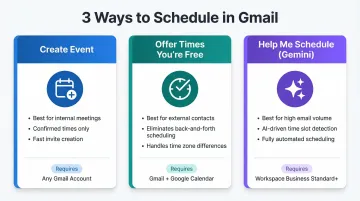
- Gmail offers three scheduling methods: "Create event", "Offer times you're free", and Gemini's "Help me schedule"
- Each method auto-generates a Google Calendar event and sends invites, but the workflows differ based on whether you're initiating or responding
- Use "Offer times you're free" or "Help me schedule" for external contacts; use "Create event" for internal meetings with a confirmed time
- Gemini scheduling requires Google Workspace Business Standard/Plus or Enterprise plans; free Gmail accounts have limited or no access
- A critical flaw: offered time slots are not held on your calendar, so another meeting can fill that slot before the recipient confirms
How to Schedule a Meeting from Gmail
Gmail integrates directly with Google Calendar, meaning every event created through Gmail syncs automatically to both your calendar and your invitees' calendars. For most workflows, you never need to open a separate Calendar tab.
Three methods cover most scheduling scenarios:
- Convert an email thread into a calendar invite (Method 1)
- Offer available time slots as clickable links in a reply (Method 2)
- Use Gemini AI to detect scheduling intent and suggest times (Method 3)
Method 1: Create an Event from an Existing Email
When to use this: You've received or sent an email discussing a meeting and want to convert the thread into a formal calendar invite without retyping details or switching apps.
Step-by-step process:
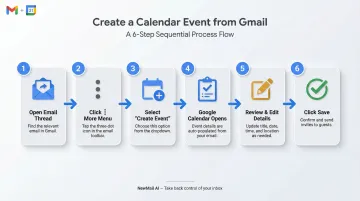
- Open the email containing the meeting discussion
- Click the three-dot "More" menu at the top of the message
- Select "Create event"
- A new Google Calendar tab opens with:
- The email subject line copied as the event title
- The message body inserted as the event description
- Email recipients automatically added as invitees
- Review and edit the auto-filled title, date, time, and location
- Click Save — Calendar prompts you to confirm sending invites to guests
Critical note: Gmail copies the full email subject and body into the calendar event. If your subject line reads "Re: Q4 budget concerns — confidential," that exact phrase becomes the calendar invite title visible to all attendees. Always clean up auto-filled fields before saving.
Method 2: Offer Times You're Free (from Compose or Reply)
This method works best when composing or replying to an email and you want to share specific available slots as clickable buttons — particularly useful for external contacts whose calendars you can't view.
Step-by-step process:
- In a compose or reply window, click the Calendar icon in the bottom toolbar
- Or click the three-dot "More options" icon → hover over "Set up a time to meet" → select "Offer times you're free"
- A calendar pane opens on the right side
- Click to select one or more open time slots (3–5 recommended)
- Choose meeting duration, format (in-person, phone, or Google Meet), and location
- Click "Add to email"
- Proposed times appear as clickable buttons in the email body
- When the recipient selects a time, Calendar automatically creates the event for both parties
Critical limitation: Offered slots are not blocked or held on your calendar while the email is pending. If someone else books one of those times through another channel before your recipient clicks, Gmail still allows them to select it — creating a double-booking. According to Google's official documentation, the event is only added to your calendar after the recipient picks a time.
For teams that want to skip manual slot selection entirely, Gemini's AI scheduling takes it a step further.
Method 3: Schedule with Gemini's "Help Me Schedule"
Plan requirement: This feature is available only for Google Workspace Business Standard, Business Plus, Enterprise, and Google AI Pro/Ultra plans. Free Gmail accounts do not have access.
Step-by-step process:
- When composing or reading an email where a meeting is discussed, Gemini detects the scheduling intent and surfaces a "Help me schedule" button in the toolbar
- Click the button
- Gemini reads the email context (e.g., "30-minute call next week") and cross-references your Google Calendar to suggest available slots
- Review, add, or remove suggested times
- Insert the proposed times into your email with one click
- The recipient selects a time, and a calendar event is automatically created for both parties
Current limitation: At launch in October 2025, "Help me schedule" supported only one-on-one scheduling between two individuals. Google's March 2026 group scheduling update expanded this to multiple attendees, provided calendar visibility is granted.
Which Gmail Scheduling Method Should You Use?
The right method depends on who you're scheduling with, whether you can see their calendar, and how much meeting context already exists.
Use "Create event" when:
- You're scheduling an internal meeting with teammates whose calendars you can view
- The time is already confirmed in the email thread
- You want the fastest path from discussion to calendar invite
- The email contains all relevant context and participants
Use "Offer times you're free" when:
- You're coordinating with an external contact (client, vendor, candidate) who can't see your calendar
- You want to eliminate back-and-forth by sharing 3–5 specific options upfront
- The recipient is in a different time zone and needs to see options in their local time (Gmail auto-converts)
- You're scheduling a one-on-one meeting or can control who books the first available slot
Use "Help me schedule" (Gemini) when:
- You're on a Workspace Business Standard or higher plan
- You handle high email volume with frequent external scheduling requests
- You want AI to read email context (duration, subject, urgency) and propose slots automatically
- You prefer not to open your calendar manually for every scheduling request
All three methods work well once you're already in the compose window — but the real bottleneck is often spotting the scheduling request in the first place. For teams managing heavy inbox volume, NewMail AI sits inside Gmail and pulls scheduling tasks and action items out of threads as they arrive, so requests get acted on rather than buried.
Common Mistakes When Scheduling Meetings from Gmail
Gmail's scheduling tools are straightforward, but a few specific behaviors trip up even experienced users — particularly around auto-filled data, invite settings, and availability tracking.
Mistake 1: Not Editing Auto-Filled Event Details
When using "Create event," Gmail copies the full email subject and body into the calendar invite. This often means:
- Confidential email content appears in the public calendar event
- Informal subject lines like "Re: Quick sync?" become the official meeting title
- Long email threads with sensitive context get pasted into the event description visible to all attendees
Fix: Always review and clean up the event title and description fields before clicking Save. Rewrite the title to reflect the actual meeting purpose, and trim or delete the auto-filled description if it's not relevant to attendees.
Mistake 2: Offering Too Few or Too Many Time Slots
Offering only one time slot puts pressure on the recipient and invites another round of "That doesn't work — what else do you have?" Offering 10 slots overwhelms them and signals you have too much availability.
Best practice: Offer 3–5 well-spaced slots across different days and times. Spacing them across the week gives recipients genuine flexibility without making the choice feel overwhelming.
Mistake 3: Forgetting to Set Meeting Format and Location
Users often click through the time-selection pane without specifying whether the meeting is in person, phone, or Google Meet. This creates confusion for attendees and forces follow-up clarification.
Fix: Always specify format during setup. If you select "Online meeting," Gmail automatically generates and attaches a Google Meet link to the invite. If you skip this step, no video link is created.
Mistake 4: Assuming Double-Booking Is Prevented
Unlike dedicated scheduling tools such as Calendly, Gmail's "Offer times" feature does not remove a time slot from the email once it's been booked on your calendar through another channel.
What happens: You offer Wednesday at 3 p.m. to Contact A. Before they respond, Contact B books that slot via a separate meeting. Contact A selects Wednesday at 3 p.m. from your email, and Gmail creates the event — leaving you double-booked.
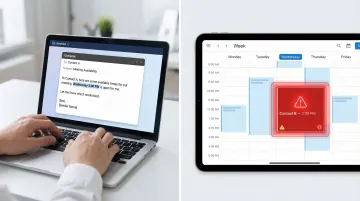
Fix: Offer slots conservatively, and confirm availability immediately after booking. For high-stakes scheduling, use Google Calendar's Appointment Schedules feature, which syncs live availability.
Mistake 5: Using "Help Me Schedule" for Group Meetings (Legacy Limitation)
When Gemini's "Help me schedule" feature first launched, it supported only two-person scheduling. Attempting to use it for multi-person coordination failed because Gemini couldn't cross-reference multiple calendars.
Current status: As of March 2026, Gemini now supports group scheduling, proposing times that work for all attendees if calendar visibility is granted. For broader group coordination or external booking pages, use Google Calendar's Appointment Schedules instead.
Troubleshooting Gmail Meeting Scheduling Issues
Even straightforward scheduling workflows can hit roadblocks. The most common problems fall into three categories: missing UI elements, restricted feature access by plan, and invites that never reach attendees.
Problem 1: Calendar Icon or "Set Up a Time to Meet" Is Not Visible
This usually means you're on the Gmail mobile app — these features are desktop/web only — or the toolbar is hidden due to screen size or a browser extension conflict.
- Confirm you're on Gmail web (mail.google.com) in a desktop browser
- Expand the compose toolbar by clicking the three-dot "More options" icon
- Disable browser extensions that modify Gmail's interface (ad blockers, productivity tools)
- Ensure your browser is up to date and not using compatibility mode
Problem 2: "Help Me Schedule" Button Does Not Appear
This feature requires a qualifying Google Workspace plan (Business Standard or above) or Google AI Pro/Ultra; free Gmail accounts do not have access. Gemini features also need to be enabled by the Workspace admin.
- Verify your account plan type (Settings → See all settings → Accounts and Import)
- If on a Workspace plan, confirm with your admin that Gemini features in Workspace services are enabled
- Rollout began gradually in October 2025; some eligible users experienced delayed access even on qualifying plans
Problem 3: Calendar Event Was Created but Invitees Did Not Receive Notification
The most likely cause: the event was saved without confirming the invite dialog, or attendee emails were entered incorrectly. Check the following:
- Open Google Calendar and locate the event
- Verify that attendee email addresses are listed in the event details
- Use the "Email guests" option to resend invitations
- Confirm the event was not accidentally saved as private (which hides it from guests)
Conclusion
Gmail's three scheduling methods each solve a different problem. "Create event" handles confirmed internal meetings instantly; "Offer times you're free" gives external contacts clickable options; Gemini's "Help me schedule" handles availability matching when coordination is complex. The key is choosing the right method for the situation.
These tools work best alongside a few consistent habits:
- Keep subject lines descriptive so auto-filled event titles make sense
- Review auto-populated event details before saving — attendees and times aren't always correct
- Follow up promptly when you've shared time slots, so momentum doesn't stall
Get those details right, and scheduling stops being a coordination problem.
Frequently Asked Questions
Does Gmail have an appointment scheduling tool?
Yes, Gmail offers built-in scheduling features including "Offer times you're free" (which shares clickable availability slots) and Google Calendar's Appointment Schedules (which generates a shareable booking link). Both are accessible from within Gmail or Google Calendar, and Appointment Schedules replaced the legacy Appointment Slots feature in August 2024.
When you schedule send an email, does the recipient know?
No, the recipient does not see that an email was scheduled. They receive it as a normal email at the time it arrives, with no indication it was held or delayed via Gmail's schedule send feature.
Can I schedule a meeting from Gmail on mobile?
You can create basic calendar events from the Gmail mobile app. However, the full "Offer times you're free" and "Help me schedule" features are primarily available on Gmail web and may be limited or absent on iOS and Android apps.
Does creating an event from Gmail automatically send invites to guests?
When you click "Save" on a Calendar event created from Gmail, Google Calendar prompts you to send email invitations to the listed guests. You confirm before invites are sent, so it is not fully automatic without that confirmation step.
What's the difference between "Offer times you're free" and "Create event" in Gmail?
"Create event" adds an event immediately to your calendar with a set time and sends invites. "Offer times you're free" shares multiple proposed slots as clickable links in an email — Gmail only creates the event once the recipient picks a time.
Can I add a Google Meet link when scheduling from Gmail?
Yes, when using "Offer times you're free," you can select "Online meeting" as the format during setup, which automatically generates and attaches a Google Meet link to the event invitation.