Introduction
Missed follow-ups cost professionals more than time—they cost deals, relationships, and credibility. Yet knowledge workers spend 28% of their workweek on email, and critical messages still slip through. Most professionals rely on memory alone to track their 117 daily emails—even though Gmail has built-in follow-up reminder tools most people never configure.
This guide covers each native Gmail reminder method, when to use it, and when a smarter solution makes more sense for high-volume inboxes.
Key Takeaways
- Three native options cover most follow-up needs: Nudges (automatic), Snooze (manual delay), and Google Tasks (to-do integration)
- Enable Nudges in Gmail Settings → General tab—it surfaces unanswered emails automatically
- Snooze reschedules specific emails to reappear at a chosen time
- Native tools work well for light use; high-volume professionals benefit from AI tools that detect and draft follow-ups automatically
- Tools like NewMail AI automate follow-up detection inside Gmail without manual reminder setup
How to Enable Follow-Up Reminders in Gmail
Method 1: Enable Gmail Nudges (Automatic Follow-Up Suggestions)
Gmail Nudges is a built-in feature that resurfaces emails you sent or received but haven't replied to. It appears as a prompt like "Sent 3 days ago—follow up?" at the top of your inbox. It requires no manual setup beyond enabling the feature once in Settings.
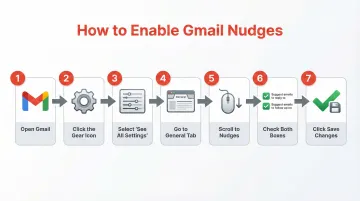
How to Enable Nudges:
- Open Gmail
- Click the gear icon (top right)
- Select "See all settings"
- Go to the General tab
- Scroll to Nudges
- Check both boxes:
- "Suggest emails to reply to"
- "Suggest emails to follow up on"
- Scroll down and click Save Changes
Key Limitation:
Nudges don't give you precise control over timing. Gmail's algorithm decides when to resurface emails—typically after a few days for incoming emails and three days for outbound emails—which may not suit time-sensitive follow-ups.
Method 2: Use Gmail Snooze to Set a Manual Follow-Up Reminder
Snooze temporarily removes an email from your inbox and returns it at a time you choose. It's useful when you've read an email but aren't ready to act on it yet.
How to Snooze an Email:
- Open Gmail
- Hover over the email (don't open it)
- Click the clock icon (Snooze)
- Select a preset time:
- Today
- Tomorrow
- Next Week
- Pick date & time (custom)
- The email disappears and reappears at the selected time
Where to Find Snoozed Emails:
Snoozed emails live in the Snoozed folder in the left panel. You can also search using the operator in:snoozed.
Key Limitation:
Snooze only works on incoming emails. It cannot remind you to follow up on an email you sent if the recipient hasn't replied.
Method 3: Convert Emails to Google Tasks for Follow-Up Tracking
Google Tasks lets you convert emails into actionable to-do items with due dates and times.
How to Add an Email to Google Tasks:
- Open the email
- Click the three-dot menu (More options)
- Select "Add to Tasks"
- A task appears in the side panel (right side of Gmail)
- Set a due date and time for the follow-up
- Access the task anytime from the Google Tasks panel in Gmail
When to Use This Method:
Use Google Tasks when you want to track email follow-ups as part of a broader to-do system. Tasks integrate across Gmail, Calendar, and other Workspace apps, making them ideal for multi-step workflows.
Method 4: Use Gmail Schedule Send to Pre-Write a Follow-Up
Schedule Send lets you write your follow-up email in advance and have Gmail send it at a specific date and time. Unlike the methods above, it sends the email automatically rather than prompting you to act. This is useful when you already know your follow-up content and timing.
How to Schedule a Follow-Up Email:
- Compose your follow-up email
- Click the dropdown arrow next to the Send button
- Select "Schedule send"
- Choose a date and time
- The email waits in the Scheduled folder until sent automatically
Key Limitation:
The email sends regardless of whether the recipient has already replied. If a response comes in before the scheduled send time, you must manually cancel the scheduled email by opening the Scheduled folder and deleting it. Gmail offers no automatic cancellation based on recipient replies.
When to Use Each Gmail Follow-Up Reminder Method
The right method depends on your email volume, how much timing control you need, and whether you're following up on sent or received emails.
Comparison Guide:
| Method | Best For | Strengths | Limitations |
|---|---|---|---|
| Nudges | Passive monitoring, low-consequence follow-ups | Zero setup, catches missed replies | No timing control, unpredictable surfacing |
| Snooze | Precise per-email control, received emails | Time-certain, manual control | Only works on incoming emails, no conditional logic |
| Google Tasks | Multi-step workflows, structured to-do lists | Ownership, due dates, cross-app integration | Requires manual habit, not inbox-native |
| Schedule Send | First-touch timing, known content | Delivery timing control | Sends regardless of replies, requires manual cancellation |
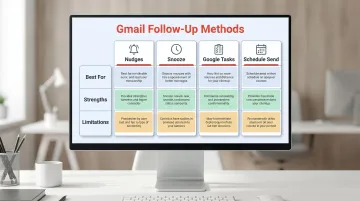
Each method covers a different use case — Nudges for passive monitoring, Snooze for time-sensitive received emails, Tasks for structured workflows, and Schedule Send when you already know exactly what to say. The table above captures which fits where.
These tools work well for most situations. But as email volume grows or workflows get more complex, their limits become harder to work around.
When Native Tools Fall Short:
Native Gmail methods become insufficient for:
- High email volume (50+ important threads daily)
- Conditional reminders ("only if no reply")
- Tracking multiple follow-up threads simultaneously
- Automatically drafting follow-ups in your voice
At that point, the manual overhead of managing reminders across snoozes, tasks, and drafts often cancels out the time you were trying to save. AI-native tools like NewMail AI handle conditional follow-ups and draft responses in your voice directly inside Gmail — without adding another tool to manage.
Common Mistakes When Setting Up Gmail Follow-Up Reminders
Skipping Nudges Setup and Relying on Memory Alone
Many professionals don't realize Nudges are turned off by default and need manual enabling. Checking Gmail settings takes under a minute and prevents a common source of missed follow-ups. Enable Nudges in Settings → General to activate automatic follow-up suggestions.
Misusing Snooze as a Substitute for Sending a Follow-Up
Snoozed emails return to your inbox, but the other party receives no new message. Snooze is a self-reminder tool only — it does not send a follow-up email. To follow up with the recipient, compose and send a new message once the email reappears.
Using Schedule Send Without Monitoring for Replies
The most common mistake with scheduled follow-ups is forgetting to cancel them after the recipient responds. Two steps prevent this from becoming a problem:
- Check the Scheduled folder regularly and cancel queued follow-ups once a reply arrives
- Don't assume Gmail will handle this automatically — it does not cancel scheduled emails based on recipient activity
Going Beyond Native Gmail: AI-Powered Follow-Up Reminders
Why Native Gmail Tools Have a Ceiling
Native Gmail follow-up tools require you to manually track every email, set reminders one by one, and have no awareness of whether a reply came in. For professionals managing dozens of active threads daily, this approach does not scale. Research shows that AI assistants can increase productivity by 14% on average, with novice workers seeing up to a 34% improvement.
What AI-Powered Follow-Up Tools Do Differently
AI-powered tools monitor your inbox for unanswered emails, surface threads that need attention automatically, and in some cases draft the follow-up for you in your own voice—no manual snoozing or task creation required per email. The key difference is conditional logic: reminders trigger only when no reply has been received, cutting out the manual cancellation step that makes Schedule Send impractical at scale.
NewMail AI as an Example of This Approach
NewMail AI works natively inside Gmail, uses AI to identify which emails need follow-up based on context, and drafts follow-up messages in your voice. The system learns your communication style in approximately 60 seconds through one-time analysis of your sent emails, then applies that tone to all drafted follow-ups.
For high-volume inboxes, this eliminates the manual overhead of setting individual reminders while keeping the inbox clean and prioritized. NewMail is also Google Security Certified and holds zero data retention agreements with AI providers like Anthropic and Mistral — a meaningful consideration for professionals in legal, finance, or other sensitive industries.
What to Look for When Evaluating Any AI Follow-Up Tool
When considering AI-powered follow-up tools, evaluate:
- Native Gmail integration — no tab-switching or external dashboards
- Conditional logic — only remind if no reply
- Privacy and data security certifications — GDPR compliance, zero data retention
- Drafting in your voice — personalised responses, not generic templates
- Setup speed — should take minutes, not hours
Conclusion
Gmail offers three native follow-up reminder methods: Nudges for passive monitoring, Snooze for per-email control, and Google Tasks for to-do workflows. The single highest-impact step most professionals haven't taken yet is enabling Nudges in Gmail Settings → General tab—it takes under a minute and catches missed follow-ups automatically.
Native tools work well for light use, but professionals handling high email volume benefit from AI-powered follow-up systems that automate reminder detection and drafting. If you're managing dozens of threads daily, a tool like NewMail AI goes further—detecting follow-ups in context and drafting responses in your voice, so nothing slips through.
Frequently Asked Questions
Can you set a reminder to follow up on an email in Gmail?
Yes. Gmail supports follow-up reminders through two main methods: Nudges (automatic suggestions surfaced by Gmail) and Snooze (manual per-email reminder). Both are available for free in any Gmail account.
How do I schedule a follow-up email in Gmail?
Compose the follow-up email, click the dropdown arrow next to Send, select "Schedule send," and pick a date and time. Check your Scheduled folder beforehand — Gmail sends it automatically even if the recipient has already replied.
How to find unanswered emails in Gmail?
Enable Gmail Nudges to have Gmail automatically surface unanswered threads. Alternatively, use the Gmail search operator is:sent combined with a date range to manually find sent emails with no reply in your Sent folder.
How do I turn off my Gmail follow-up reminder?
Go to Gmail Settings → See all settings → General tab → scroll to Nudges → uncheck one or both boxes → Save Changes. For Snooze reminders, open the Snoozed label, hover over the email, and click the X to remove the snooze.
Why am I getting emails that say 'Follow up' in Gmail?
This is Gmail's Nudges feature in action. Gmail detects emails you sent that haven't received a reply within a few days and resurfaces them with a "Follow up?" prompt at the top of your inbox. You can turn this off in Gmail Settings under the Nudges section.
How do I write a polite follow-up email in Gmail?
Reference the original email context, keep the message brief, offer a clear next step or question, and avoid language that implies the recipient forgot. Use a helpful tone rather than a pressuring one. Tools like NewMail AI can handle this automatically — drafting follow-ups that match your writing style and tone.