Introduction
Dozens of neatly labeled emails still cluttering your inbox? You're not alone. According to Microsoft's Work Trend Index, knowledge workers spend 28% of their workweek managing email — yet many still hit the same wall: applying a label in Gmail does not move emails out of the inbox. Users often build elaborate labeling systems only to find their inbox remains a chaotic mess.
The issue stems from Gmail's tag-based architecture. Labels and filters are powerful, but results vary wildly based on which actions you select alongside "Apply the label." Below, you'll find the exact steps to fix this — plus the configuration mistakes that trip most people up.
Key Takeaways
- Create a filter that checks both "Apply the label" and "Skip the Inbox (Archive it)" to move labeled emails automatically
- Gmail filters support sender, subject, keywords, recipient, and attachment criteria
- Filters apply to future emails by default; enable "Also apply filter to matching conversations" for retroactive processing
- Label-based filters work best for predictable senders and subjects — newsletters, receipts, and automated notifications
- High email volumes or shifting priorities call for AI email assistants like NewMail AI, which categorize and triage without manual rules
How to Automatically Move Labeled Emails Out of Your Gmail Inbox
To automate this process, you need two components working together: a Gmail label (your destination folder) and a filter that both applies that label and skips the inbox. Without the "Skip the Inbox" action, emails land in both the inbox and the label folder — which defeats the purpose entirely.
Step 1: Create a Label
Navigate to Gmail's left sidebar and click the "+" icon next to "Labels." Enter a descriptive name such as "Newsletters," "Receipts," or "Team Updates." Nest labels under a parent category if you're managing several related groups.
Well-named labels simplify filter management later. Use clear, category-based names rather than vague terms like "Misc" or "Stuff."
Step 2: Open the Filter Setup
Access Gmail Settings → "See all settings" → "Filters and Blocked Addresses" tab, then click "Create a new filter." Alternatively, use the search bar's dropdown arrow to build criteria directly and convert it into a filter.
Available filter criteria include:
- From - Sender address or domain
- Subject - Subject line keywords
- Has the words - Body content search
- Doesn't have - Exclusion terms
- Has attachment - Presence of attachments
- Size - Message size thresholds
Combining multiple criteria creates more precise targeting. For example, filtering by both sender domain and subject keywords reduces false matches.
Step 3: Set the Filter Actions (the Critical Step)
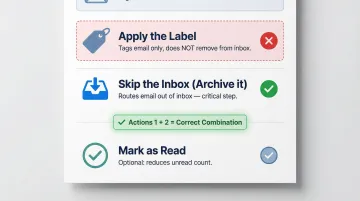
After clicking "Create filter," configure these three actions:
- Apply the label — Select the label from Step 1. This alone does NOT remove emails from your inbox; most users stop here and stay confused.
- Skip the Inbox (Archive it) — This is the critical box. It's what actually routes incoming emails out of your inbox and into the label folder. Don't skip it.
- Mark as read (optional) — Useful for low-priority automated notifications so your label folder doesn't show an inflated unread count.
Step 4: Apply the Filter to Existing Emails
Before clicking "Create filter," check the box reading "Also apply filter to matching conversations." This retroactively applies the rule to emails already in your inbox, not just future messages.
Warning: This retroactive application is irreversible in bulk. Confirm your filter criteria are correct before enabling this option.
Why Labeled Emails Still Show Up in Your Inbox
Gmail labels are not the same as folders. A label is a tag — an email can be both "in the inbox" and "in a label folder" at the same time unless you explicitly tell Gmail otherwise.
This is the root of the confusion: "Apply the label" only tags the email. "Skip the Inbox" is what actually removes it from your primary inbox view. If your filter uses only "Apply the label," you need to add "Skip the Inbox" to complete the job.
How to edit an existing filter:
- Navigate to Settings → Filters and Blocked Addresses
- Click "Edit" next to the problematic filter
- Add the "Skip the Inbox (Archive it)" action
- Save changes
Fixing the filter handles new incoming emails — but older messages already in your inbox won't move automatically. Emails that arrived before the filter was created are only affected if you checked "Also apply filter to matching conversations" at setup. If you didn't, re-run the filter now or bulk-select those emails and move them manually.
Manual action distinctions:
- "Move to" - Removes email from inbox but applies no visible label
- "Label as" - Applies label but does not move email out of inbox
- Filter with both actions - Applies label AND removes from inbox (the solution)
When to Use Label Filters vs. Other Gmail Inbox Tools
Label-based filters with "Skip the Inbox" work best for consistent, predictable email types where senders, subject patterns, or keywords are stable:
- Newsletters from known domains
- Automated receipts from e-commerce sites
- Calendar invite responses
- Internal notification emails
- Project-specific threads from recurring contacts
When this approach becomes less effective:
- Senders change often or are unpredictable
- Subject lines vary too much to match reliably
- Emails require dynamic triage instead of fixed rules
- High-volume inboxes have dozens of overlapping categories
- Filter upkeep becomes its own time sink
If label filters feel like too much overhead, two built-in Gmail tools offer lighter alternatives:
| Tool | How It Works | Best For |
|---|---|---|
| Gmail Tabs | Automatically sorts Social, Promotions, Updates, and Forums emails with no filter setup | Low-effort bulk inbox cleanup |
| Priority Inbox | Splits inbox into Important/Unread, Starred, and Everything Else sections | Surfacing priority messages without archiving |
Gmail Tabs suit anyone who prefers passive sorting over manual rules. One practical limit: according to official Google documentation, Tabs are disabled once your inbox exceeds 250,000 emails — at that scale, explicit label filters give you more control.
Common Mistakes That Break Your Label Filters
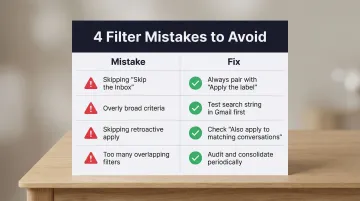
Most filter problems trace back to one of four predictable errors:
- Skip "Skip the Inbox": The filter labels the email correctly but your inbox still fills up. Always enable "Skip the Inbox (Archive it)" alongside the label action — they need to work together.
- Use criteria that are too broad: A keyword like "update" or "info" can sweep up emails you actually need. Test your search string directly in Gmail's search bar before saving the filter to preview exactly which messages it would match.
- Skip "Also apply filter to matching conversations": If you don't check this at creation time, the new rule won't touch existing emails — and your inbox will still be full of old matches.
- Let filters pile up without auditing: 20+ filters with overlapping criteria cause unpredictable behavior. Gmail's filter documentation notes that filters apply to specific messages, not entire threads. Review and consolidate rules periodically under Settings → Filters and Blocked Addresses.
When Gmail Filters Aren't Enough: Smarter Alternatives
Gmail filters are a solid starting point, but they have real limits. They can't understand email context, they require manual maintenance as senders and patterns change, and they offer no intelligence for dynamic categorization. For professionals managing high email volumes—the average office worker receives 121 emails per day—this becomes a bottleneck.
Alternative 1: Gmail's Built-In Priority Inbox and Tabs
For users who want lighter-touch organization without building filters, enabling Tabs (Promotions, Social, Updates) handles much of the sorting automatically through machine learning based on sender, content, and user interaction. Priority Inbox surfaces important messages without archiving others. These require no setup but offer less precise control.
Alternative 2: AI-Powered Email Assistants
For users managing 100+ emails daily, manual filter maintenance becomes unsustainable fast. AI-powered inbox tools offer intelligent, automatic organization that goes beyond keyword matching.
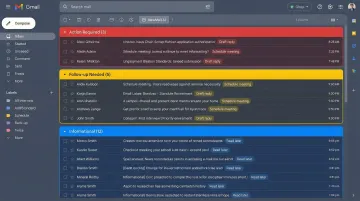
NewMail AI, for example, builds a custom priority inbox that learns your patterns and categories. Instead of configuring rules for every sender or subject variation, the AI routes emails based on context and priority—working directly inside Gmail without extra tools or complex setup.
NewMail's context-aware categorization analyzes conversation meaning rather than just subject lines or sender rules. It automatically detects what needs to happen next—whether a decision is required, information must be provided, or a follow-up is needed—and organizes emails accordingly. For executives where traditional filter systems break down, this distinction matters.
For teams in sensitive industries, NewMail is also built with security as its foundation:
- End-to-end encryption for all stored data
- Based in Switzerland, fully GDPR compliant
- Google Security Certified — the highest data security certification for Google Workspace apps
- Zero Data Retention by default (no email content stored)
Setup takes under 3 minutes, with a 14-day free trial providing full access to all features.
Frequently Asked Questions
What is the difference between move to and label as in Gmail?
"Move to" removes the email from the inbox and places it in the label folder without applying a visible label tag. "Label as" applies a label tag but leaves the email visible in the inbox. To achieve both labeling and inbox removal simultaneously, use a filter with both "Apply the label" and "Skip the Inbox (Archive it)" checked.
Why are labeled emails still in my inbox on Gmail?
Applying a label does not automatically remove an email from the inbox—the email stays in both the inbox and the label folder unless the filter also includes the "Skip the Inbox (Archive it)" action. Edit your existing filter to add this action.
Why do emails automatically go to archive?
Emails go to archive when a Gmail filter includes the "Skip the Inbox (Archive it)" action. This is intentional behavior that keeps emails accessible in All Mail and within their label folders while removing them from the primary inbox view.
Can I apply a filter to emails already in my inbox?
Yes. When creating a filter, checking "Also apply filter to matching conversations" will retroactively process existing emails in the inbox. Note: this option only appears during filter creation — it can't be applied from the filter settings page afterward.
How do I automatically move emails out of my inbox in Outlook?
In Outlook, the equivalent of Gmail filters are called "Rules." Create a rule via Settings → Mail → Rules to automatically move emails matching certain criteria (sender, subject, keywords) to a specified folder.
Does archiving a labeled email delete it from Gmail?
No, archiving in Gmail does not delete emails. Archived emails are removed from the inbox view but remain fully accessible in All Mail and within their assigned label folders — searchable and retrievable at any time.