Introduction
Opening your email client to hundreds—or thousands—of unread messages creates immediate cognitive overload. This digital chaos directly impacts your ability to focus, respond promptly, and maintain professional credibility. Research shows that email consumes 28% of the average professional's workweek, with workers receiving an average of 121 emails daily. For many professionals, 70% identify email as their top workplace stress source, with 42% describing their inbox as completely out of control.
Getting to inbox zero requires the right approach and sequencing — otherwise the clutter returns within weeks. This guide covers:
- The exact steps to empty a full inbox
- A practical organization framework
- Key habits for maintaining inbox zero
- The most common mistakes that derail long-term progress
Key Takeaways
- Emptying your inbox is a one-time process; keeping it empty requires a repeatable system
- The most effective approach combines bulk deletion, archiving, and simple folder structures
- Automation rules and filters are what keep a clean inbox clean — without them, clutter returns fast
- AI-powered tools can accelerate both cleanup and ongoing management for high-volume email users
- Batch processing and the one-touch rule keep your inbox from doubling as a to-do list
How to Empty Your Email Inbox: Step-by-Step
This is the one-time purge phase. The goal is not to read and respond to every email, but to give every email a destination so the inbox reaches zero.
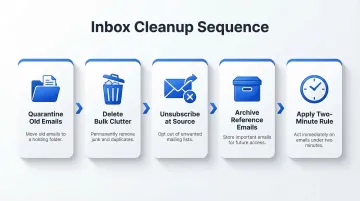
Step 1: Quarantine Everything Older Than 48–72 Hours
Create a temporary folder called "Old Inbox" and drag all emails older than 48–72 hours into it. This immediately gives you a manageable working inbox for recent messages and removes visual overwhelm.
This separation matters because it prevents context-switching between urgent triage (recent emails that still need action) and the historical backlog. Focus on what's urgent first, then work through the archive at a steady pace.
Step 2: Delete the Obvious Clutter First
Sort the Old Inbox folder by sender, then by subject. This allows you to identify and mass-delete entire categories:
- Promotional emails from retailers
- Expired event reminders
- Shipping notifications from completed orders
- Social media alerts
- Newsletter batches you never opened
Deleting 80% of the backlog in bulk is far more efficient than reviewing emails one-by-one. Only 24% of received emails are actually important, so aggressive filtering removes noise without losing value.
Step 3: Unsubscribe at the Source
For recurring senders generating bulk clutter, unsubscribe directly rather than just deleting. This prevents the same categories from returning and reduces incoming volume permanently.
Since approximately 46–47% of all email traffic is spam or unwanted, cutting subscriptions at the source is the highest-leverage move you can make. Most email clients make this straightforward:
- Gmail: One-click unsubscribe (RFC 8058) plus a "Manage subscriptions" hub for bulk removal
- Outlook: Subscription management via Settings > Mail > Subscriptions, which scans message headers automatically
Step 4: Archive What You Need to Keep (But Don't Need to Act On)
Anything that holds reference value—receipts, confirmations, past project threads—should be archived rather than deleted. The key distinction: archived emails are retrievable via search; deleted emails (once emptied from trash) are gone for good. For professionals, archiving is the safer default while still keeping the inbox clean.
Step 5: Process What Remains With the Two-Minute Rule
Apply the two-minute rule from David Allen's GTD methodology to remaining emails: if you can respond, file, or forward it in under two minutes, do it now. If it requires more time, move it to a "To-Do" or "Needs Action" folder.
Once this step is complete, the Old Inbox folder should be empty—everything has a destination, and the inbox is officially at zero.
How to Organize Your Inbox So It Stays Clean
Getting to inbox zero matters less than staying there. The structure you build after clearing out is what determines whether the backlog returns in a week.
Use a Simple Folder Structure (Not a Complex One)
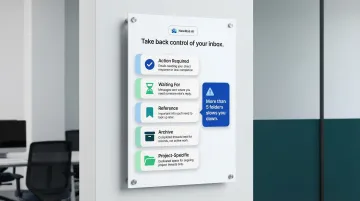
Keep folders to a minimum. A common effective system uses 4–5 folders:
- Action Required – Emails needing a response or task completion
- Waiting For – Sent items awaiting replies from others
- Reference – Information you may need to retrieve later
- Archive – Completed threads with no future action
- Project-Specific (optional) – Active initiatives requiring dedicated organization
More folders than this slows you down. If categorizing an email takes longer than reading it, the system is too complex to maintain.
Set Up Automation Rules and Filters
Automation is what keeps a clean inbox clean — without it, maintenance falls back on you every day. Gmail allows filters based on sender, keywords, and date ranges to automatically archive, delete, star, or apply labels. Outlook offers server-side rules that run even when the app is closed.
Even 5–10 well-configured rules can reduce daily inbox volume significantly:
- Route newsletters to a "Read Later" folder
- Automatically archive receipts and shipping confirmations
- Flag emails from key stakeholders or clients
- Move automated notifications to designated folders
This keeps the primary inbox reserved for messages requiring human attention.
Use Priority Labels or Categories for What Matters Most
Labels (Gmail) and categories (Outlook) allow you to tag emails by urgency or topic without physically moving them. This creates a visual priority layer on top of your folder structure.
For professionals managing high volumes, NewMail AI takes this further with a priority inbox that learns your custom categories — automatically sorting urgent messages to the top so morning triage takes minutes, not an hour.
Establish a Clear Action vs. Archive Decision Rule
Every email that enters the inbox should pass a single decision: does this require action, or is it reference material?
- Action items stay visible in your Action Required folder
- Reference material gets archived immediately
This binary decision rule eliminates the "I'll deal with it later" trap that leads most inboxes back into chaos within days.
Key Habits That Keep Your Inbox Empty
Reaching inbox zero is the easy part. Staying there requires consistent habits that prevent the backlog from creeping back. These four practices make the difference.
Batch Your Email Time (Don't Check Continuously)
Checking email reactively throughout the day is the single biggest driver of re-cluttering. Instead, establish 2–3 fixed email windows per day (morning, midday, end of day) and close the inbox outside those times.
Microsoft telemetry data reveals that employees are interrupted every two minutes during core work hours, and it takes an average of 23 minutes and 15 seconds to fully resume an interrupted task. A 2015 experimental study found that participants limited to checking email just three times daily experienced significantly lower stress compared to those with unlimited access.
Batching protects deep focus time and cuts the hidden cost of constant context-switching.
Apply the One-Touch Rule
The one-touch rule (OHIO: Only Handle It Once) means every email is handled the first time it's opened:
- Reply immediately
- Archive for reference
- Delete if irrelevant
- Add to a task list if action required
Never "mark as unread" to revisit later, as this recreates the cognitive backlog you just cleared. Treat the inbox as a processing queue, not a storage space.
Use AI Assistance for High-Volume Inboxes
For professionals handling dozens to hundreds of emails daily, manual processing becomes a bottleneck. AI email assistants can:
- Draft replies in your voice
- Extract action items and deadlines
- Auto-categorize incoming mail before you open the inbox
For teams and executives handling sensitive communications, privacy matters. Tools like NewMail AI process emails ephemerally with zero data retention by default and work natively inside Gmail, Outlook, and Apple Mail, so AI-assisted processing doesn't require trading away data security.

Do a Weekly Reset
Set aside 10–15 minutes at the end of each week to:
- Clear any emails that accumulated outside normal processing windows
- Archive completed threads
- Verify that automation rules are working correctly
Consistency here prevents the "slow creep" of inbox buildup that typically goes unnoticed until it's already out of control.
When to Do a Full Inbox Cleanup
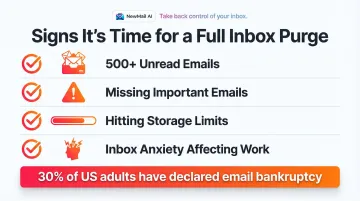
A full inbox purge (as outlined in the step-by-step section) is not a recurring weekly task—it's a one-time reset event. Certain signals indicate when it's time to do one:
Trigger Conditions:
- Inbox has grown beyond a manageable size (typically 500+ unread emails)
- Important emails are consistently being missed
- Storage limits are being hit
- Anxiety around opening the inbox is affecting work performance
A 2022 survey found that 30% of US adults have declared "email bankruptcy"—entirely deleting or abandoning their inbox due to overload. A full purge is how you avoid that drastic measure before it becomes the only option.
Most professionals only need one full purge to reset. After that, consistent daily habits — spending 10–15 minutes triaging email rather than letting it accumulate — are enough to keep the inbox under control long-term.
Common Mistakes That Keep Your Inbox Overflowing
Most people who try to organize their inbox are back to square one within a month. The mistakes aren't about effort—they're about approach.
Mistake 1: Using the Inbox as a To-Do List
Leaving emails in the inbox as reminders to act on them means the inbox never truly empties. Important action items get buried under new arrivals. Research shows that 12% of professionals explicitly use their email inbox as their primary time management system, which means constantly re-scanning a chronological pile instead of working through prioritized tasks.
The fix: Move actionable emails to a dedicated task list or "Action Required" folder immediately.
Mistake 2: Over-Building the Folder System
Creating 20+ folders feels productive but creates paralysis when filing emails and makes it harder to find things later. The more folders you build, the longer every filing decision takes—and the less likely you are to file at all.
The fix: Start with 4–5 folders maximum and only add more if a real need emerges. Google recommends avoiding more than 500 filters to prevent account slowdowns.
Mistake 3: Skipping the Unsubscribe Step
Deleting promotional emails without unsubscribing does nothing to stop the flow—the same senders are back the next day. The average employee receives 23 graymail messages each week, accounting for roughly 13% of all messages.
The fix: Unsubscribe from all recurring low-value senders during the initial purge and stop new subscriptions from entering in the first place.
Frequently Asked Questions
What is inbox zero and is it actually achievable?
Inbox zero was coined by productivity expert Merlin Mann in 2006. The "zero" refers to the amount of time your brain is in the inbox, not necessarily zero emails. It's achievable with the right system — the goal is sustainable management, not a perpetually empty count.
Should I delete or archive old emails?
Delete emails with no future reference value (promotions, expired notifications). Archive anything that may need to be retrieved later—receipts, confirmations, project threads. Archived emails remain searchable while keeping the inbox clear.
How long does it take to empty a full email inbox?
The time depends on inbox size and how much sorting is done manually versus in bulk. Most inboxes under 10,000 emails can be cleared in 1–3 focused sessions of 30–60 minutes each using bulk actions and filters, rather than reviewing email by email.
How often should I clean out my email inbox?
Establish a daily processing habit (2–3 email windows per day) plus a weekly 10–15 minute reset. A full purge is only needed as a one-time reset or if the inbox has grown significantly out of control again.
What is the difference between email folders and labels?
Folders physically move emails into a separate location (used in Outlook), while labels (Gmail) apply tags without moving them. Both can coexist in a well-organized system — labels let you tag one email under multiple categories simultaneously.
Can AI tools really keep my inbox organized automatically?
Yes. AI email assistants can auto-categorize incoming mail, draft replies, extract tasks, and filter low-priority messages automatically. For professionals handling sensitive data, look for tools with transparent privacy practices — specifically zero data retention policies and clear disclosure of how your emails are processed.